Production Interface Guide
The Production interface helps users quickly understand the production status and Project operation status, view production results, and also provides production logs and alarm records to help users quickly troubleshoot and resolve faults and exceptions, enabling stable production.
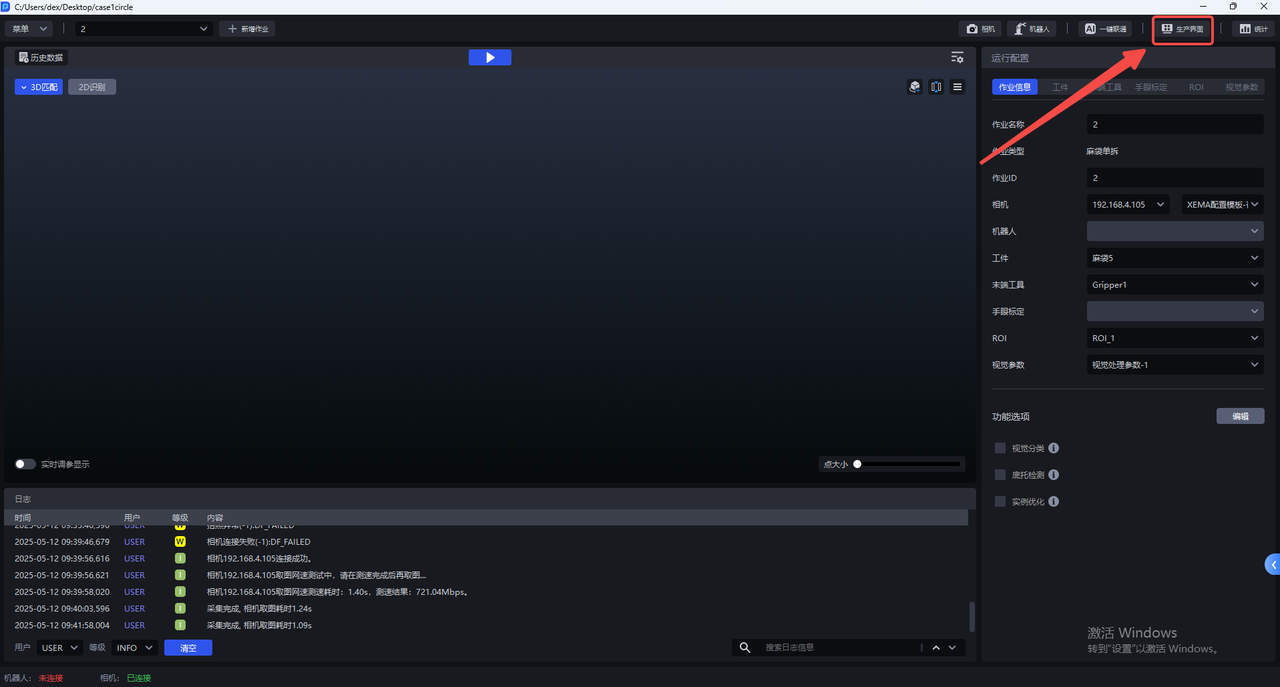
After opening the PickWiz main page, click Production Interface in the upper-right corner to enter.
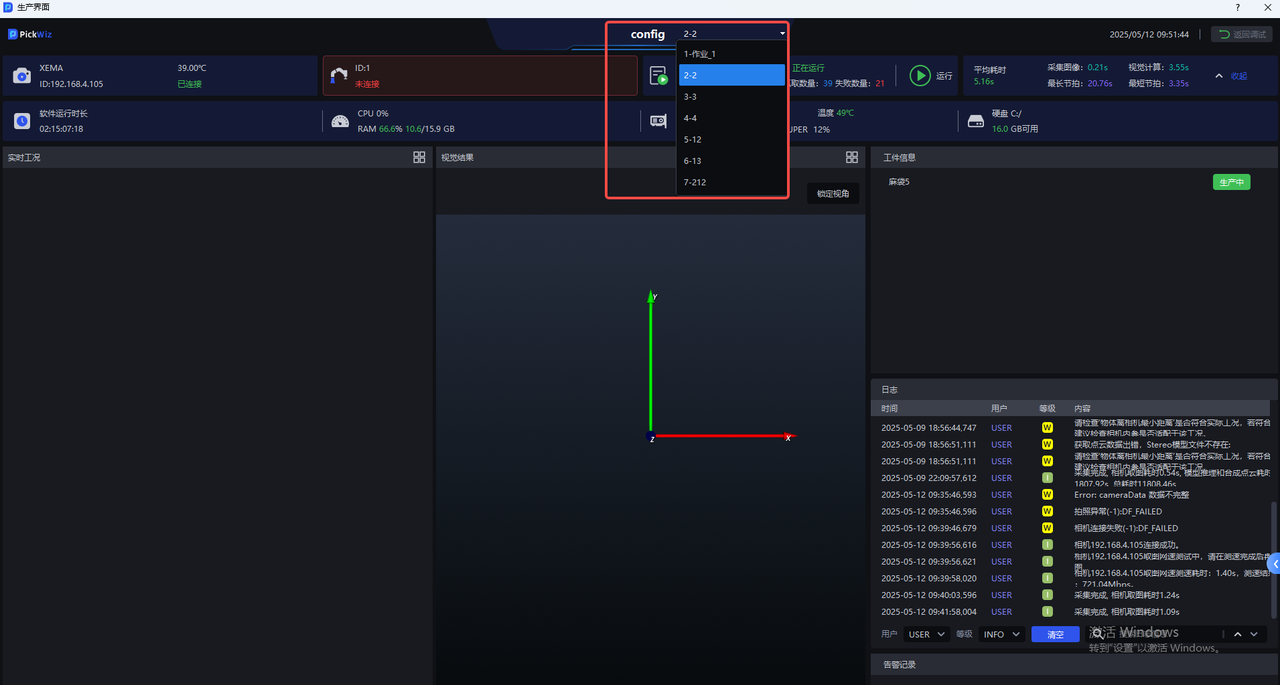
After entering the interface, you can select a running Task at “config” in the upper middle part of the interface to view its production information. Click the drop-down box to select a Task and view the corresponding production information. The option format is “Task ID-Task Name”.
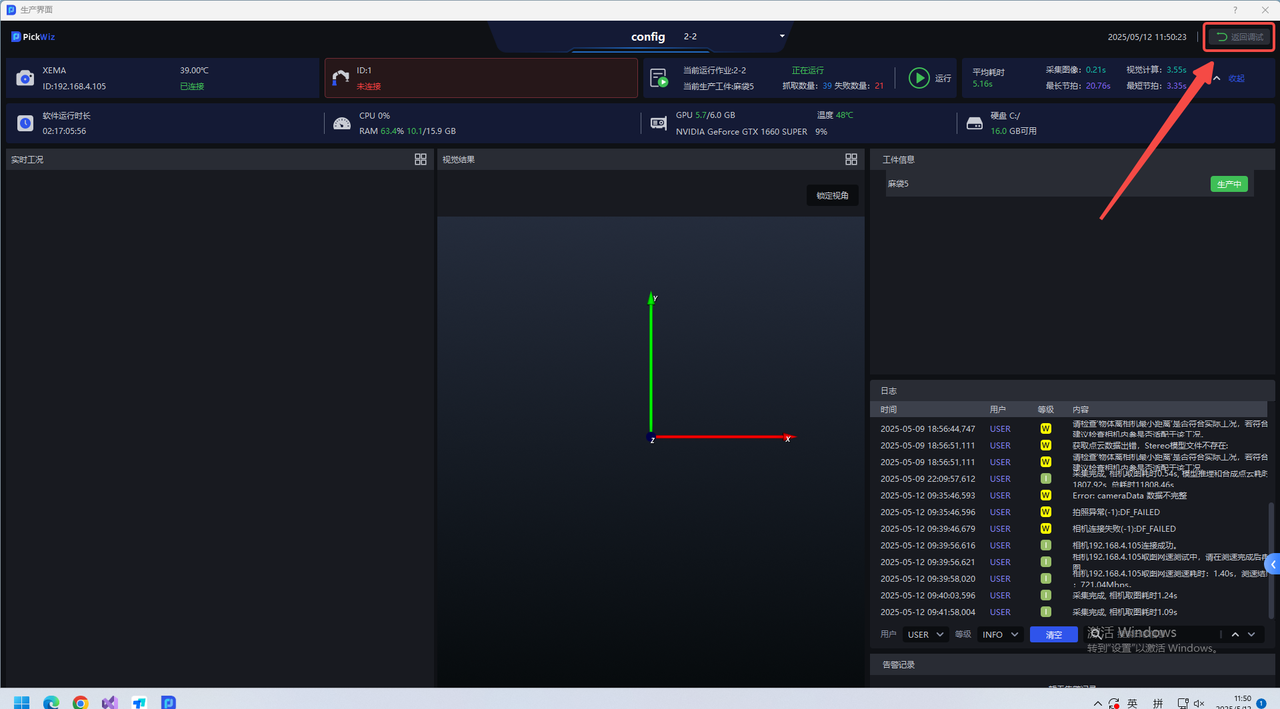
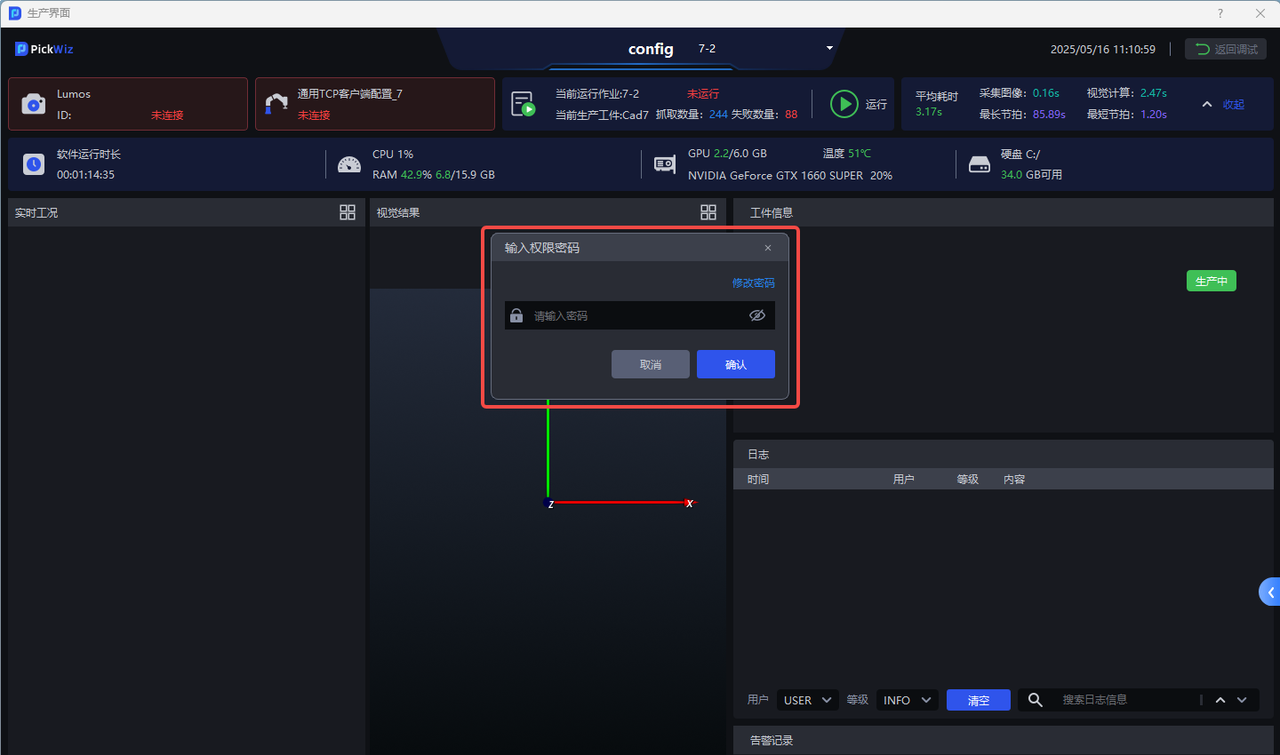
If an exception occurs during operation, or if you want to increase incoming material throughput, you need to return to the PickWiz main interface for debugging. You can click Return to Debugging in the upper-right corner of the Production interface, enter the permission password, and return to the main interface. The initial permission password is the factory default password and can be changed in the “Enter Permission Password” pop-up window.
The initial password is: df123456
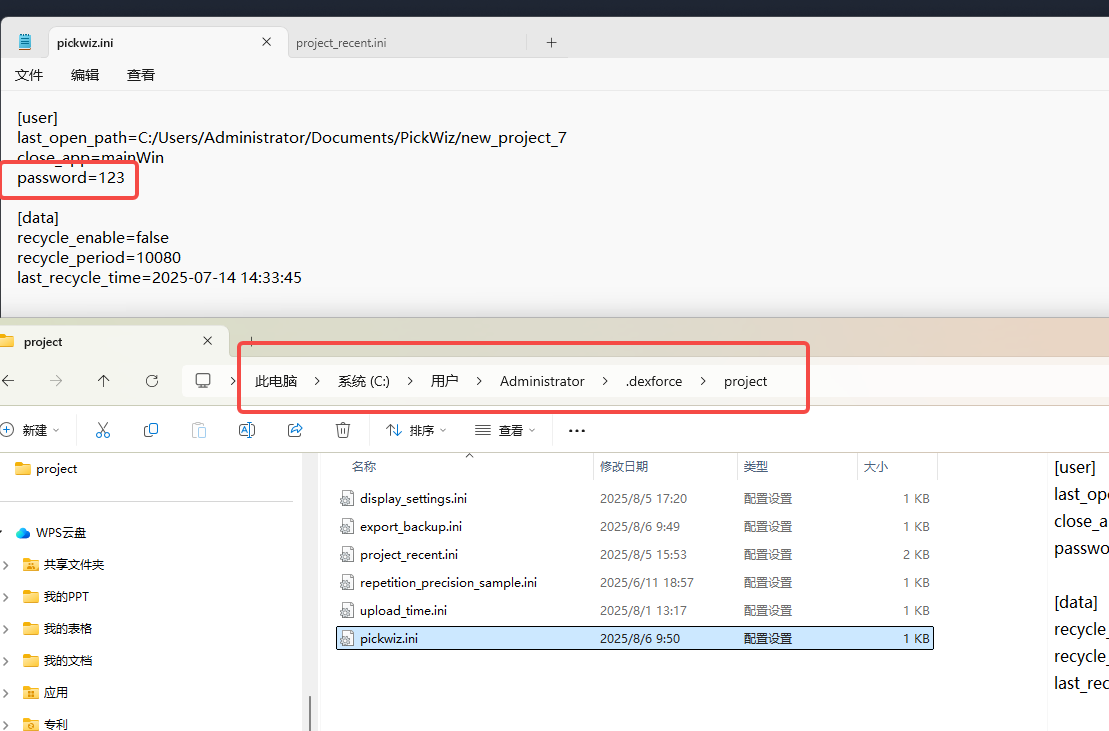
If you forget the password, you can open the file named pickwiz.ini in the C:\Users\dex\.dexforce\project folder to view your permission password for the Production interface, as shown below.
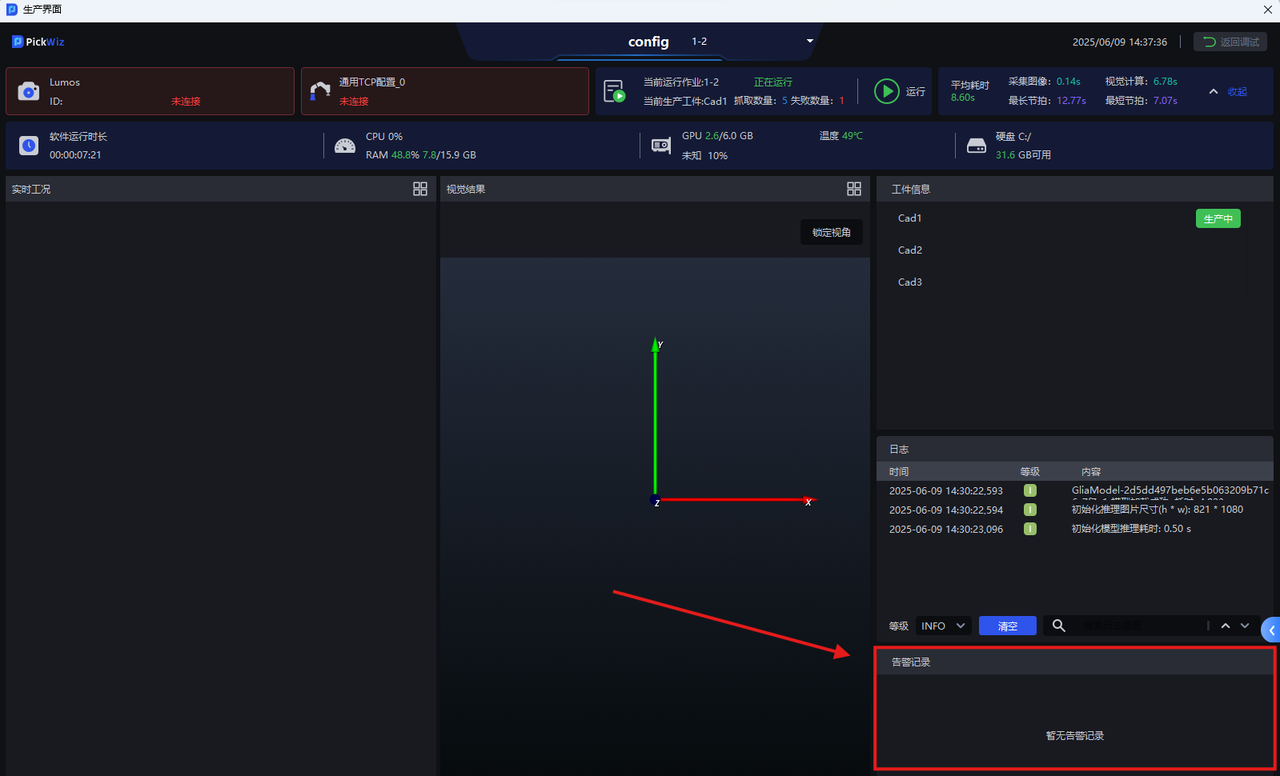
As shown below, the PickWiz Production interface can be roughly divided into the following 6 modules:
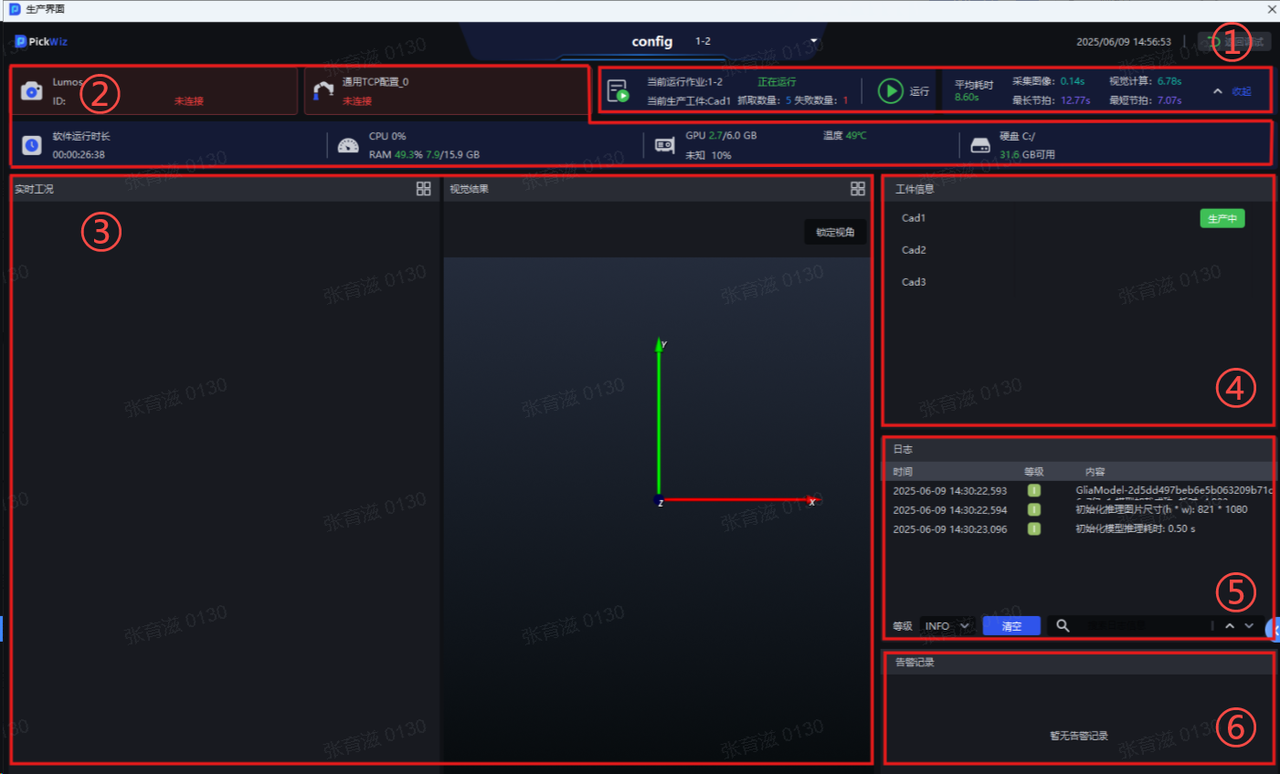
| Number | Functional Area | Functional Description |
|---|---|---|
| ① | task Operation Area | You can view the current task operation status, task production Target Objects, pick quantity, failure quantity, time consumption, etc., and run tasks that are not running |
| ② | Production Status Area | View Camera connection status, Robot connection status, disk space, system monitoring status, etc. |
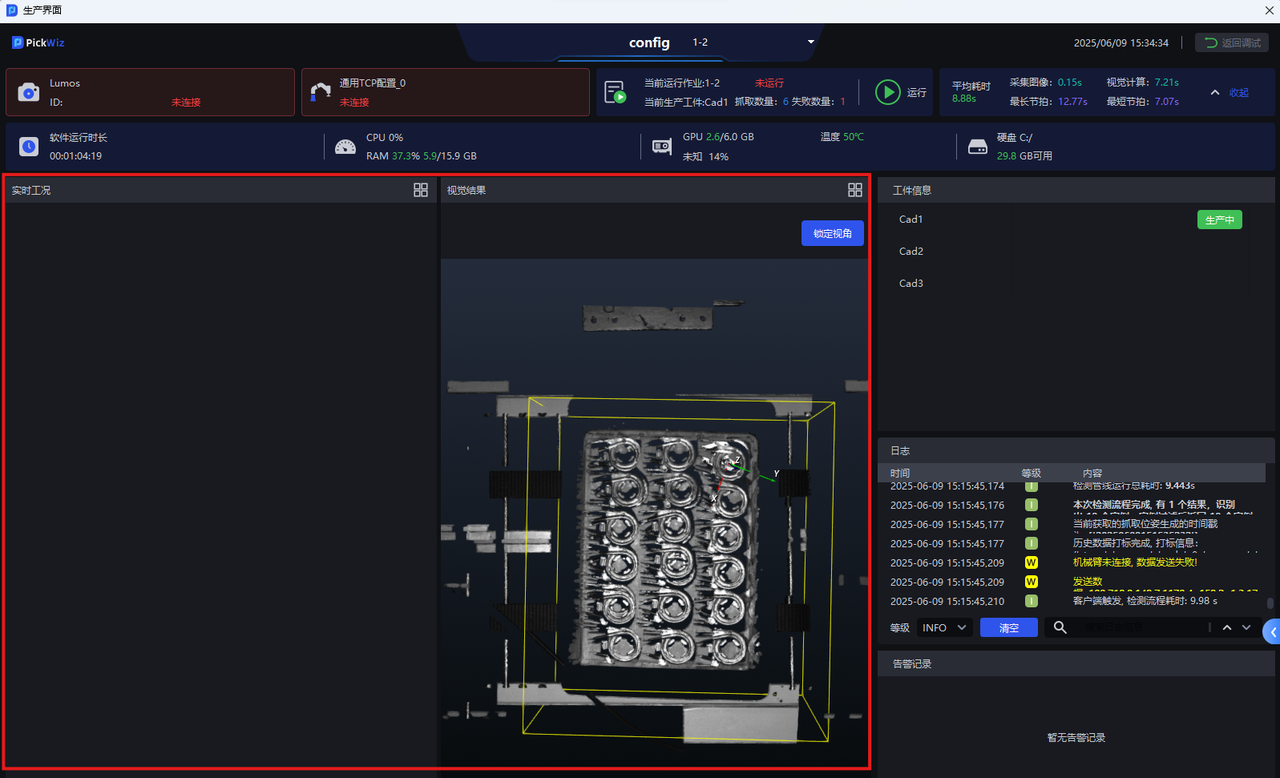
| ③ | Visualization Area | View live workstation conditions, recognition results, Picking Pose, pick sequence, etc. |
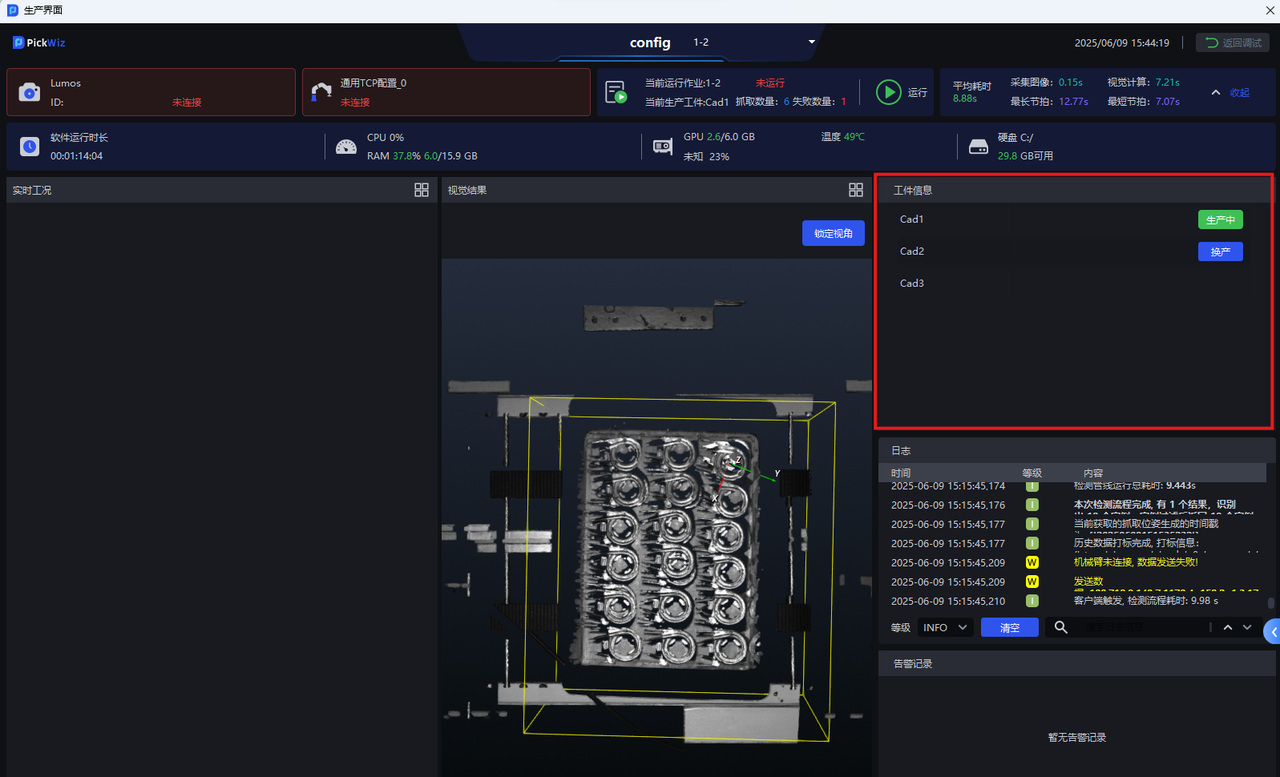
| ④ | Target Object Area | View the configured Target Objects of the current task and perform product changeover |
| ⑤ | Log Area | View PickWiz vision logs |
| ⑥ | Alarm Area | View operation alarm records |
1. task Operation Area
You can go to the status area at the top of the Production interface to view the task operation status during the production process and view task time consumption information, as shown below.
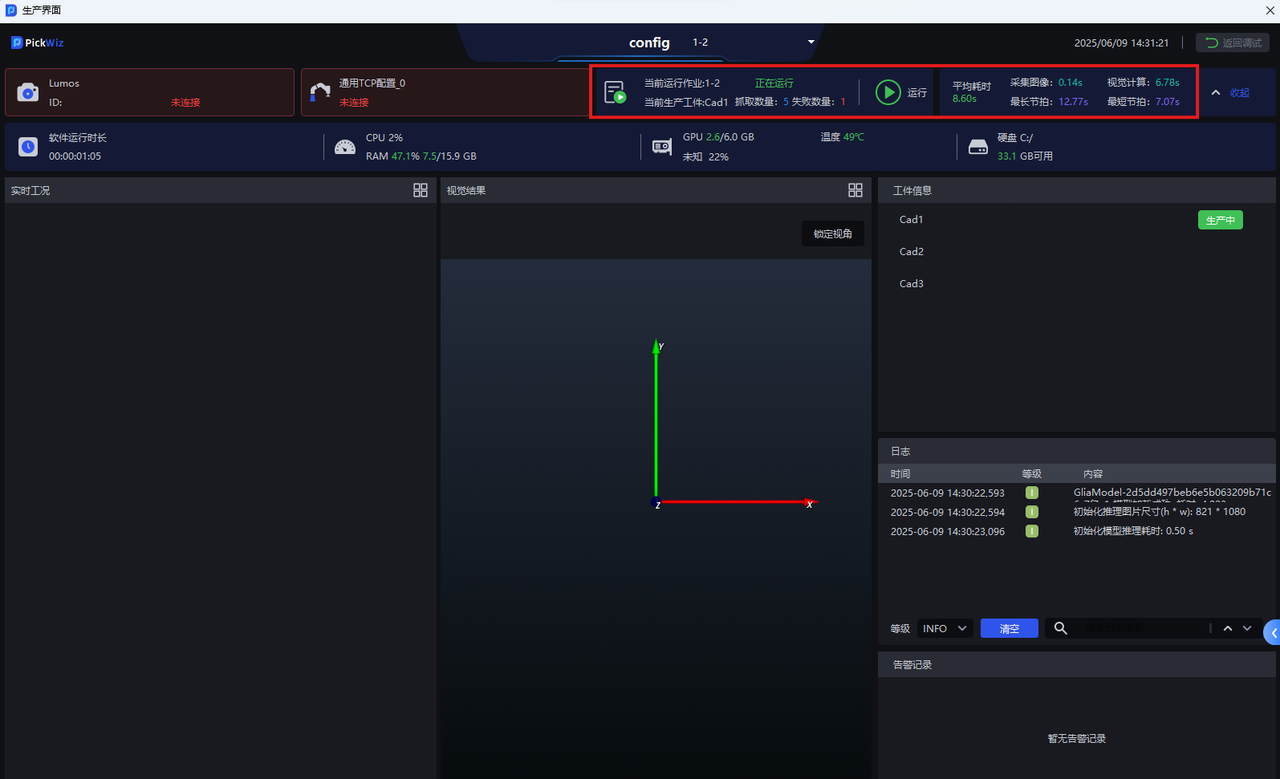
 | Current task operation status | You can view the current task production status, task production Target Objects, pick quantity, and failure quantity |
|---|---|---|
 | Run current task | Click to run the current task |
| — | Time Consumption Information | Average time consumption information for task operation, including average total time consumption per run, average image acquisition time, average vision computation time, as well as the longest and shortest Takt Time across all runs |
2. Production Status Area
When using the Production interface, you can go to the status area at the top of the Production interface to view various statuses during the production process, as shown below.
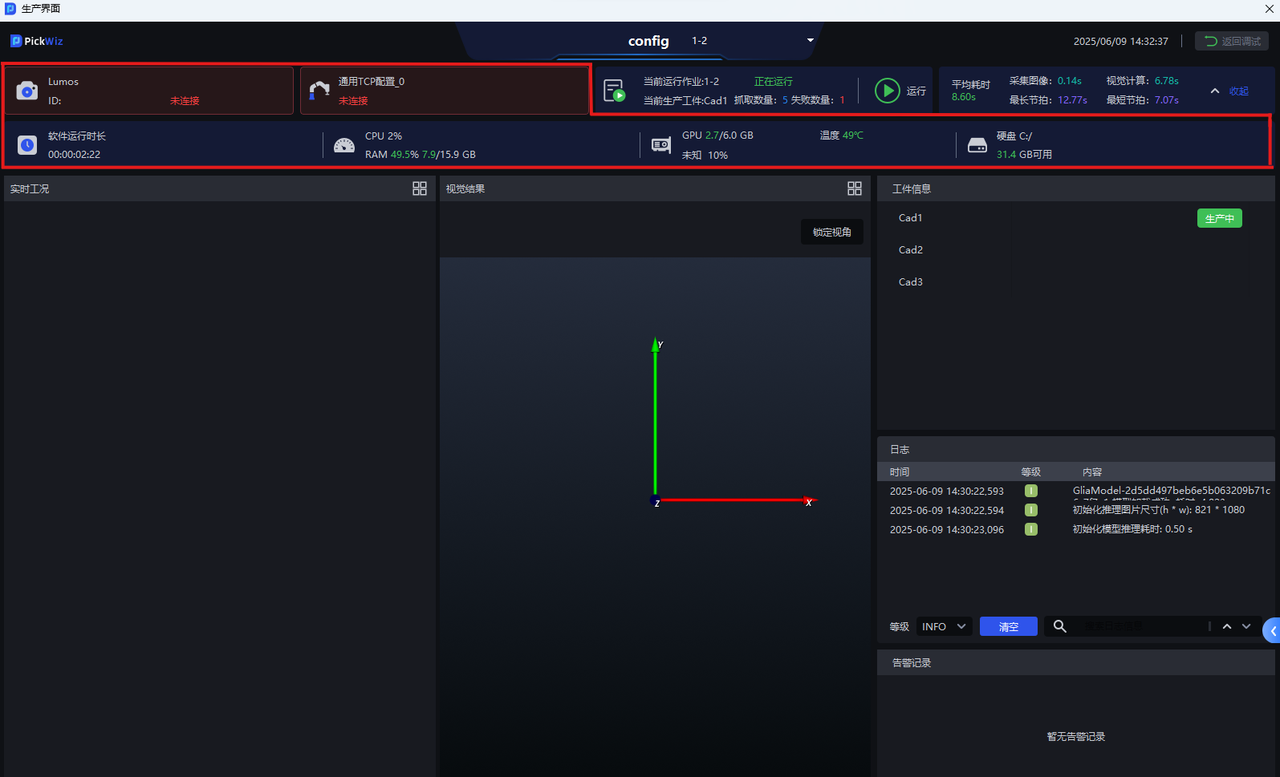
| Icon | Status/Operation | Description |
|---|---|---|
 | Camera connection status | You can view the Camera connection status, as well as the current Camera brand, ID, and temperature |
 | Robot connection status | You can view the Robot connection status, as well as the current Robot ID |
 | Software runtime | You can view the runtime duration of the current software session |
 | CPU and memory status | You can view the CPU and memory status (the percentage after CPU indicates CPU utilization) |
 | GPU status | You can view the GPU status (the percentage indicates GPU utilization) |
 | Disk status | You can view the usage status of the disk where the system is located. Insufficient remaining disk space will affect stable system operation |
3. Visualization Area
As shown below, you can view real-time working conditions and Vision Result in the Visualization Area. You can click Lock View in the upper-right corner of the Visualization Area to keep the 3D view unchanged before and after Camera capture during operation.
4. Target Object Area
You can view the Target Object names and statuses involved in production at the location shown below. When the type of incoming Target Object changes onsite, for example, from Target Object 1 to recognized Target Object 2, you can click Target Object 2 and then click the Change Product button that appears next to the corresponding Target Object to recognize and pick Target Object 2, thereby completing product changeover.
5. Log Area
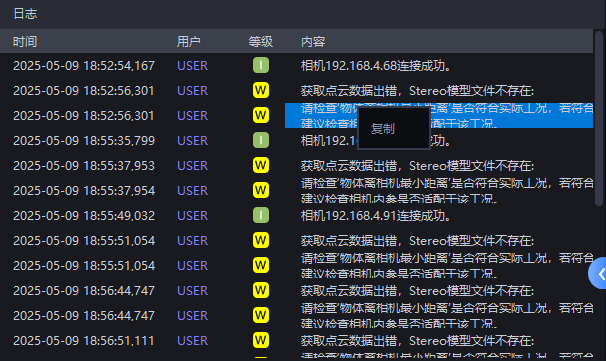
Production log records can be viewed in the lower-right corner of the Production interface.
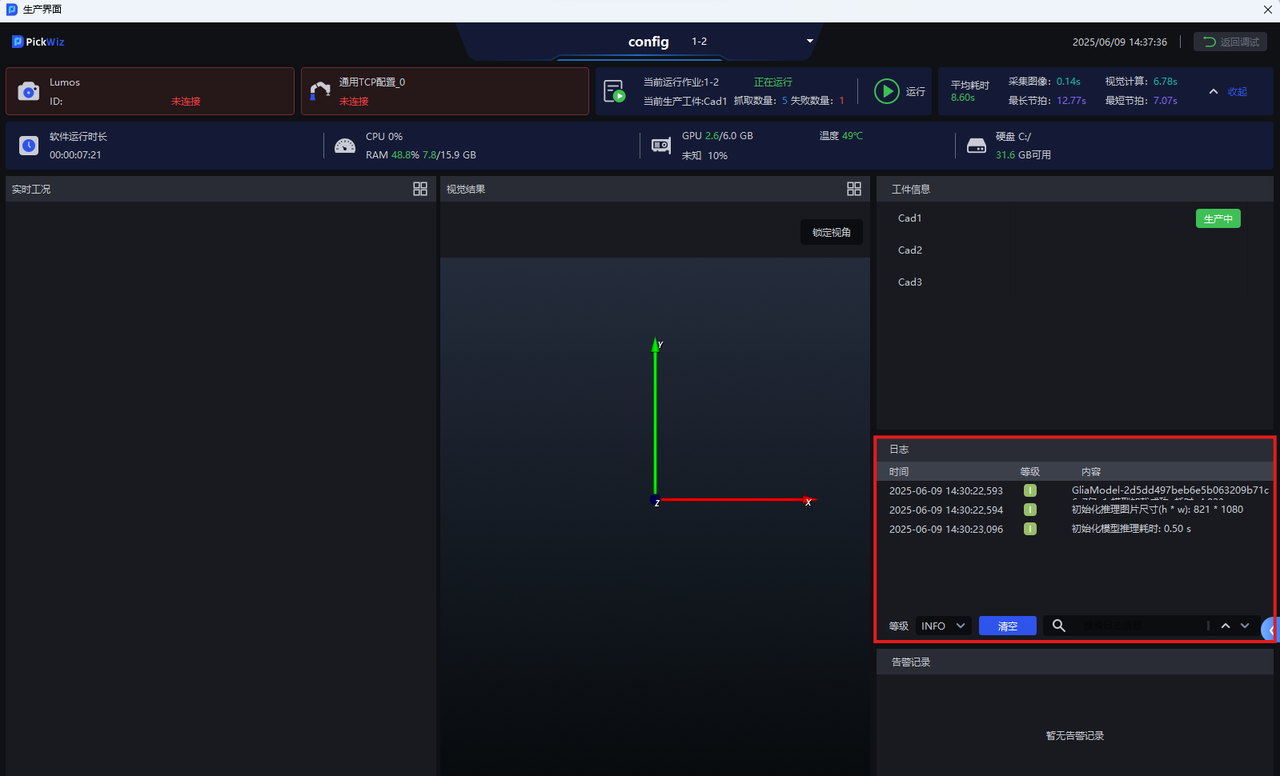
If you need to copy log content, right-click the log content and then click “Copy”. If you want to clear the log content, click the blue Clear button below.
6. Alarm Area
During the production process, you can view related alarm records during Project operation under “Alarm Records”.
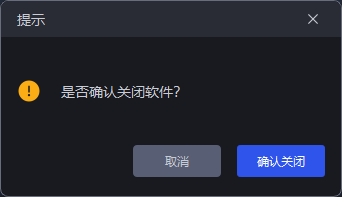
If you want to close the Production interface, click the software close button in the upper-right corner of the interface, then click Confirm Close in the pop-up window to exit the Production interface. After the Production interface is closed, the PickWiz main interface will also close together.