3D Vision Guidance Suite Hardware Setup
The 3D vision guidance suite is a complete solution independently developed by Dexforce that includes hardware (camera, industrial PC), software (3D vision guidance software), and AI algorithms, and is used to solve various typical 3D vision guidance scenarios. This article introduces the installation methods and connection methods for the hardware (camera, Robot, industrial PC).
1. Hardware Introduction
The hardware of the 3D vision guidance suite mainly includes the Robot, camera, and industrial PC, as shown below:
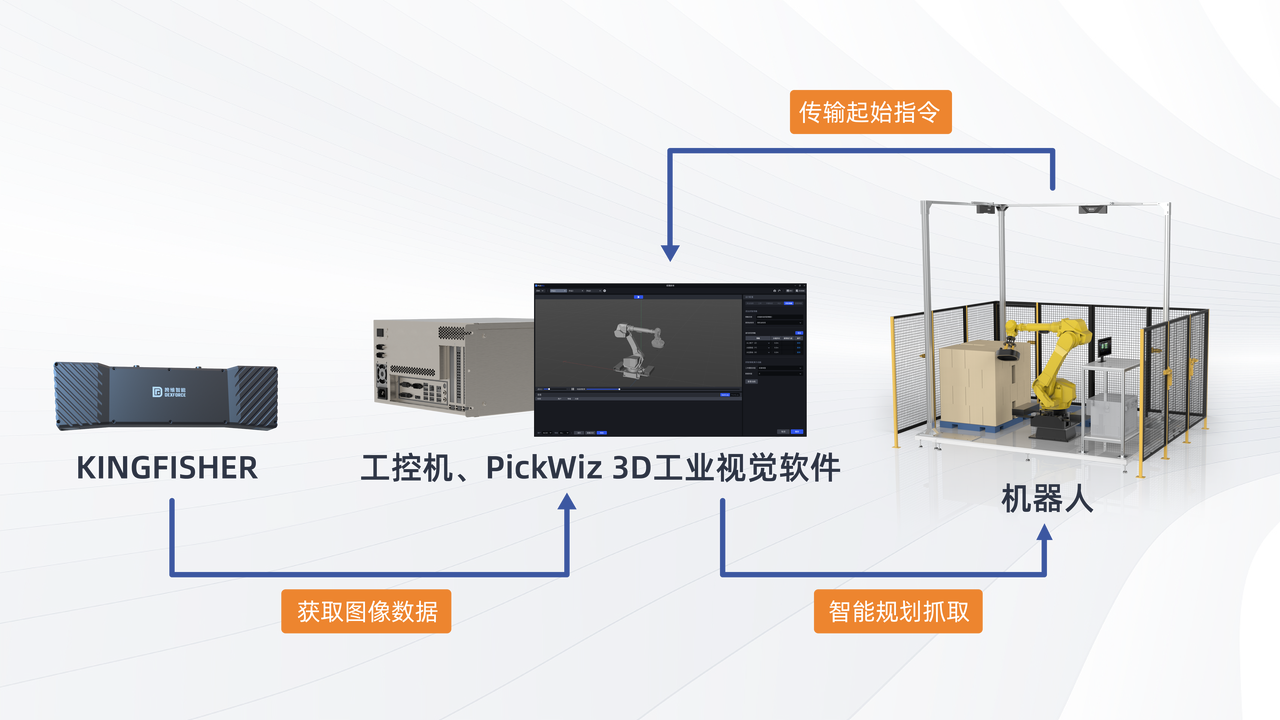
Robot
A Robot is a programmed mechanical device with a certain degree of autonomy that can perform tasks such as movement, operation, or positioning. It executes tasks according to the results output by the vision system.
A Robot unit usually consists of the Robot body, control cabinet, and teach pendant.
In highly automated industrial applications, a PLC (Programmable Logic Controller) may be used to control the Robot's movement and operations. When more advanced control and monitoring are required, a host computer may also be used for more complex Programming and control of the Robot, such as Path Planning, task scheduling, and motion control.
Camera
The camera refers to the 3D industrial camera independently developed by Dexforce, which is used to acquire images and position information of objects.
Industrial PC
This refers to the computer device that provides the runtime environment for Dexforce.
You can use the industrial PC provided by Dexforce (recommended), or use your own device as the industrial PC. For more information about the industrial PC, please refer to: Industrial PC Configuration Guide.
2. Camera Installation and Connection
2.1 Unboxing Inspection
After receiving the camera package, please confirm that the package is intact and undamaged.
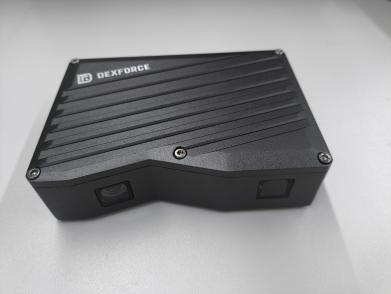
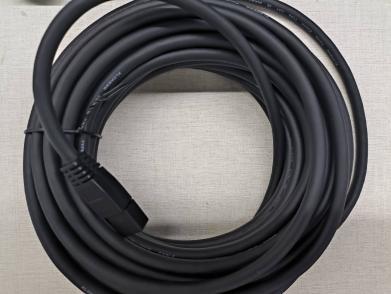
The following figures show examples of the items and accessories included in the camera package for reference only. Please refer to the actual contract.
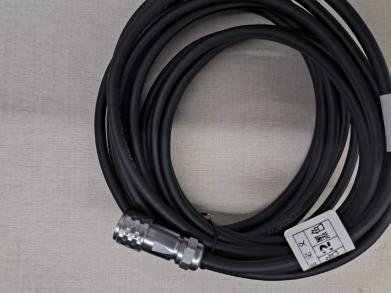

| Category | Name | Function |
|---|---|---|
| Camera Components | 3D Camera | Image acquisition |
| Camera Components | Standard Gigabit Ethernet Cable | Connect the camera and transmit data |
| Camera Components | Standard Power Cable | Connect the camera and supply power to the camera |
| Camera Components | Adapted Calibration Board | Parameter inspection and Extrinsic Parameter correction |
If any items are damaged or missing, please contact Dexforce.
2.2 Connect the Camera to the Industrial PC
(1)Select a suitable camera bracket, use the camera connector to secure the camera to the camera bracket, and remove the lens protective film after the camera is installed.
Camera connector (black sheet metal part) drawing: 图纸.STEP
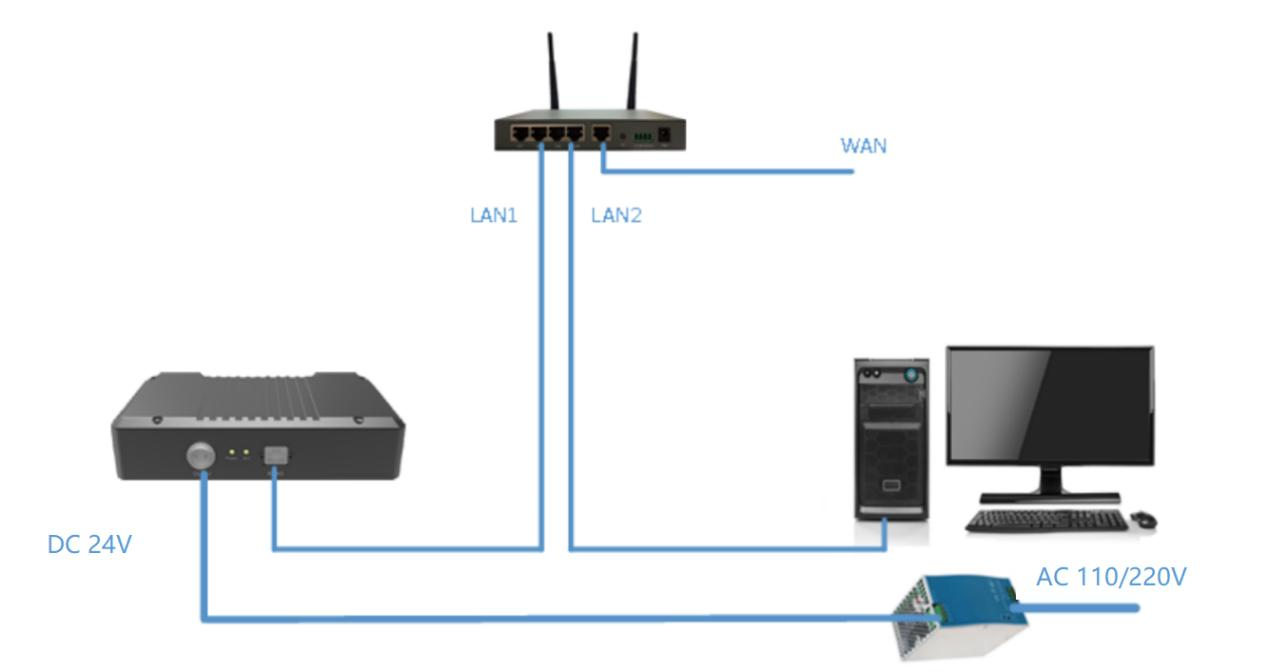
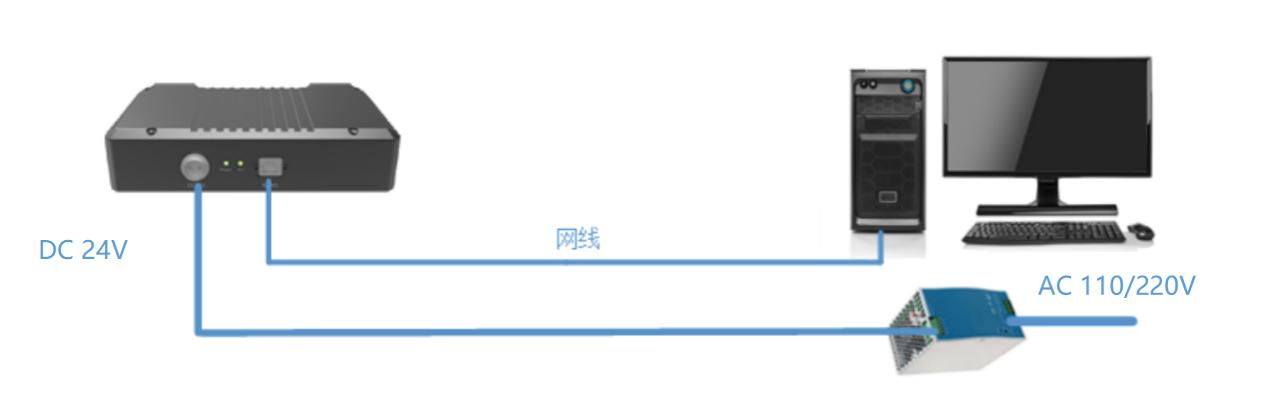
(2)Connect the network cable, with one end connected to the camera and the other end connected directly to the industrial PC or via a Router.
(3)Connect the Power Supply, with one end plugged directly into the camera power interface and the other end connected to a 220v power source.
The following are schematic diagrams of the camera wiring.
2.3 Connect the Camera to PickWiz
Please refer to Camera Connection and Parameter Adjustment Guide
3. Robot Installation and Connection
3.1 Robot Installation
(1)Connect the robot arm body to the Robot control cabinet
The robot arm body and the control cabinet are connected with a Cable. Align the direction and insert it slowly during connection.
(2)Connect the Robot teach pendant to the control cabinet
Insert the teach pendant cable into the control cabinet port, then place the teach pendant directly above the control cabinet.
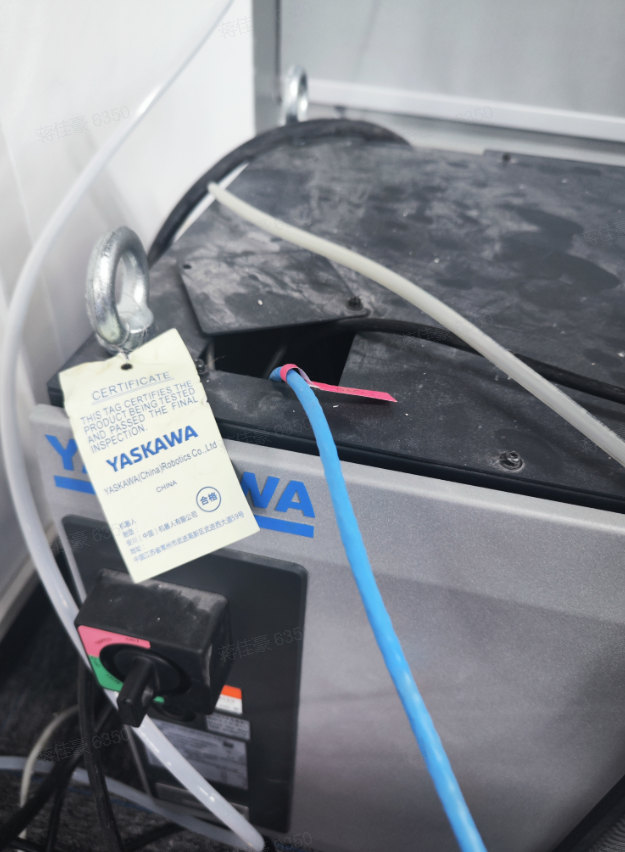
(3)Use a network cable to connect the Robot control cabinet and the industrial PC, as shown below.
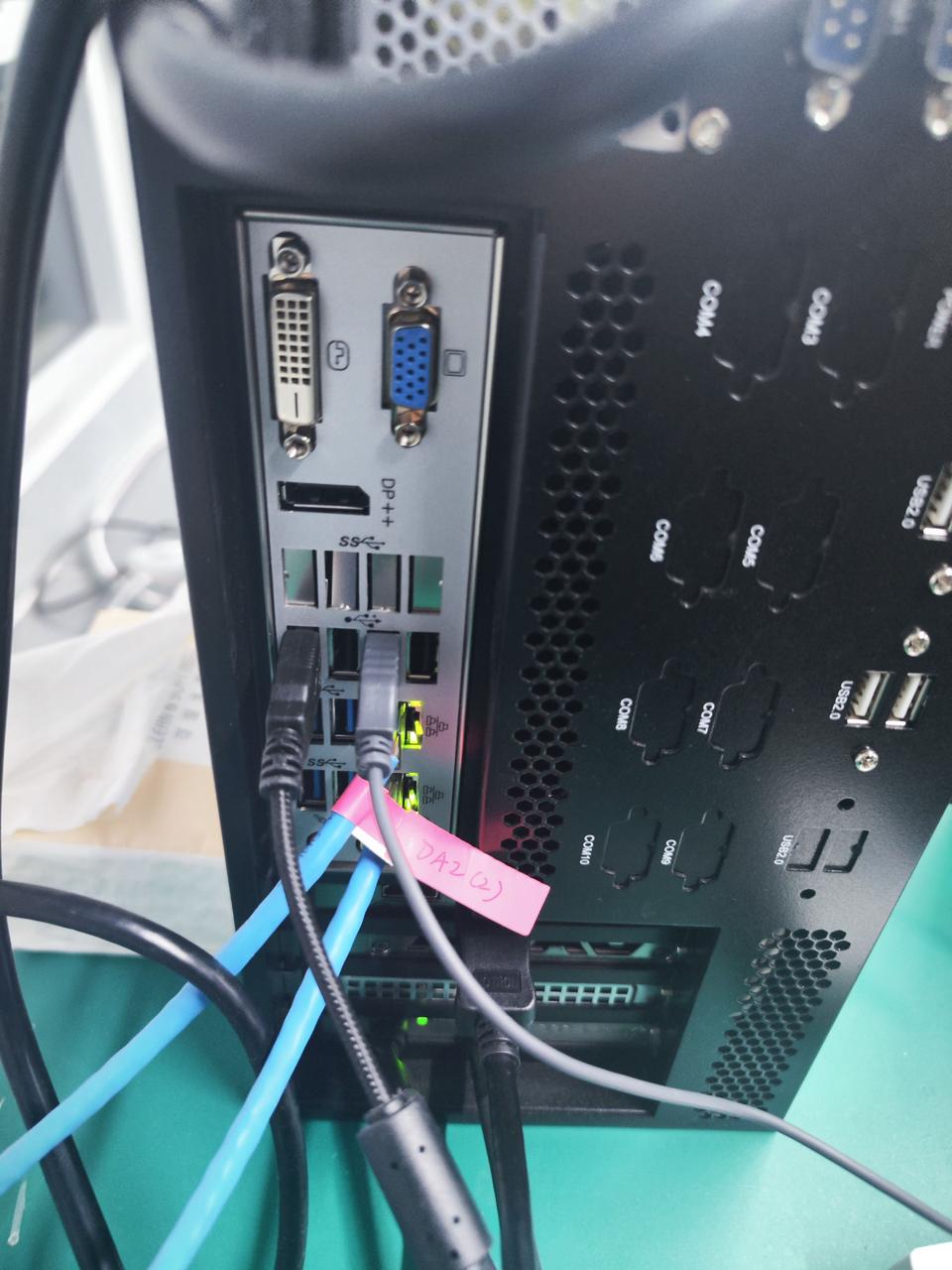
(4)Power on the control cabinet
Connect the control cabinet to the Power Supply, and power on the teach pendant to put the Robot into working status
3.2 Check the Robot System Environment
Teach pendant connection status
Connection status of the control cabinet network port and the industrial PC network cable
Whether the network segments are the same
Whether the TCP network communication package is enabled
Robot system version
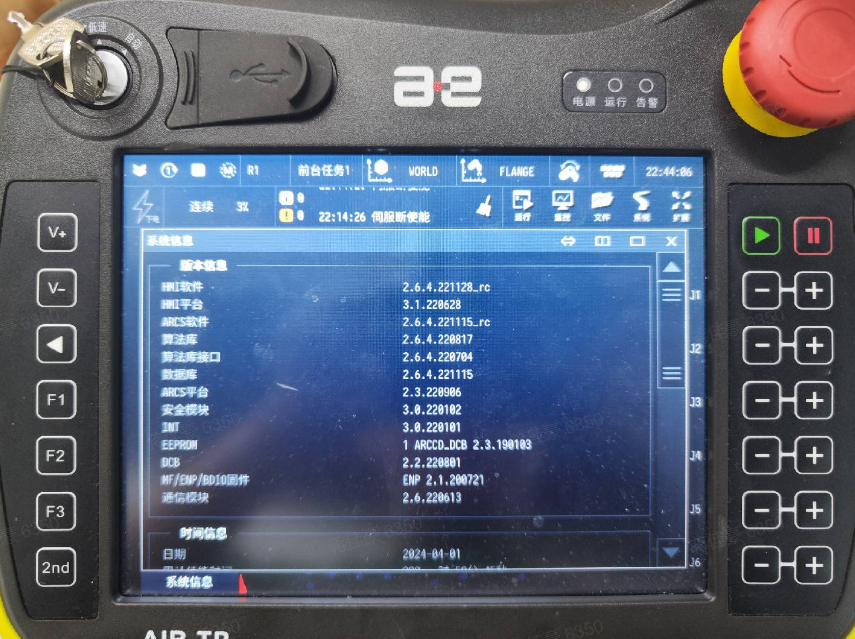
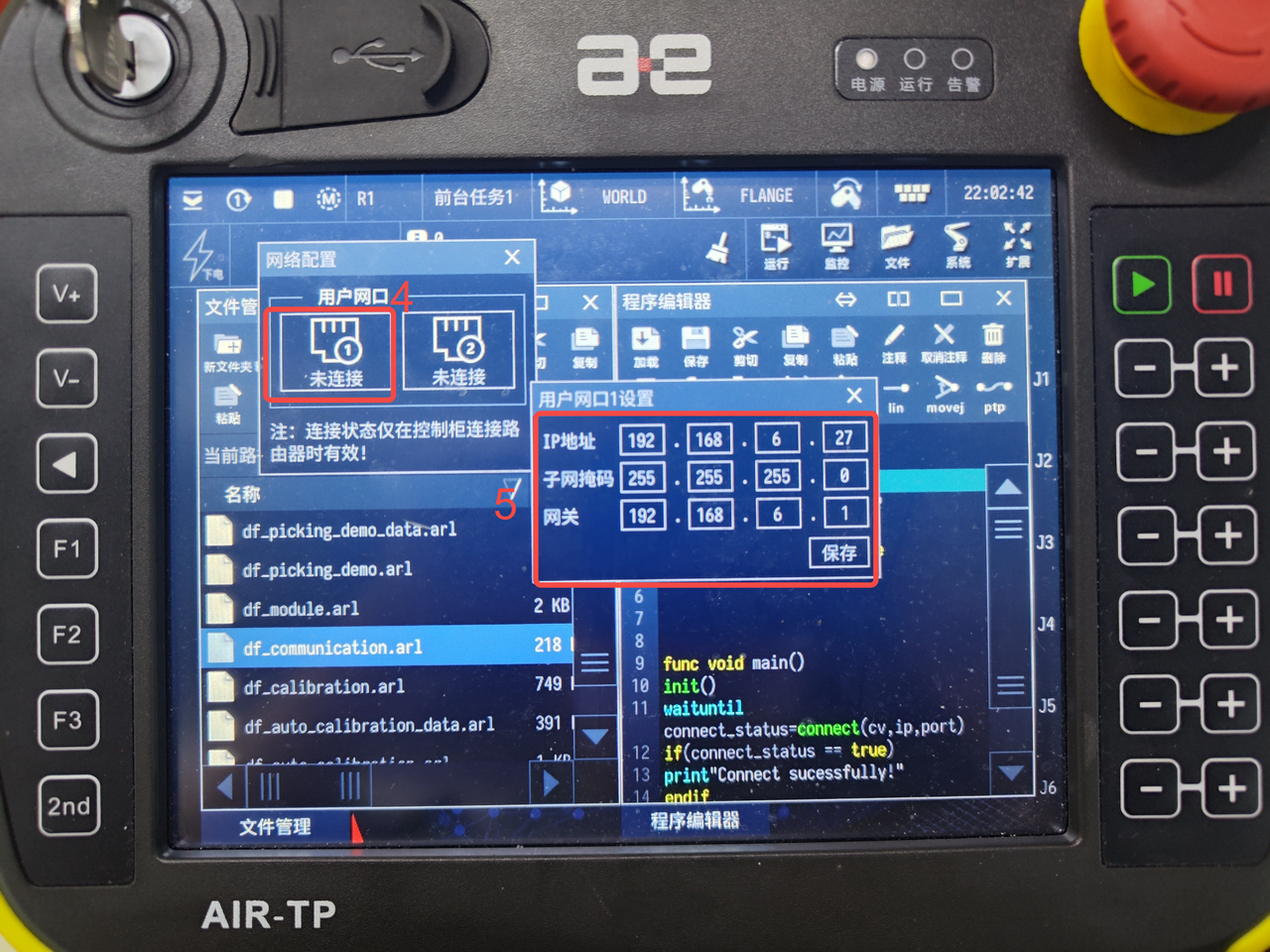
3.3 Connect the Robot to PickWiz
(1)Please refer to Robot Configuration and Communication Operation Guide to connect the Robot and PickWiz for communication
3.4 Communication Test
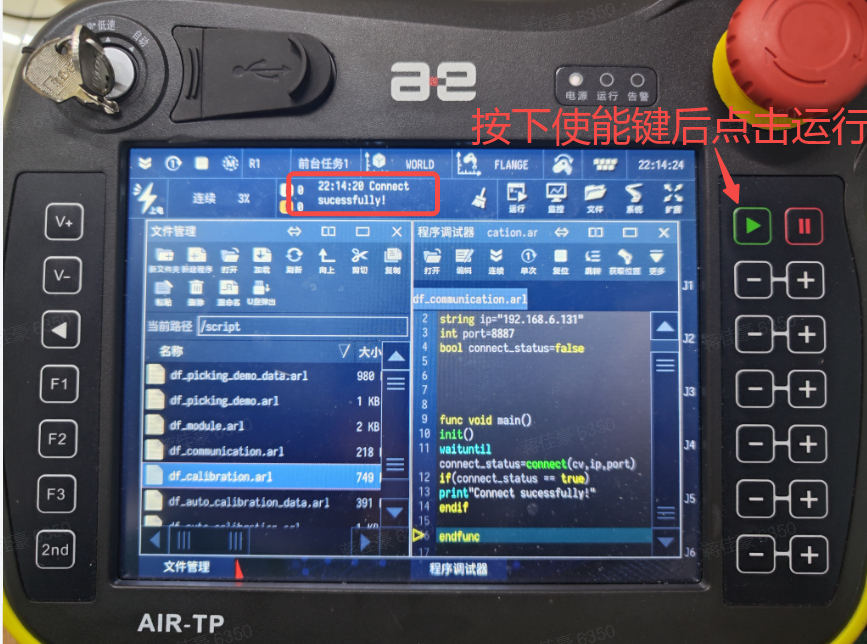
(1)Switch the program and select the communication test file df_communication.arl
(2)Modify the ip and port of the global Variable at the top of the program so that they match the industrial PC
(3)Run step by step / continuously
(4)Check Pickwiz. When it runs to the connect function, the robot arm icon shows connected; when it runs to close the connection, the icon shows disconnected
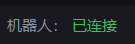
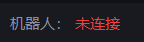
(5)Check the teach pendant, and the message “Connect sucessfully!” will appear