Statistics User Guide
Statistics help filter runtime data, count runtime conditions, analyze time consumption, and troubleshoot issues. After the Project has been running for a period of time, you can view the runtime statistics of the current Project in PickWiz.
Historical data only keeps the latest n records. Statistical data includes all historical data that has run on the industrial PC.
1. Filter Historical Data
After opening the PickWiz main interface, click the Statistics Button in the upper-right corner to enter the statistics interface.
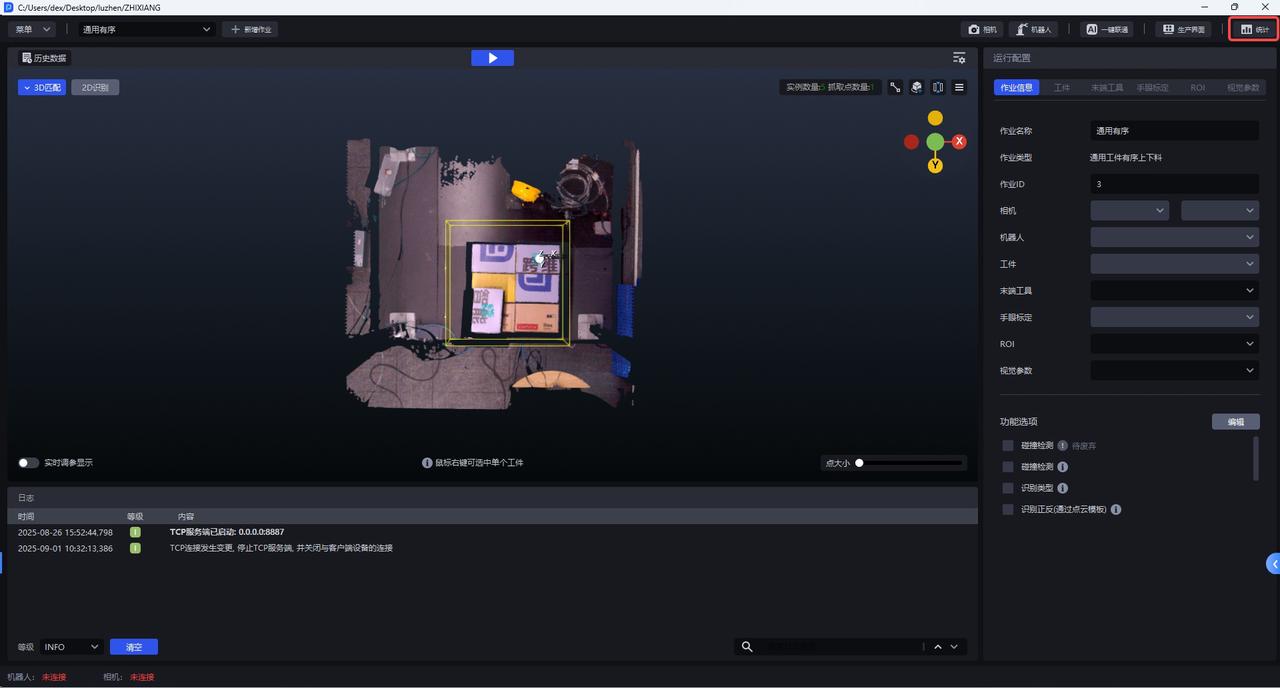
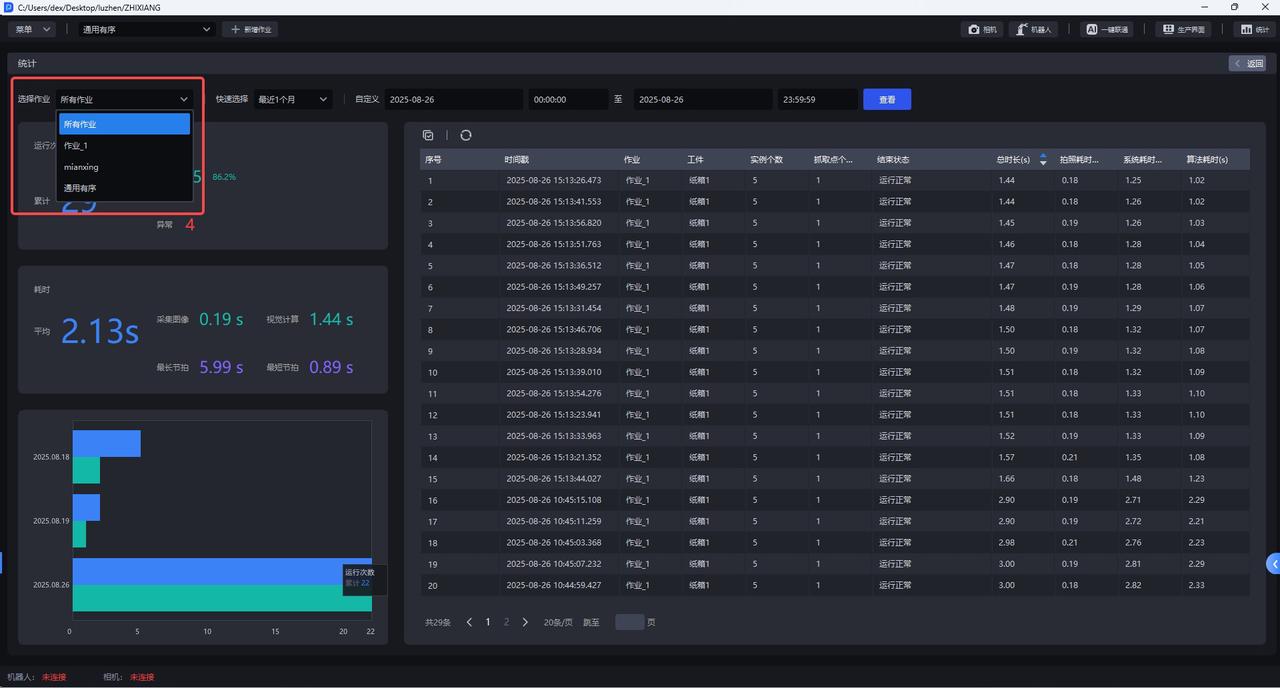
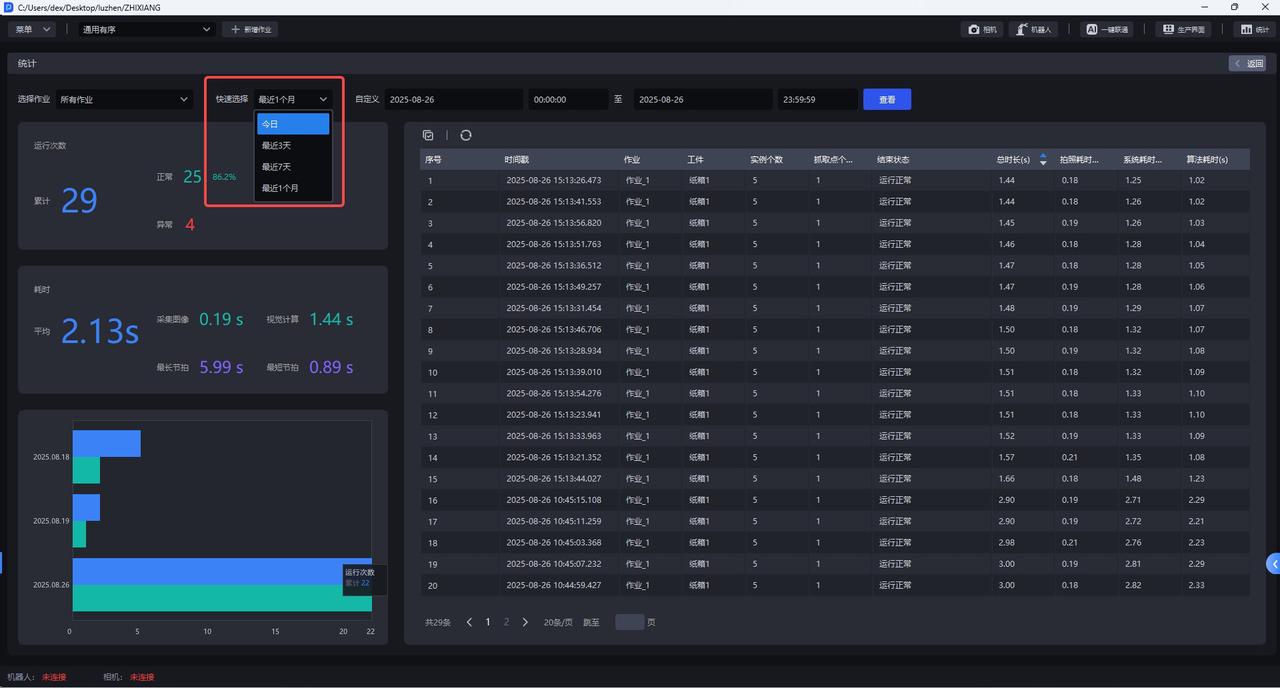
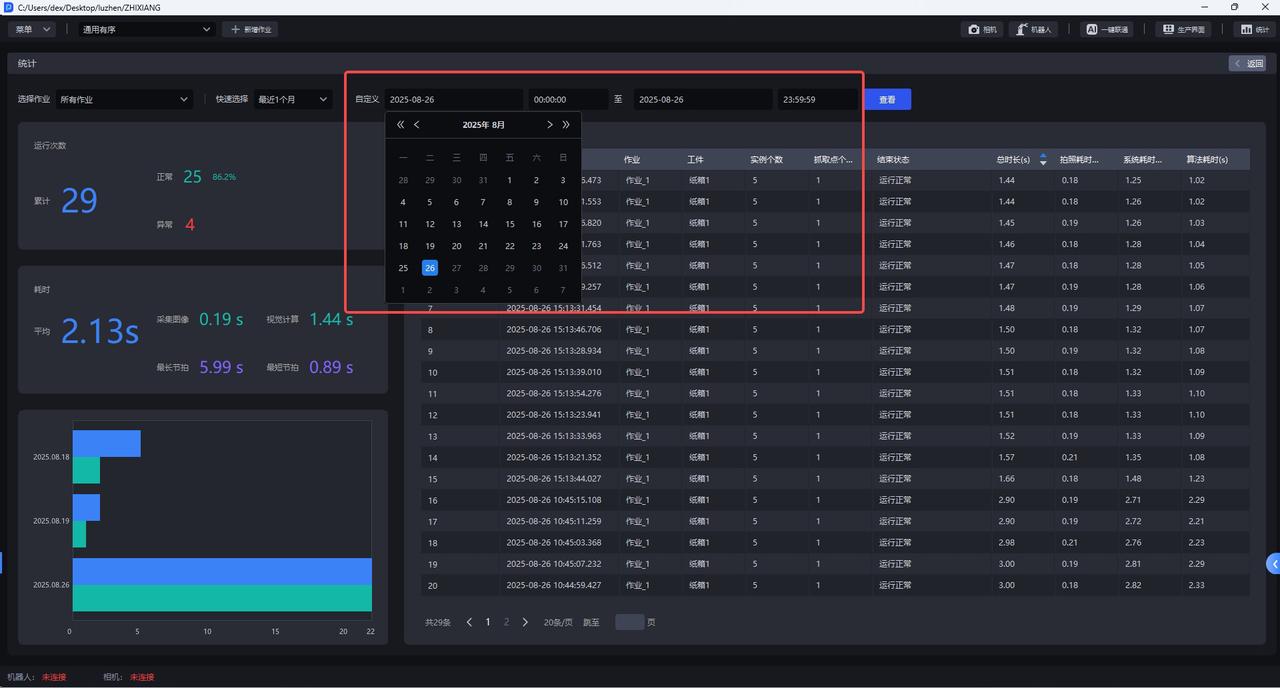
After entering the Statistics interface, you can filter historical data at the top of the interface to view statistical data for a specific task or time range. There are the following three filtering methods:
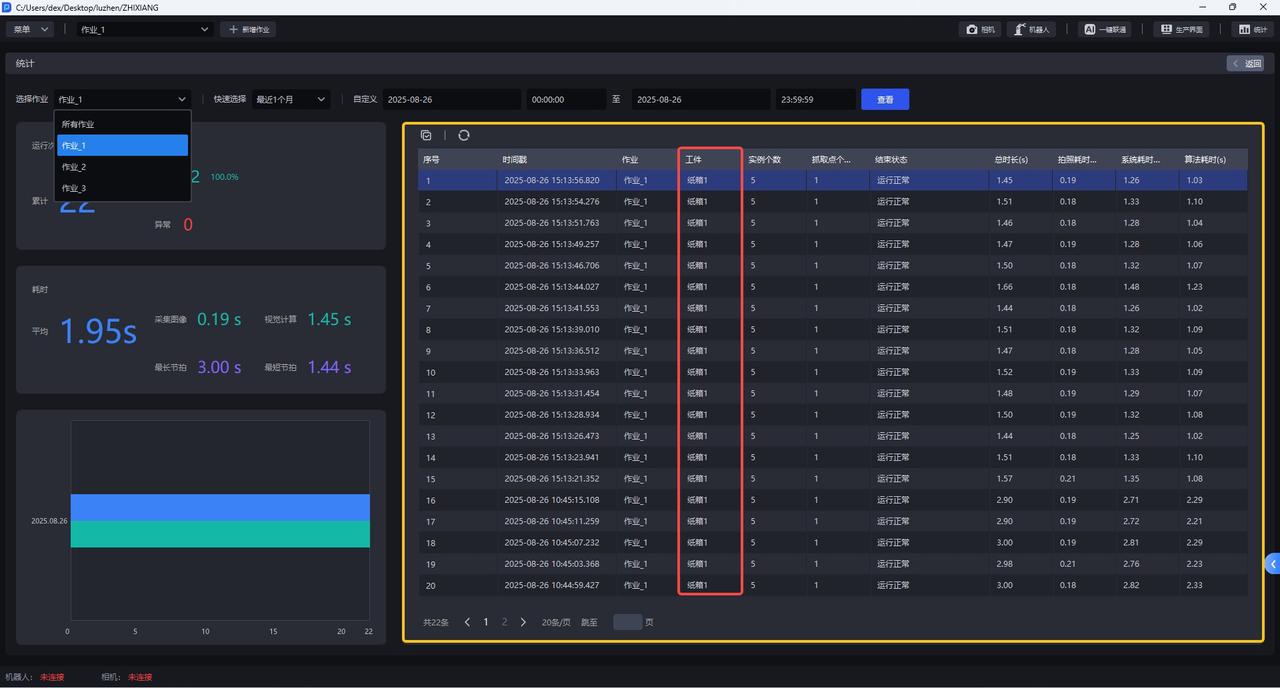
Select task: You can filter "All Tasks" and the tasks in the current Project. "All Tasks" is selected by default.
Quick Select: You can filter statistical data from "Today", "Last 3 Days", "Last 7 Days", and "Last Month". "Today" is selected by default.
Custom Filter: You can filter statistical data within a specific time range. The range can be set by year, month, day, hour, minute, and second.
2. Historical Data Details
2.1 View historical data of a specific task
After selecting the data of a specific task in "Select task", you can view the historical data details of that task on the right side of the interface.
2.2 View historical data for a specific time
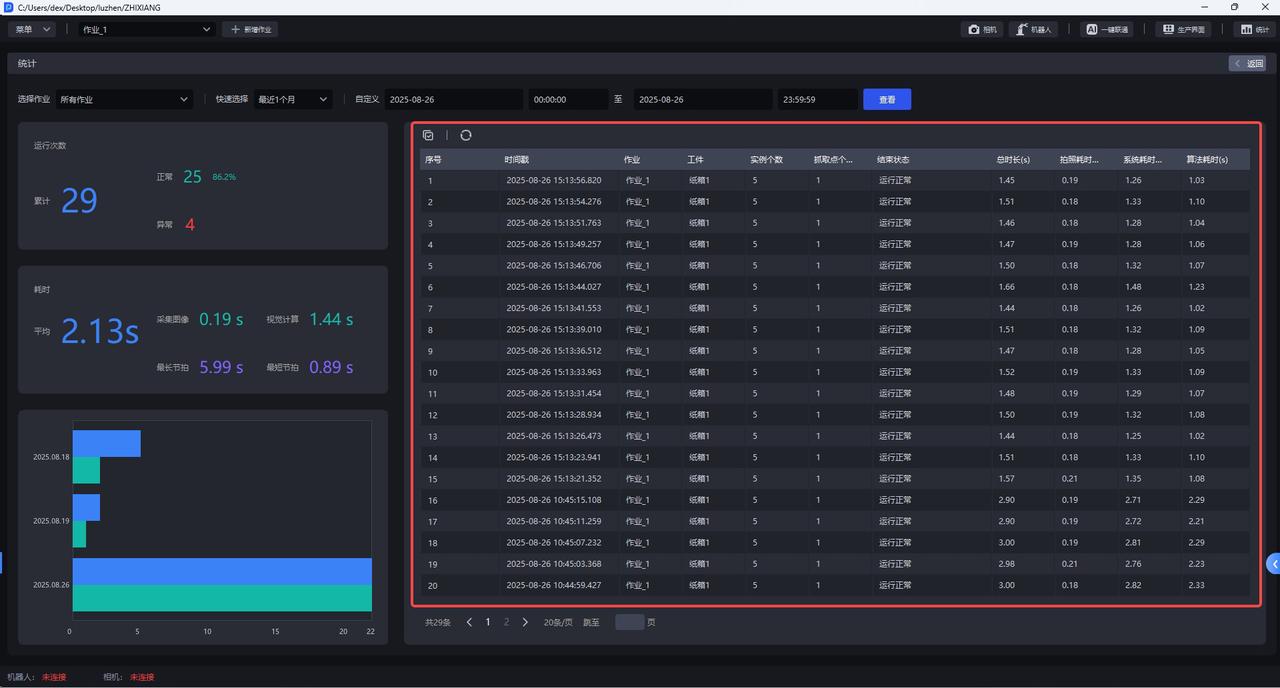
After selecting data within a specific time range, you can view the historical data details for that time range on the right side of the interface.
2.3 Data sorting
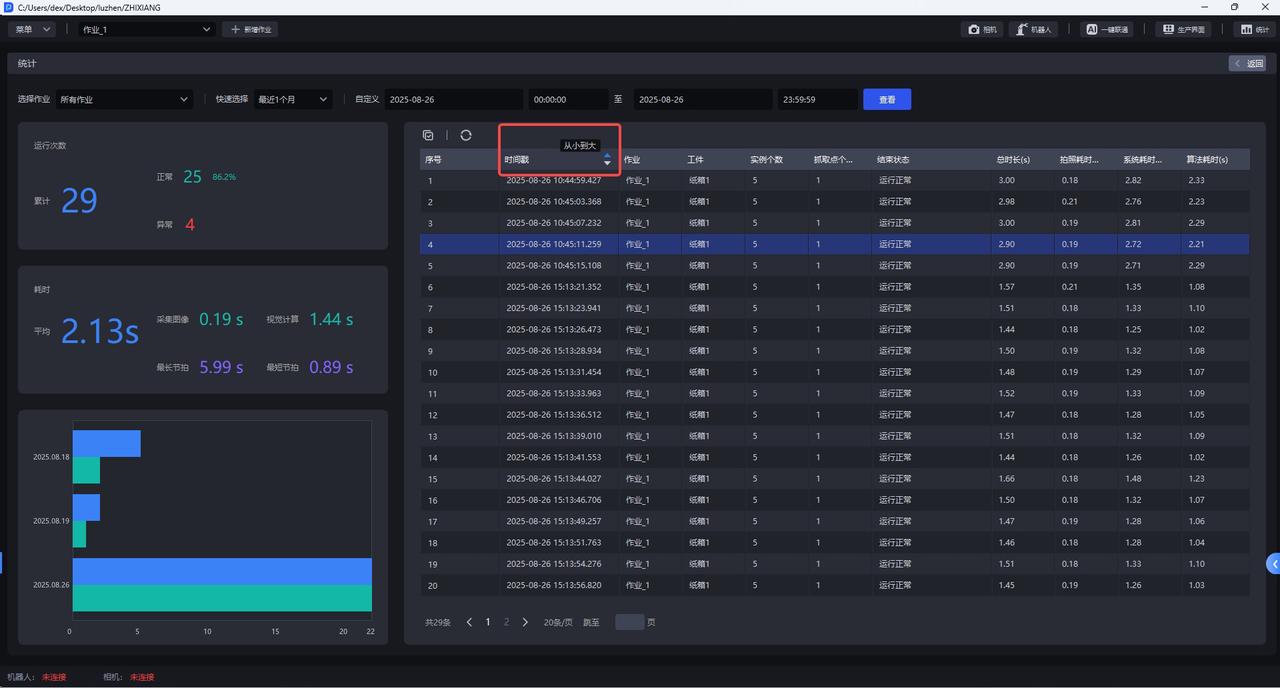
In the data table, columns such as "Timestamp, Total Duration, Photo Capture Time, System Time, Algorithm Time" can all be sorted as needed.
Click the sort icon on the right side of any column title to cycle through: ascending → descending.
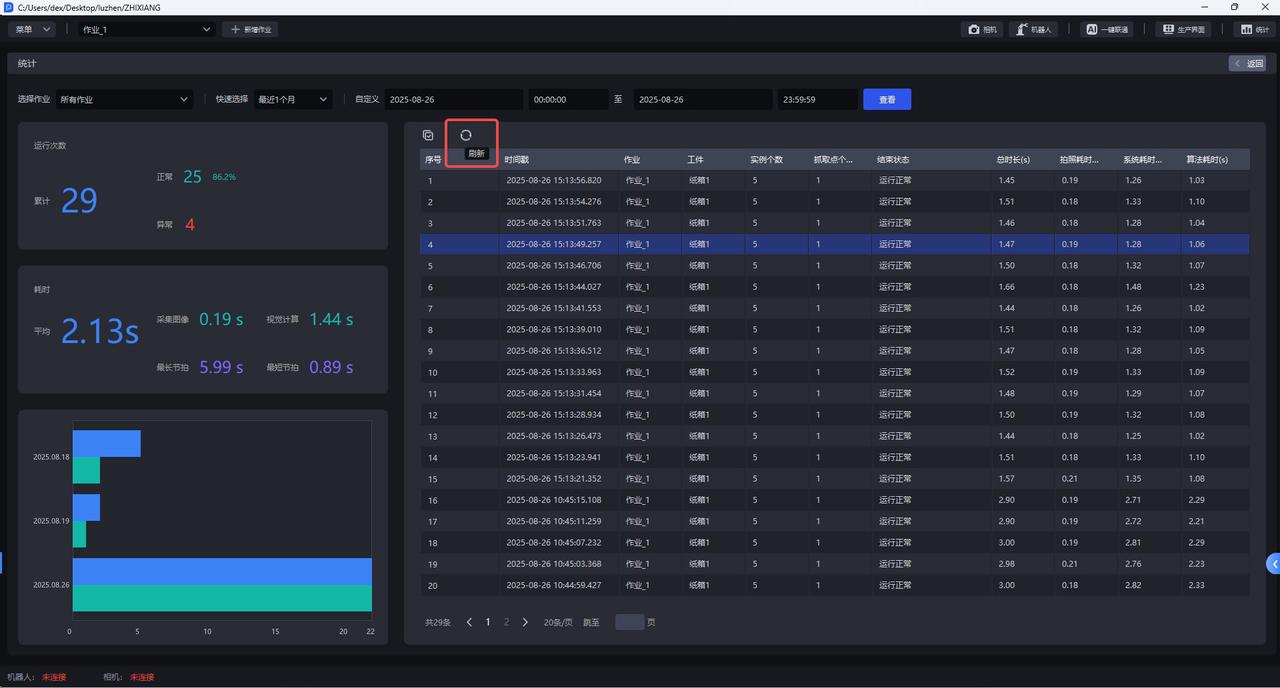
The current sort status is indicated in real time by the direction of the icon arrow. If you need to switch back to the default sorting status, click the "Refresh" icon in the upper-left corner to refresh the data.
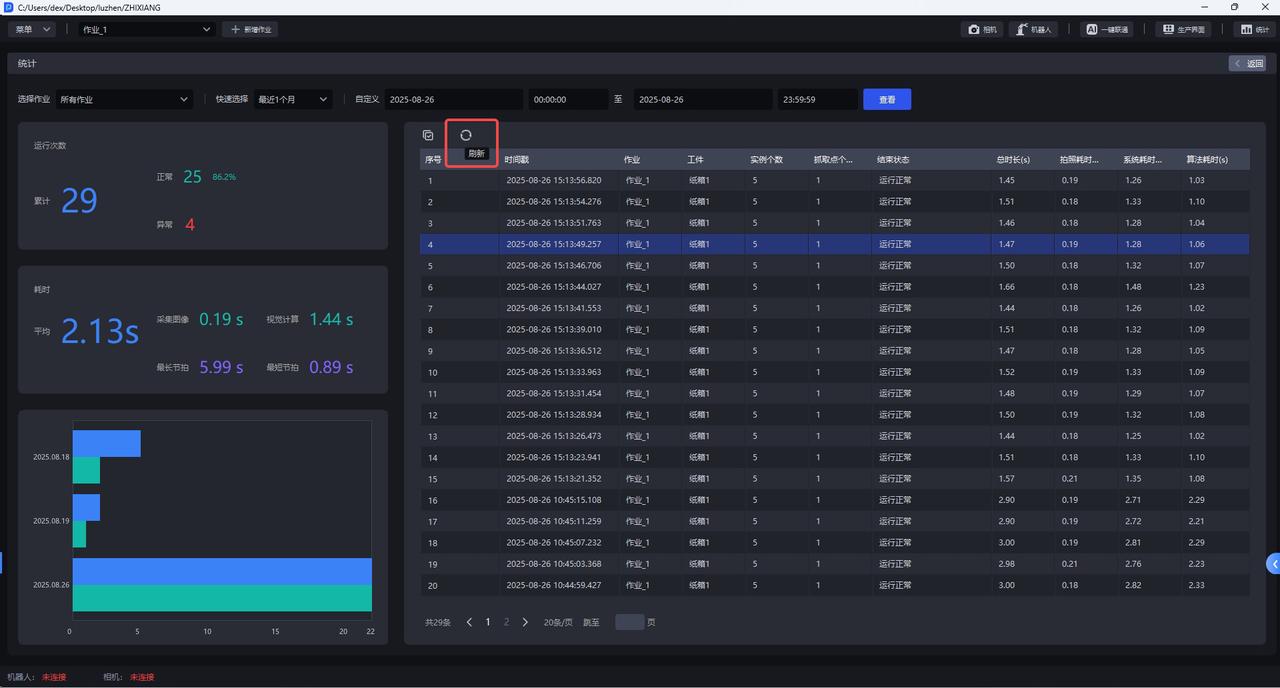
2.4 Batch operations
2.4.1 Batch selection
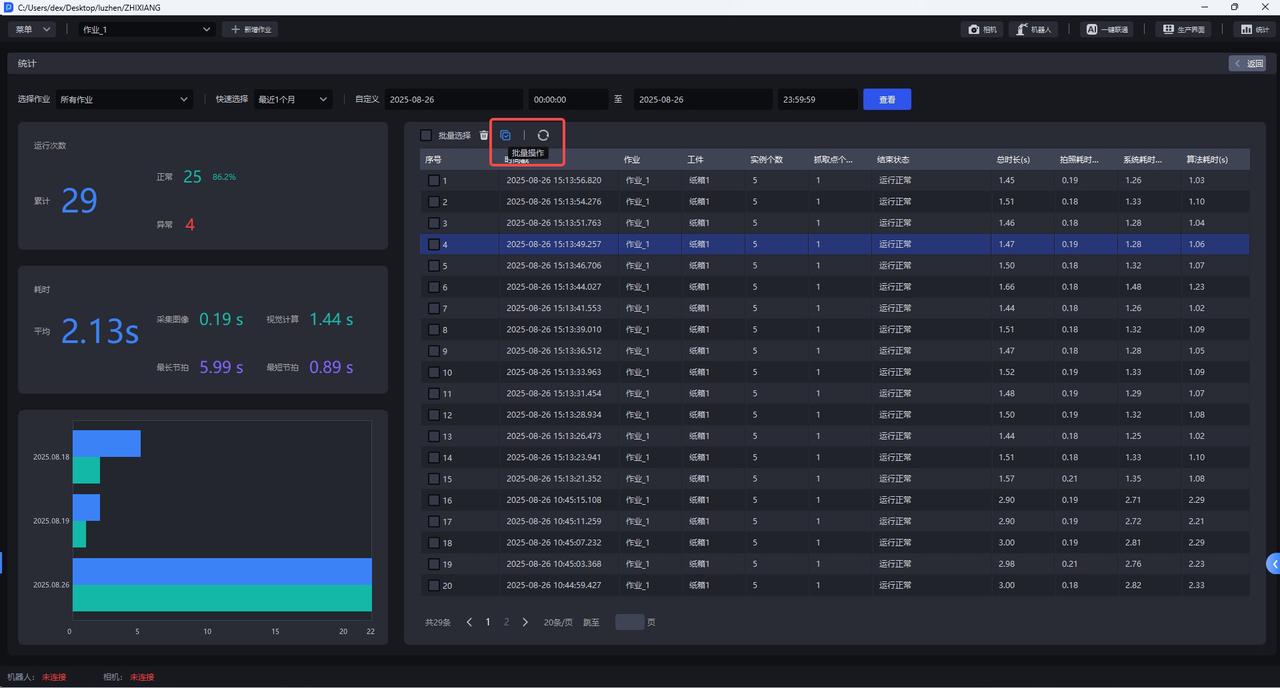
If you need to select historical data in batches, click the Batch Operation icon in the upper-left corner, and then check the boxes to select data in batches.
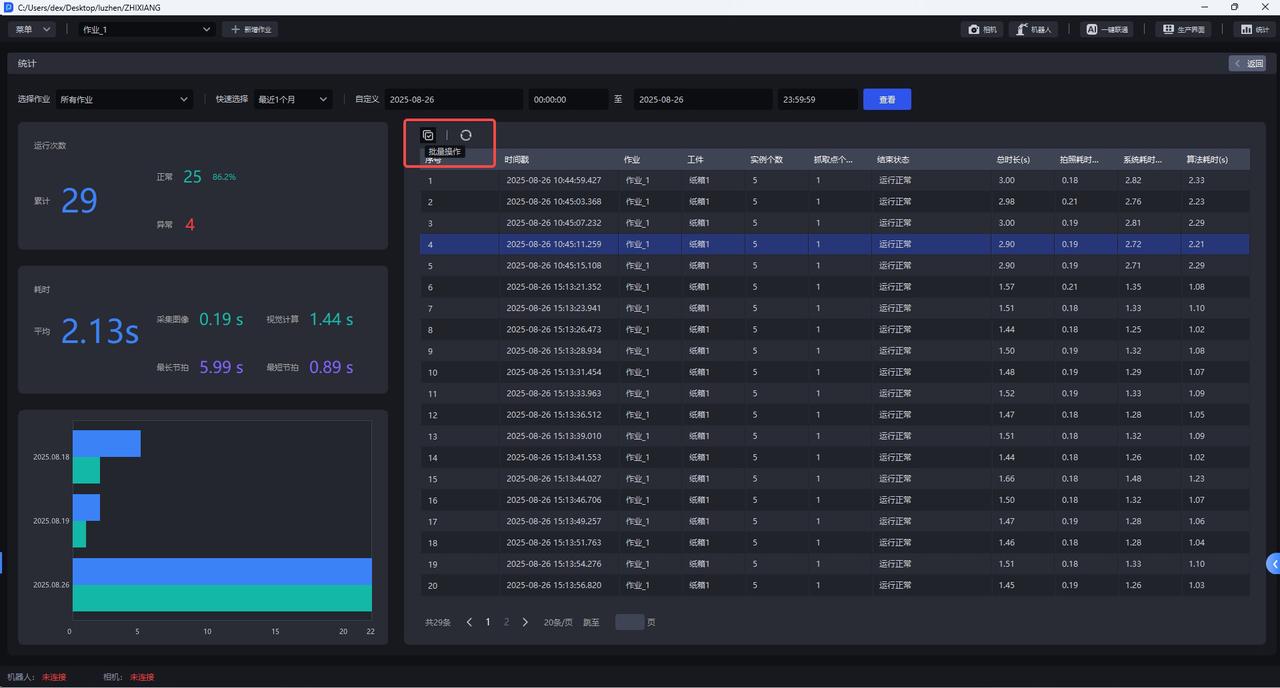
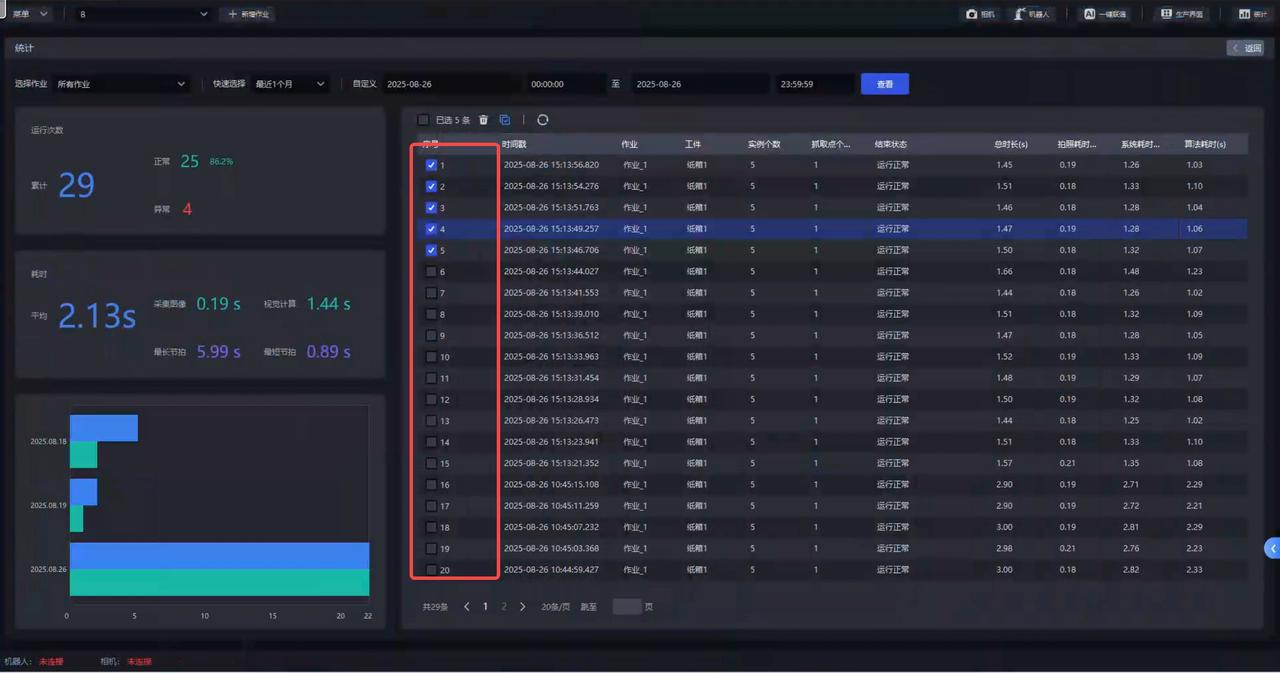
2.4.2 Delete
- Click the
🗑Button to batch delete multiple historical data records
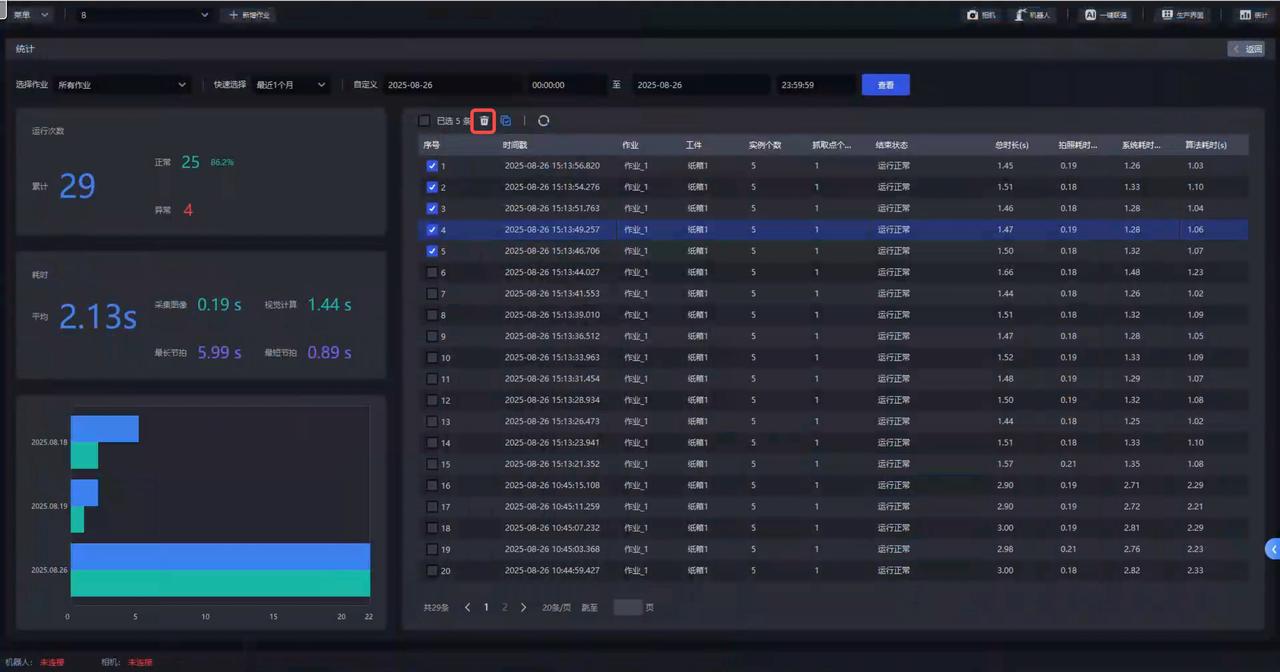
- Click the Batch Operation Button again to cancel the batch selection function
2.4.3 Refresh
- To refresh historical data, click the Refresh icon. The historical data will be refreshed to the currently selected data.
2.5 Exception troubleshooting
If an exception appears in "End Status", you can click the exception number in the Run Count data panel on the left to view the abnormal historical data on the right side of the interface.
When you need to investigate the cause of an exception, you can copy the timestamp of the abnormal historical data and search the corresponding runtime log in the logs to identify the cause.
If the corresponding historical data cannot be found in the logs, go to this Path to view the log records: C:\Users\dex\.dexforce\log\picklight.
3. Historical Data Overview
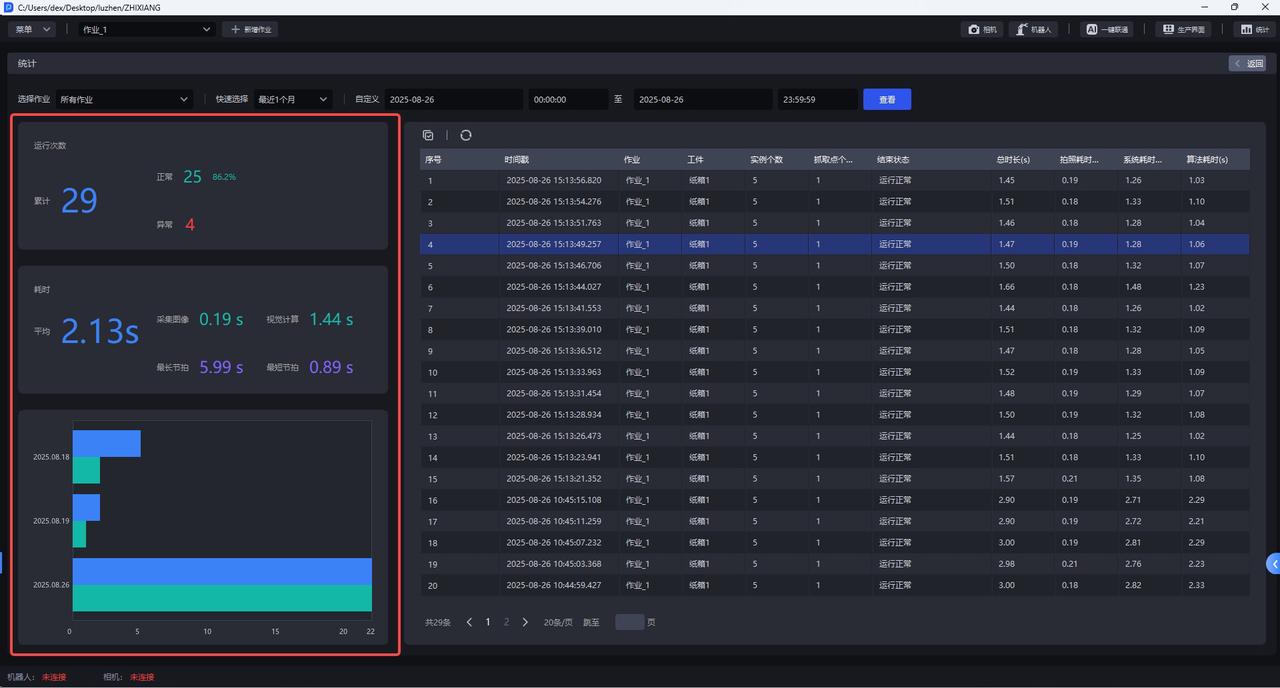
After selecting a time range, you can view the historical data overview for that time range on the left side of the interface. The overview metrics are generated based on the historical data on the right and mainly include runtime counts (normal/abnormal) and runtime duration.
If there are exceptions in runtime conditions or time consumption, you can copy the timestamp of the abnormal historical data and search the corresponding runtime log in the logs to identify the cause and optimize the Takt Time.
| Run Count | Description |
|---|---|
| Cumulative | Total runtime count within the selected time range |
| Normal | Number of normal runs within the selected time range. The percentage to the right of the count is the normal rate (that is, the proportion of normal runs in the cumulative run count). |
| Abnormal | Number of abnormal runs within the selected time range. Click the number to view the cause of the exception and detailed data on the right. |
| Time Consumption | Description |
|---|---|
| Average | The average total runtime of all runtime data within the selected time range, that is: total runtime of the filtered historical data / number of historical data entries that produced actual runtime. |
| Image Acquisition | The average photo capture time of all runtime data within the selected time range. |
| Vision Computation | The average vision computation time of all runtime data within the selected time range. |
| Longest Duration | The longest runtime of all runtime data within the selected time range. |
| Shortest Duration | The shortest runtime of all runtime data within the selected time range. |
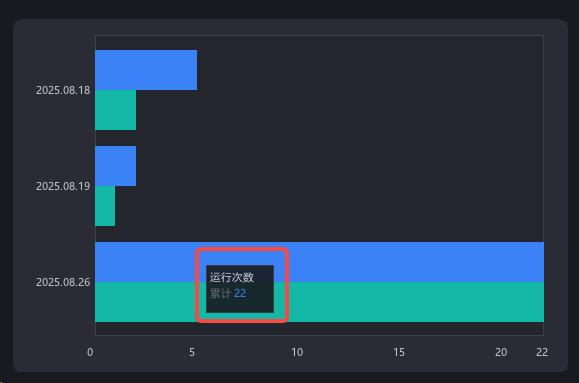
The lower-left area of the interface displays the daily runtime status within the selected time range in the form of a bar chart, including the total runtime count and the normal runtime count, making it easier for users to understand the daily runtime status more intuitively.