Vision Parameter Adjustment Guide for Cylindrical Target Objects
This article mainly introduces how to adjust vision parameters according to actual scenarios in cylinder-based ordered loading and unloading and random picking.
1. 2D Recognition
This section mainly explains the preprocessing, instance segmentation, instance filtering, and instance sorting related functions that affect 2D image recognition results, along with parameter tuning suggestions
1.1 Preprocessing
Preprocessing for 2D recognition processes the 2D image before instance segmentation.
1.1.1 Bilateral Filtering
- Function
Image smoothing based on bilateral filtering
- Parameter Description
| Parameter | Description | Default Value | Range |
|---|---|---|---|
| Maximum Depth Difference | Maximum depth difference for bilateral filtering | 0.03 | [0.01, 1] |
| Filter Kernel Size | Convolution kernel size for bilateral filtering | 7 | [1, 3000] |
1.1.2 Depth to Normal Map
- Function
Compute pixel normals from the depth map and convert the image into a normal map
1.1.3 Image Enhancement
- Function
Common image enhancement operations such as saturation, contrast, brightness, and sharpness
- Parameter Description
| Parameter | Description | Default Value | Range |
|---|---|---|---|
| Image Enhancement Type | Enhances a specific element of the image | Contrast | Saturation, Contrast, Brightness, Sharpness |
| Image Enhancement Threshold | How much a specific element of the image is enhanced | 1.5 | [0.1, 100] |
1.1.4 Histogram Equalization
- Function
Improve image contrast
- Parameter Description
| Parameter | Description | Default Value | Range |
|---|---|---|---|
| Local Mode | Local or global histogram equalization. When selected, local histogram equalization is used; when cleared, global histogram equalization is used. | Selected | / |
| Contrast Threshold | Contrast threshold | 3 | [1,1000] |
1.1.5 Filter Depth by HSV
- Function
Filter the depth map according to color values
- Parameter Description
| Parameter | Description | Default Value | Range |
|---|---|---|---|
| Fill Kernel Size | Size of color filling | 3 | [1,99] |
| Filter Depth by HSV - Maximum Color Range Value | Maximum color value | [180,255,255] | [[0,0,0],[255,255,255]] |
| Filter Depth by HSV - Minimum Color Range Value | Minimum color value | [0,0,0] | [[0,0,0],[255,255,255]] |
| Keep Regions Within the Color Range | If selected, regions within the color range are kept; if cleared, regions outside the color range are kept. | / | / |
1.1.6 Gamma Correction
- Function
Gamma correction changes image brightness
- Parameter Description
| Parameter | Description | Default Value | Range |
|---|---|---|---|
| Gamma Compensation Coefficient | When this value is less than 1, the image becomes darker; when it is greater than 1, the image becomes brighter. | 1 | [0.1,100] |
| Gamma Correction Coefficient | When this value is less than 1, the image becomes darker and is suitable for images that are too bright; when it is greater than 1, the image becomes brighter and is suitable for images that are too dark. | 2.2 | [0.1,100] |
1.1.7 Fill Depth Hole
- Function
Fill hole regions in the depth map and smooth the filled depth map
- Use Case
Due to issues such as obstruction caused by the Target Object structure itself or uneven lighting, parts of the Target Object may be missing in the depth map
- Parameter Description
| Parameter | Description | Default Value | Range |
|---|---|---|---|
| Fill Kernel Size | Hole filling size | 3 | [1,99] |
Fill kernel size can only be an odd number
- Parameter Tuning
Adjust according to the detection results. If filling is excessive, reduce the parameter; if filling is insufficient, increase the parameter.
- Example
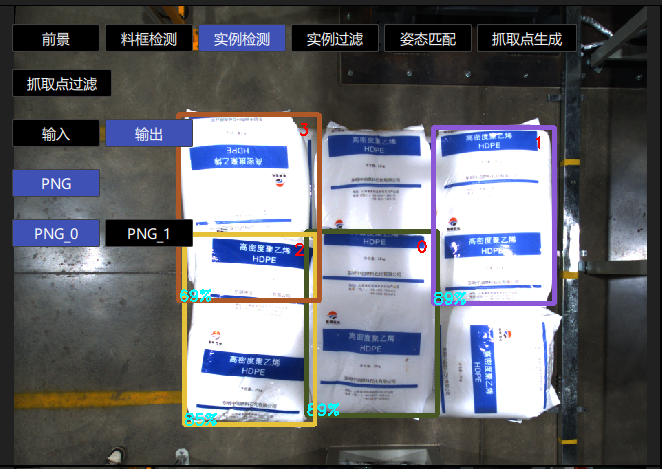
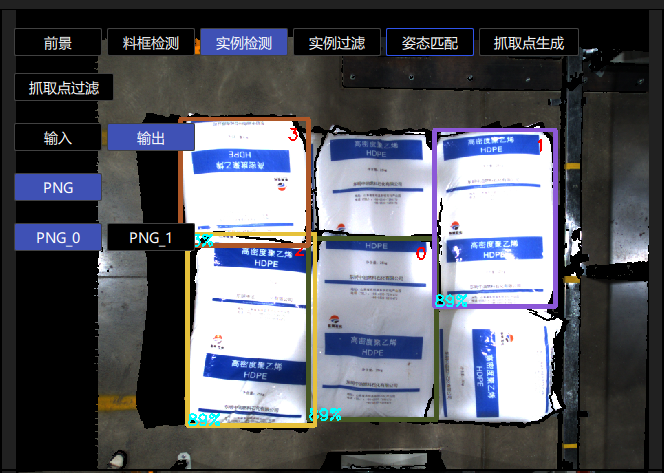
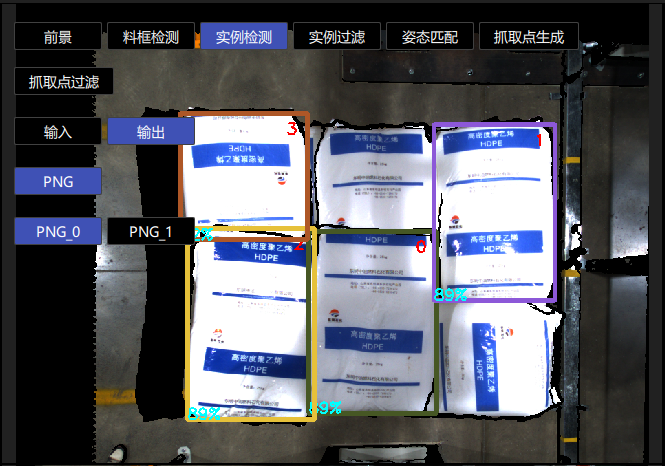
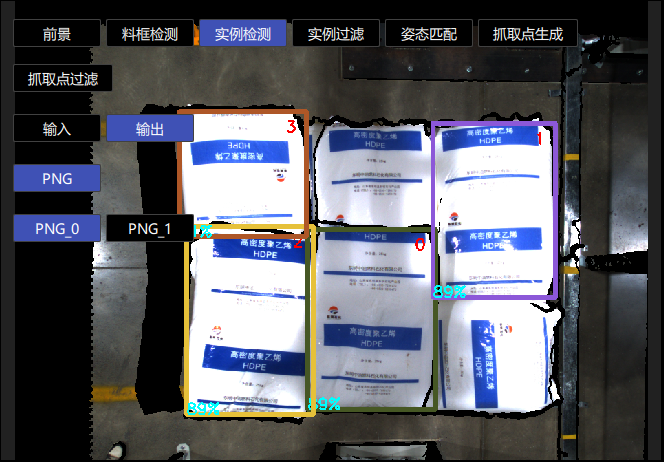
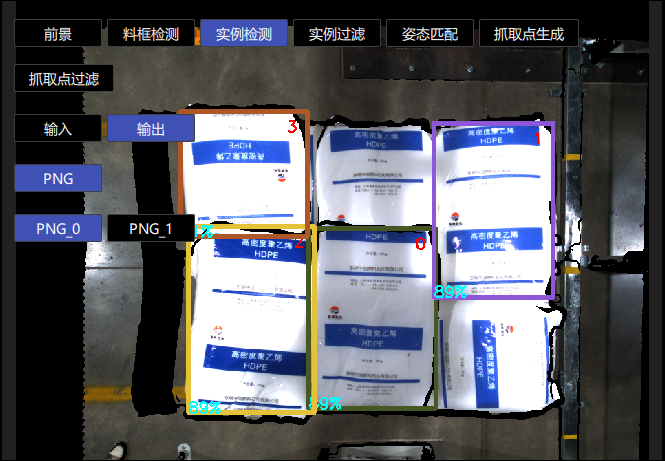
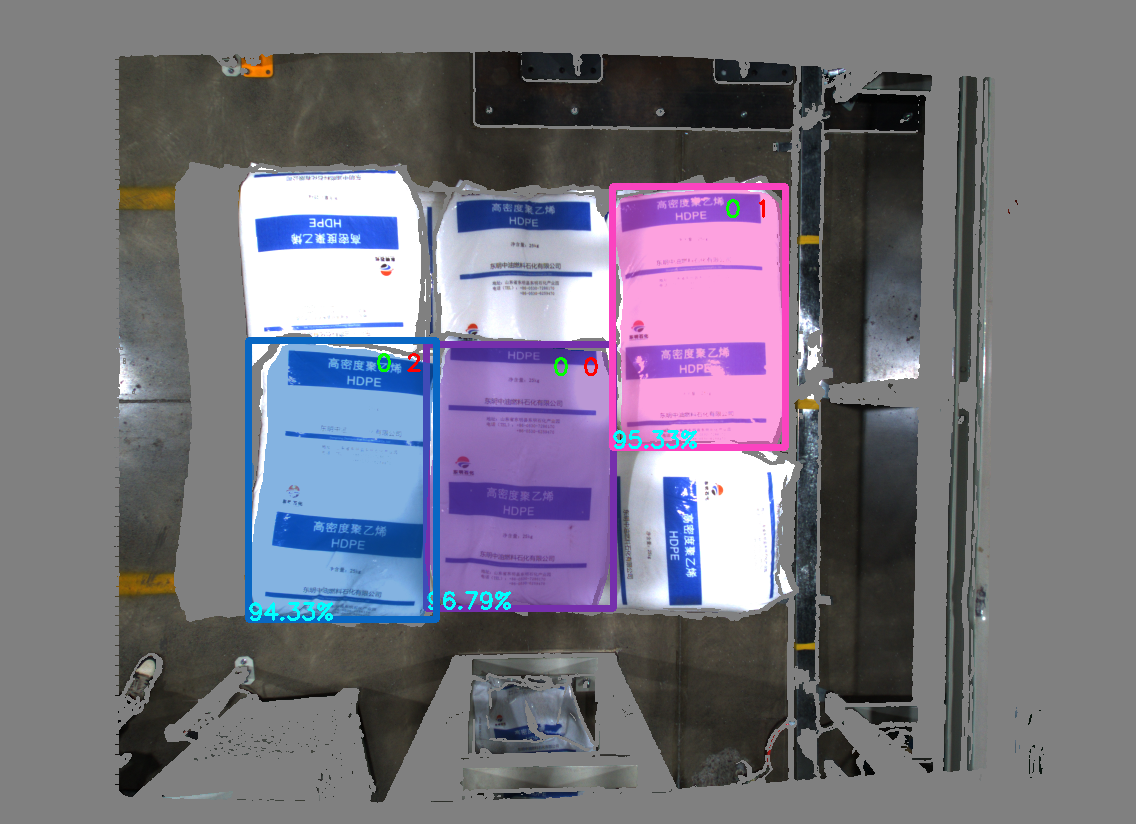
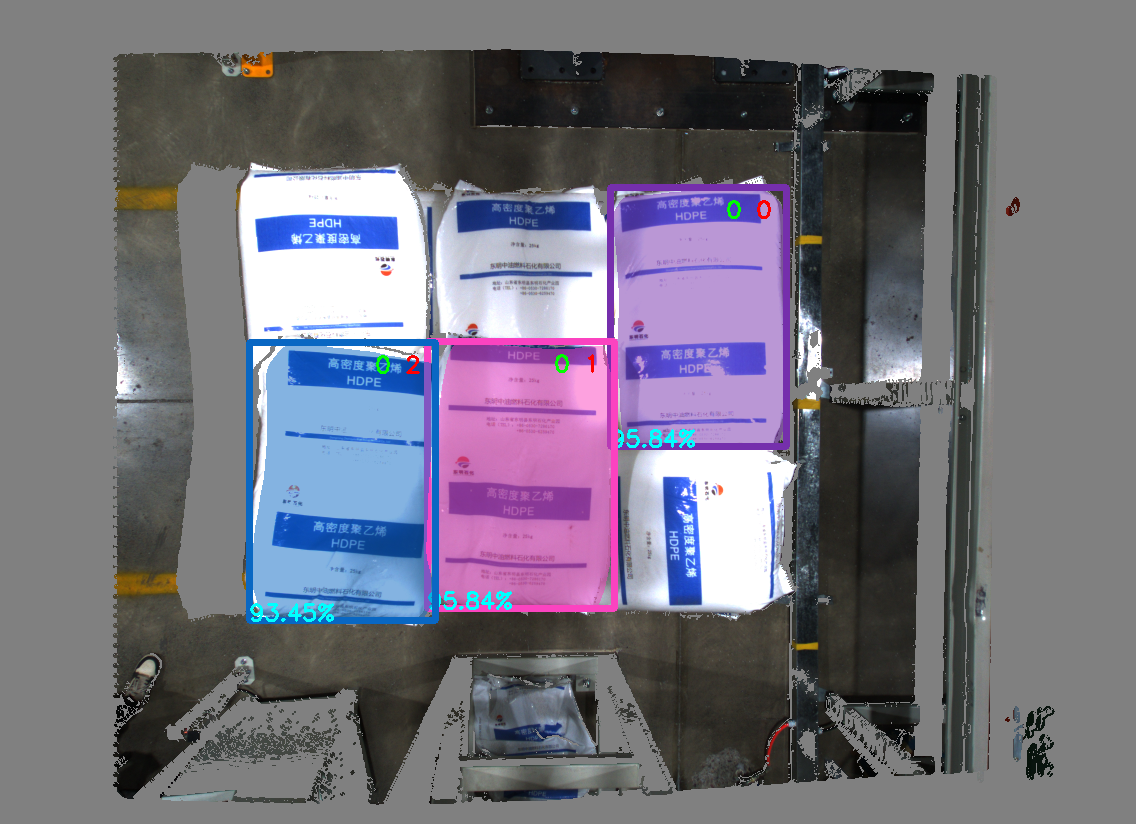
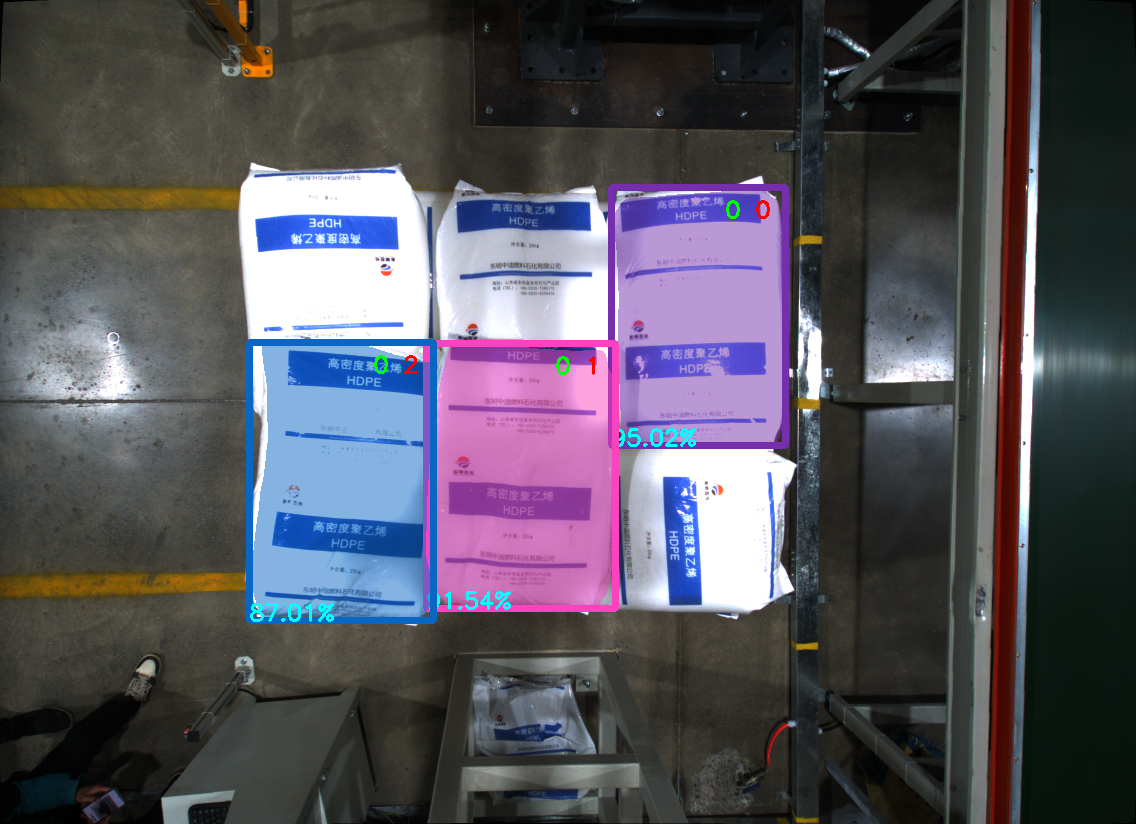
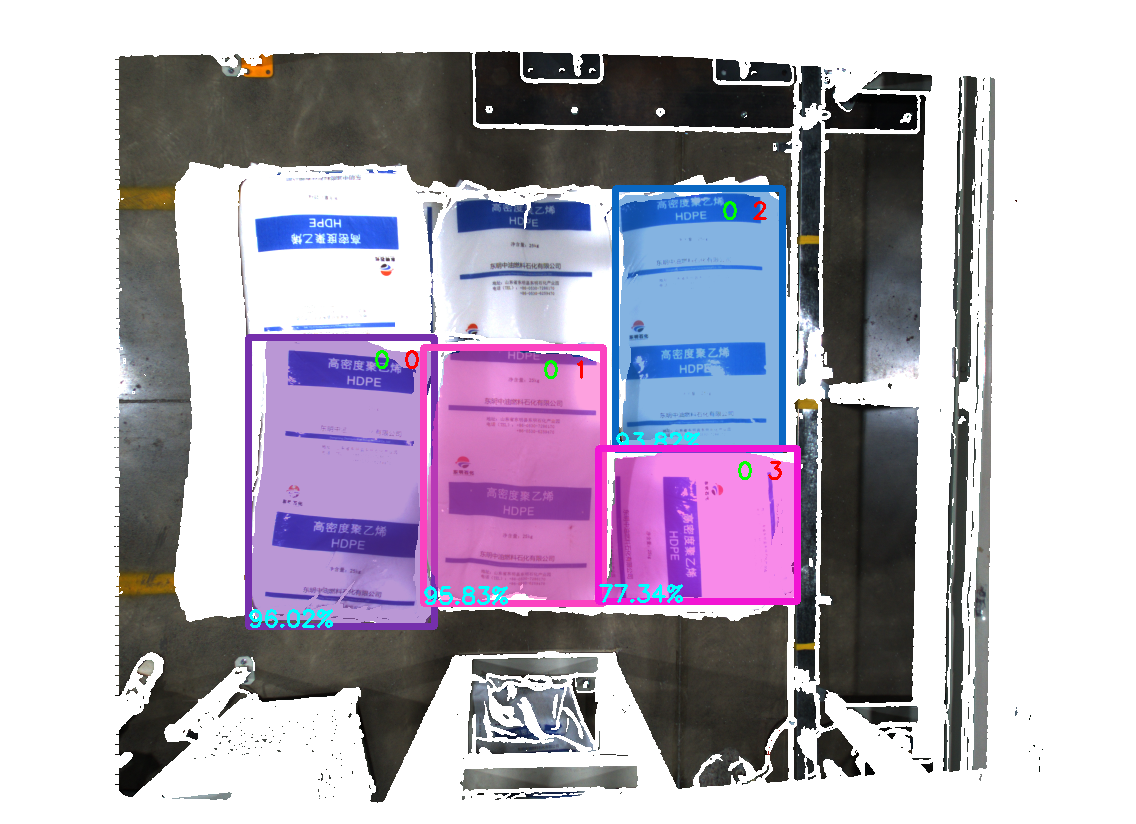
1.1.8 Edge Enhancement
- Function
Set the texture edge areas in the image to the background color or to a color with a large contrast from the background color, so that the edge information of the Target Object is highlighted
- Use Case
Target Objects occlude or overlap each other, resulting in unclear edges
- Parameter Description
| Parameter | Description | Default Value | Range | Tuning Recommendation |
|---|---|---|---|---|
| Normal Z-Direction Filtering Threshold | Filtering threshold for the angle between the normal vector corresponding to each point in the depth map and the positive Z-axis direction of the camera coordinate system. If the angle between a point's normal vector and the positive Z-axis direction of the camera coordinate system is greater than this threshold, the color at the corresponding position in the 2D image is set to the Background color or to a color with a large contrast from the Background color. | 30 | [0,180] | For flat Target Object surfaces, this threshold can be stricter. For curved surfaces such as sacks, increase it appropriately according to the surface inclination of the Target Object. |
| Background | RGB color threshold of the background color | 128 | [0,255] | |
| Automatically Adjust Contrast Background | Selected After Automatically Adjust Contrast Background is enabled, the colors of points in the 2D image whose angles are greater than the filtering threshold are set to a color with a large contrast from the Background color. If it is not selected, the colors of points in the 2D image whose angles are greater than the filtering threshold are set to the color corresponding to the Background color. | Cleared | / |
- Example
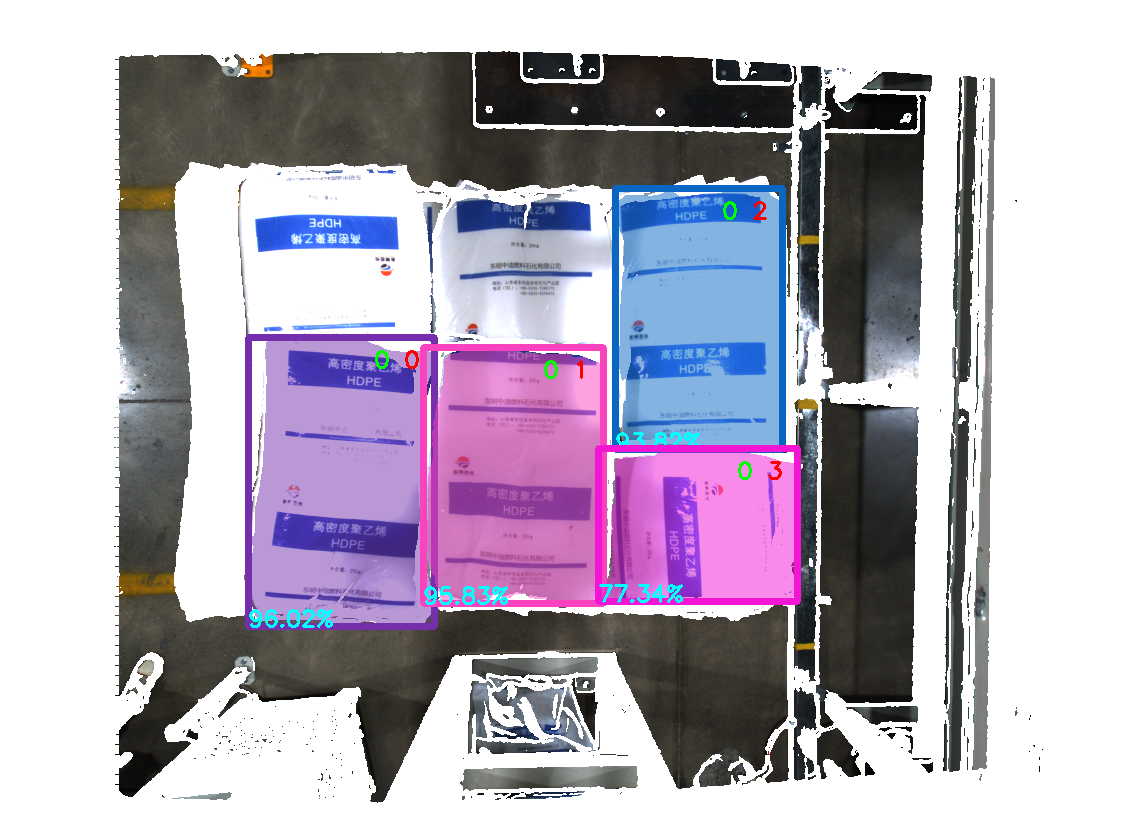
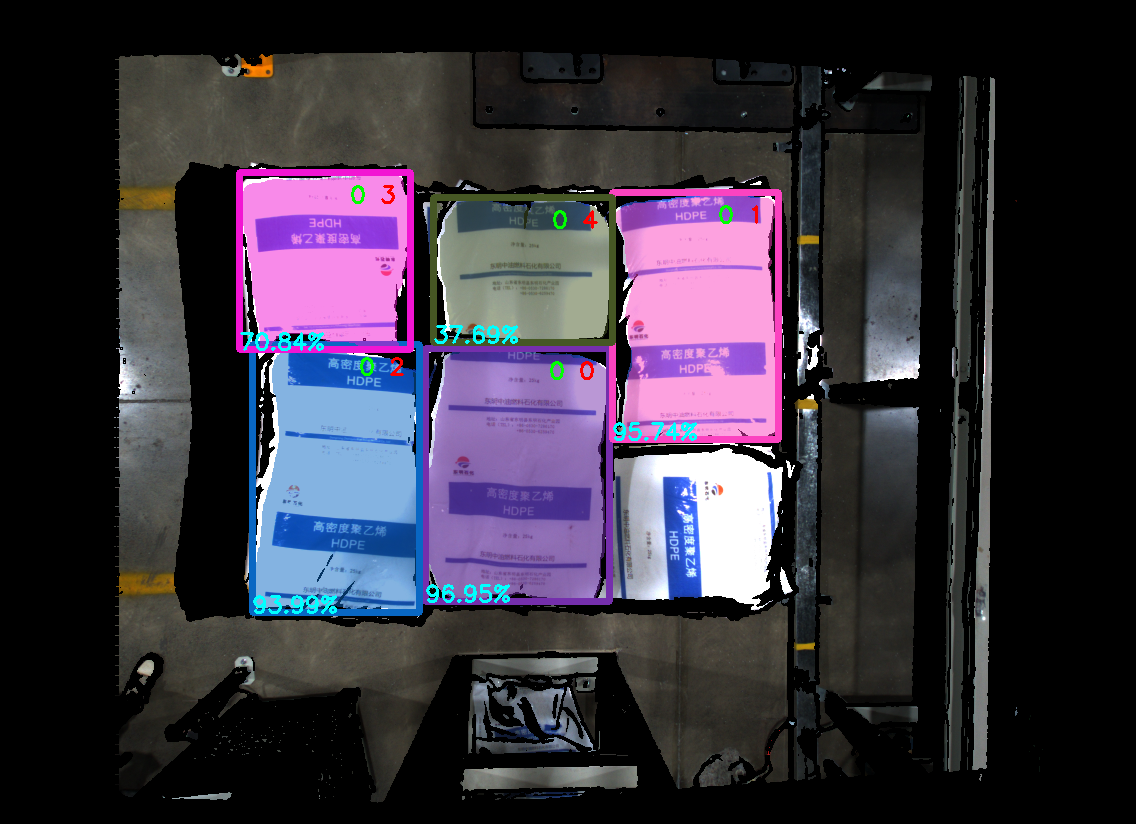
In a scene with a pile of sacks, the sacks occlude each other. Enable Edge Enhancement to distinguish the edges of individual sacks, as shown below.
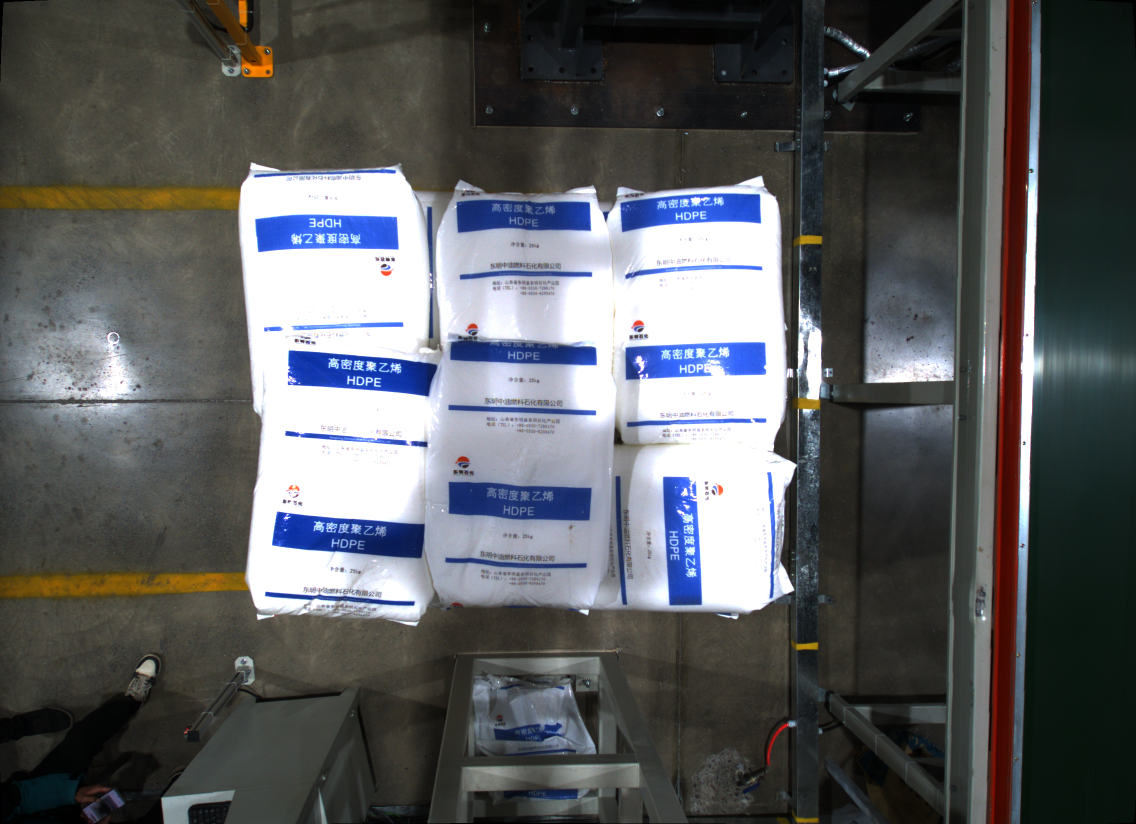
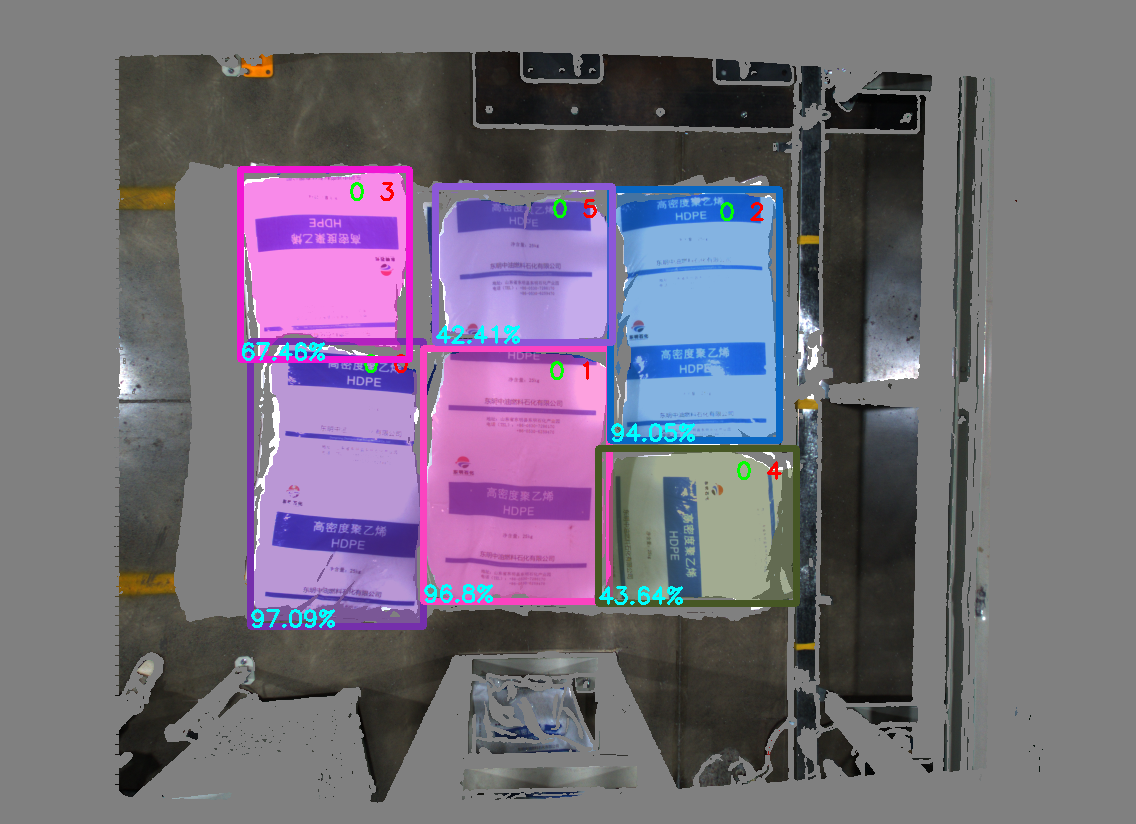
1.1.9 Extract Top by Depth
- Function
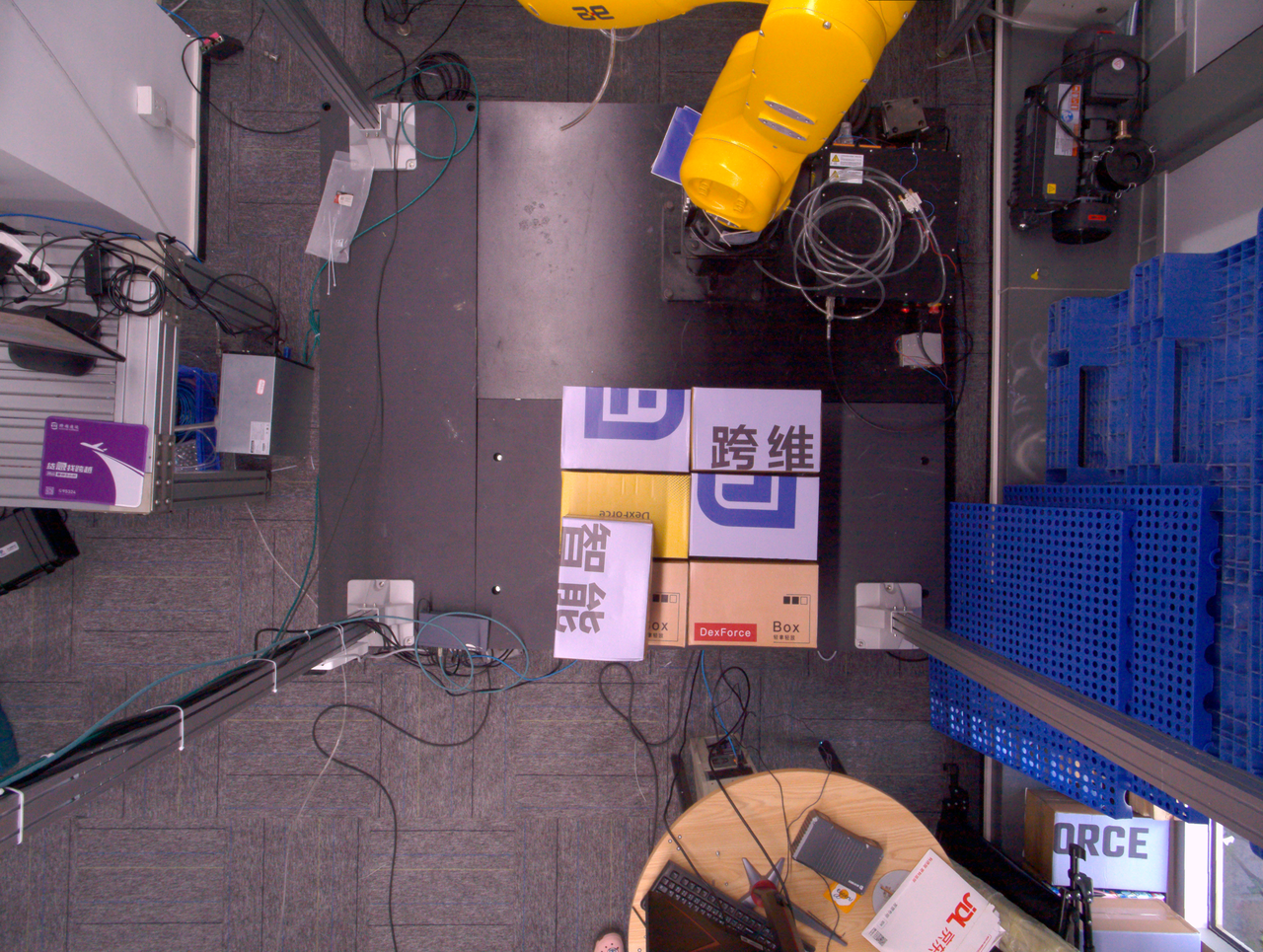
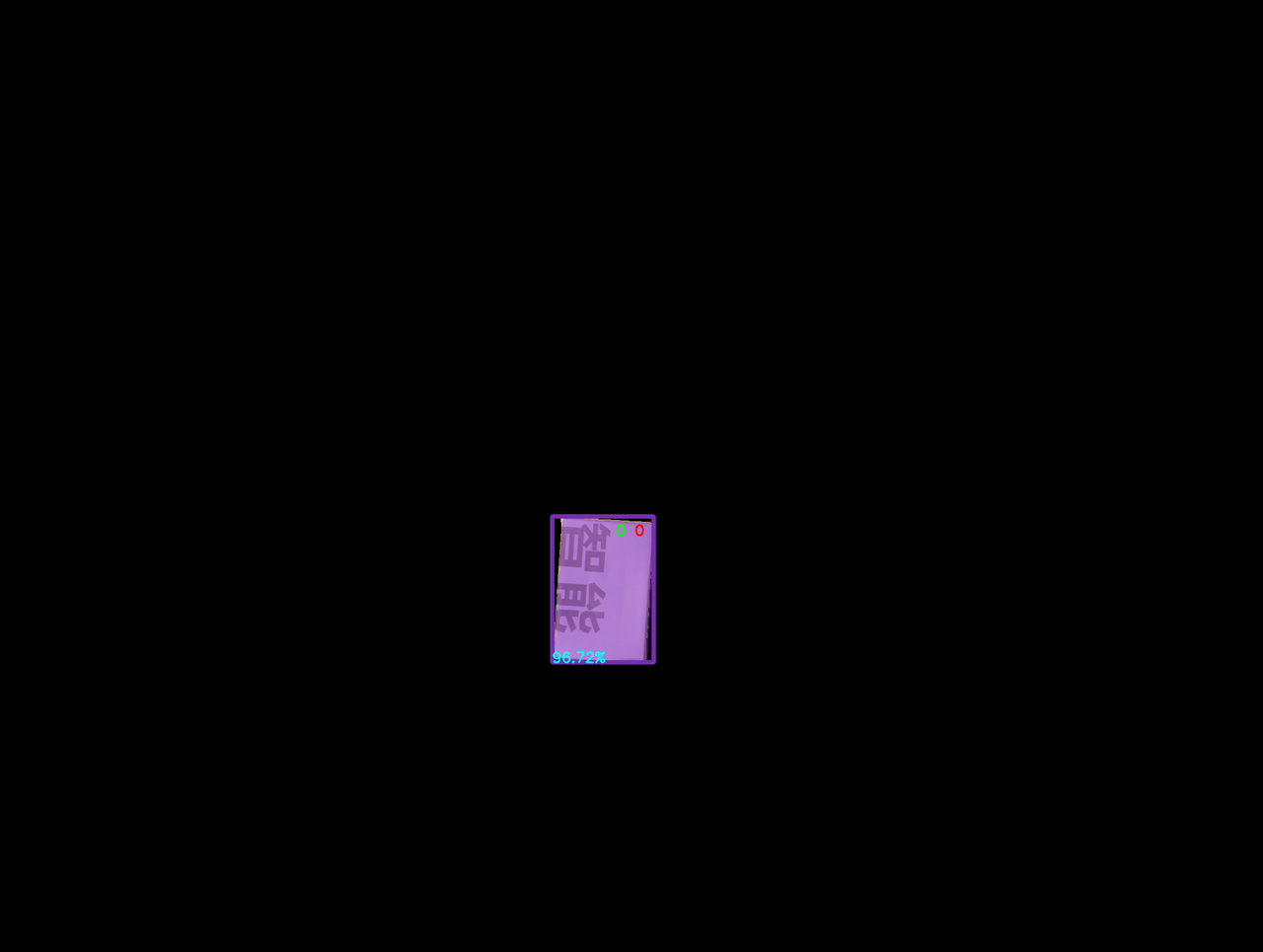
Extract the texture of the topmost or bottommost Target Object, while setting other regions to the background color or to a color with a large contrast from the background color.
- Use Case
Applicable to single-carton depalletizing scenarios. Factors such as poor lighting conditions, similar color textures, tight stacking, interleaved stacking, or occlusion may make it difficult for the model to distinguish texture differences between the upper and lower cartons, which easily leads to false detections.
- Parameter Description
| Parameter | Description | Default Value | Range | Unit | Tuning Recommendation |
|---|---|---|---|---|---|
| Distance Threshold (mm) | If the distance from a point to the topmost plane (or bottommost plane) is lower than this threshold, the point is regarded as lying on the topmost plane (or bottommost plane) and should be retained. Otherwise, it is regarded as a point on the lower layer (or upper layer), and the color of the lower-layer (or upper-layer) point is set to the background color or to a color with a large contrast from the background color. | 50 | [0.1, 1000] | mm | Generally set to 1/2 of the carton height |
| Cluster Point Cloud Quantity | Expected number of points participating in clustering, that is, the number of sampled point clouds within the ROI 3D area | 10000 | [1,10000000] | / | The larger the Cluster Point Cloud Quantity, the slower the model inference speed but the higher the accuracy; the smaller the Cluster Point Cloud Quantity, the faster the inference speed but the lower the accuracy. |
| Minimum Category Point Quantity | Minimum number of points used for category filtering | 1000 | [1, 10000000] | / | / |
| Automatically Compute Contrast Background | Selected After Automatically Compute Contrast Background is enabled, regions outside the topmost (or bottommost) layer in the 2D image are set to a color with a large contrast from the background color threshold. If it is not selected, regions outside the topmost (or bottommost) layer in the 2D image are set to the color corresponding to the background color threshold. | Selected | / | / | / |
| Background Color RGB Threshold | RGB color threshold of the background color | 128 | [0, 255] | / | / |
- Example

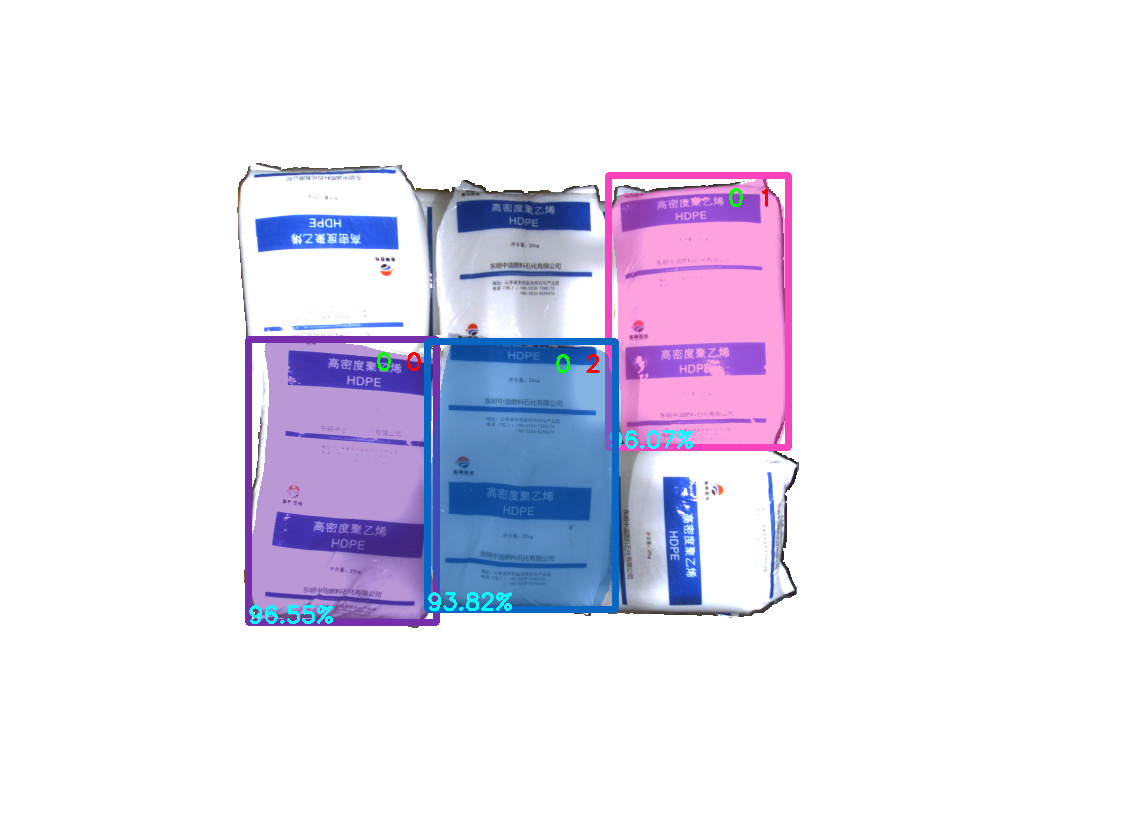
1.1.10 Extract ROI 3D RGB
- Function
Remove the background outside the ROI3D area in the 2D image
- Use Case
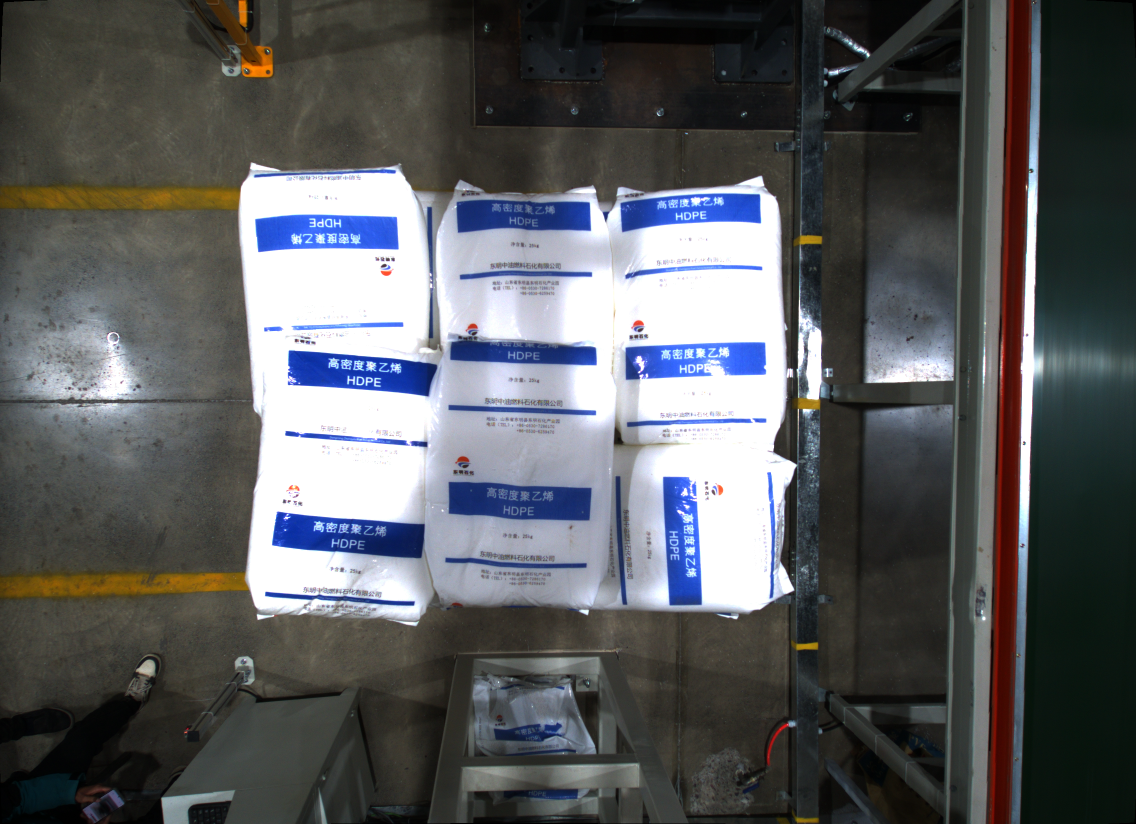
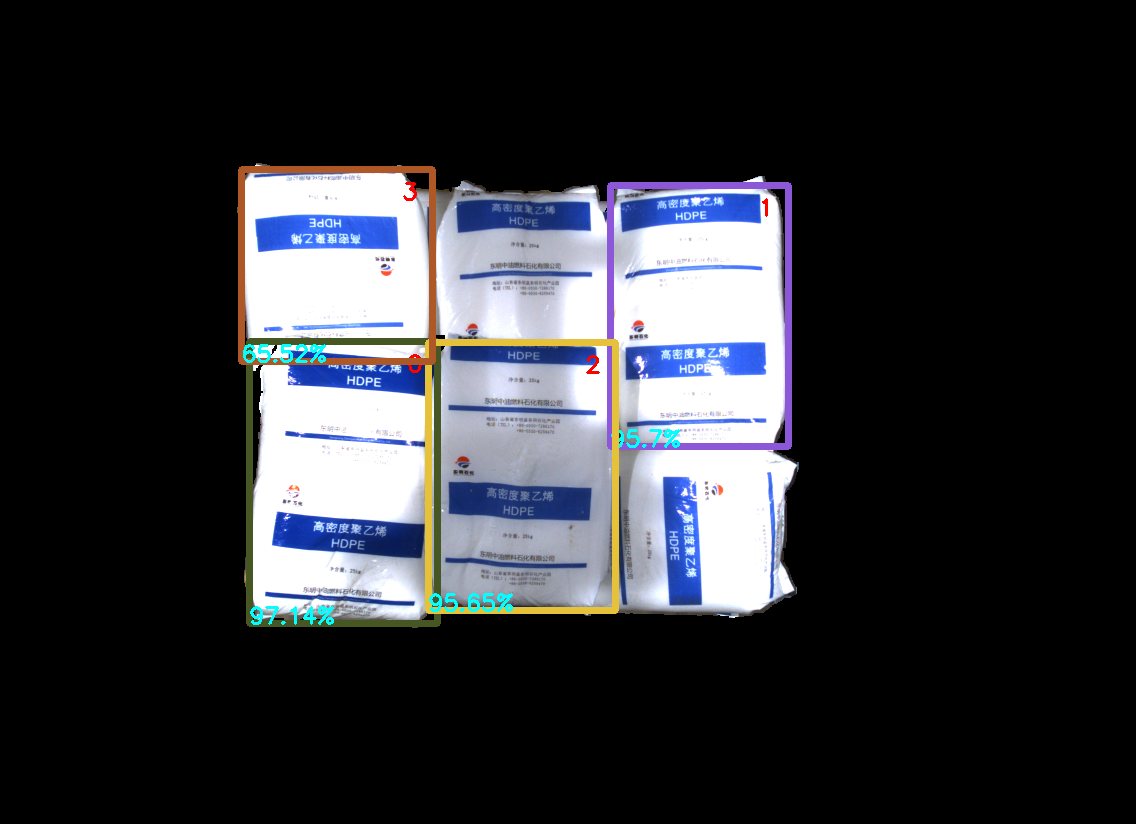
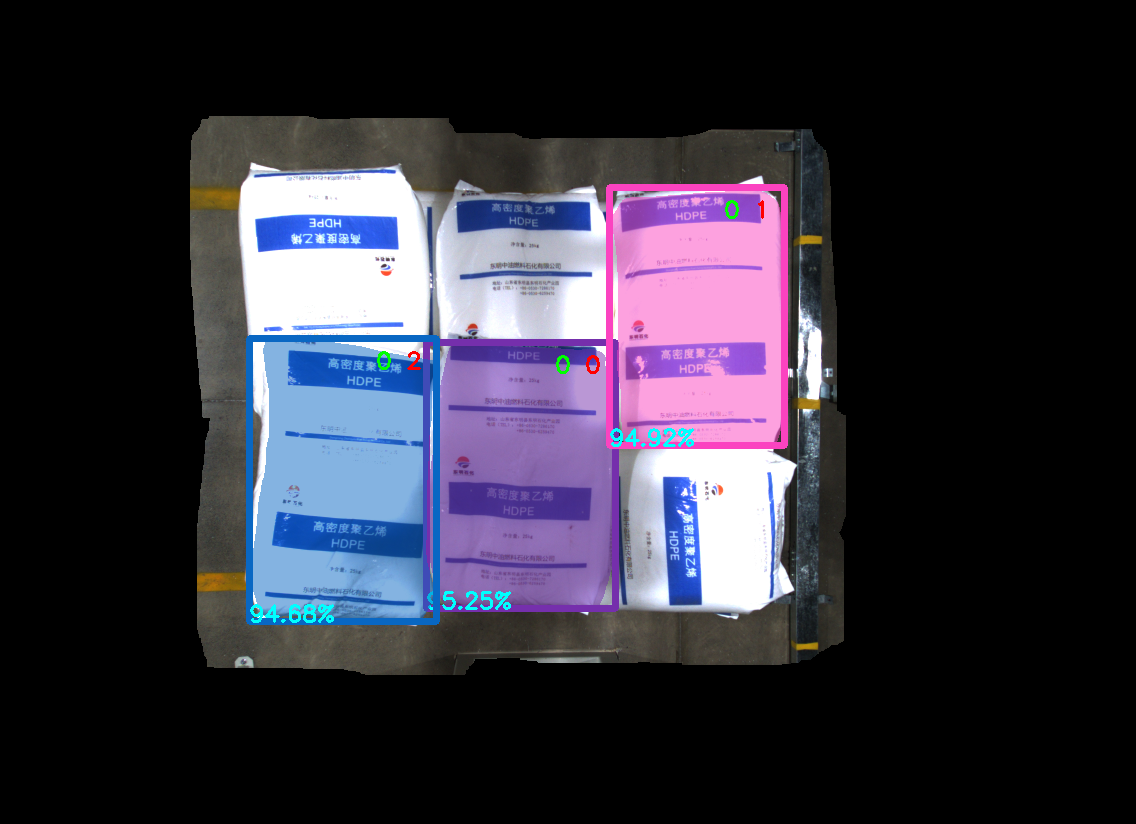
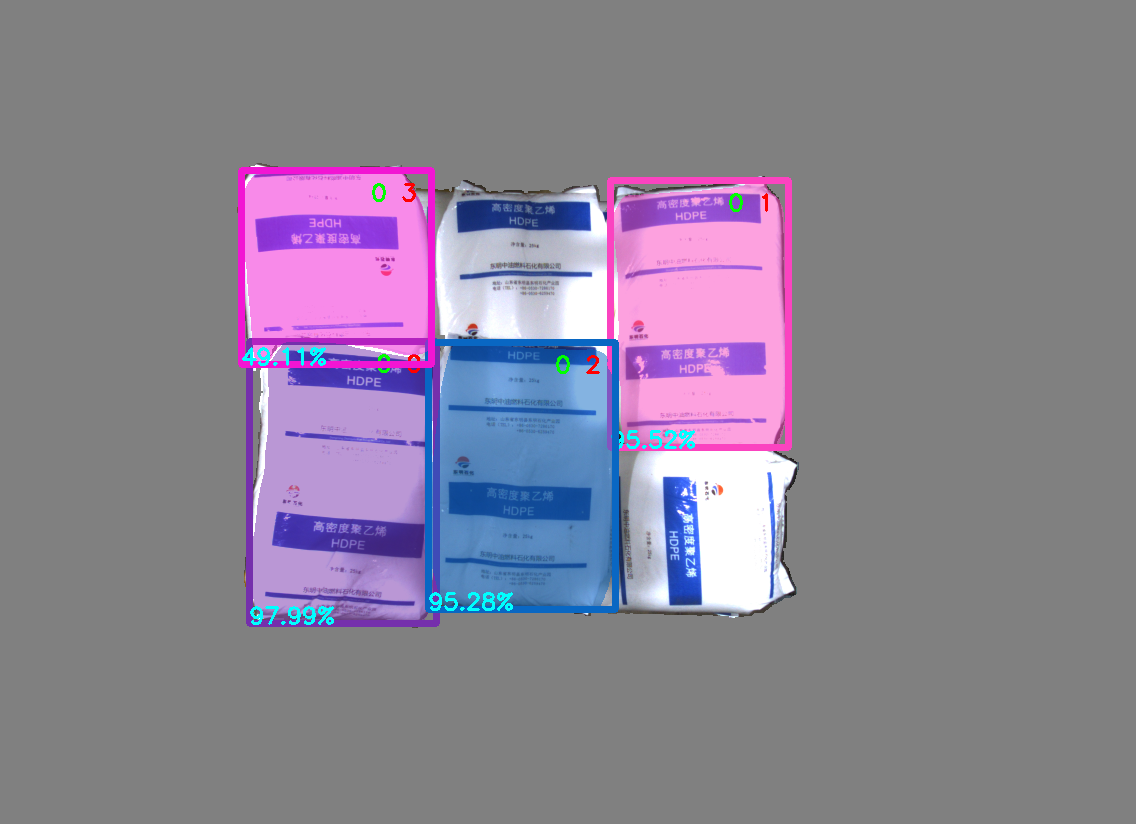
Excessive image background noise affects detection results
- Parameter Description
| Parameter Name | Description | Default Value | Range |
|---|---|---|---|
| Fill Kernel Size | Size of hole filling | 5 | [1,99] |
| Iteration Count | Number of image dilation iterations | 1 | [1,99] |
| Automatically Compute Contrast Background | Selected After Automatically Compute Contrast Background is enabled, the area outside the ROI in the 2D image is set to a color with a large contrast from the background color threshold. If it is not selected, the area outside the ROI in the 2D image is set to the color corresponding to the background color threshold. | Selected | |
| Background Color Threshold | RGB color threshold of the background color | 128 | [0,255] |
Fill kernel size can only be an odd number
- Parameter Tuning
If you need to remove more background noise from the image, reduce the Fill Kernel Size
- Example
1.2 Instance Segmentation
1.2.1 Scaling Ratio
- Function
Improve the accuracy and recall of 2D recognition by scaling the original image proportionally before inference.
- Use Case
If the detection result is poor (for example, no instances are detected, instances are missed, a bounding box covers multiple instances, or a bounding box does not fully cover an instance), this function should be adjusted.
Parameter Description
Default Value: 1.0
Range: [0.01, 3.00]
Step Size: 0.01
Parameter Tuning
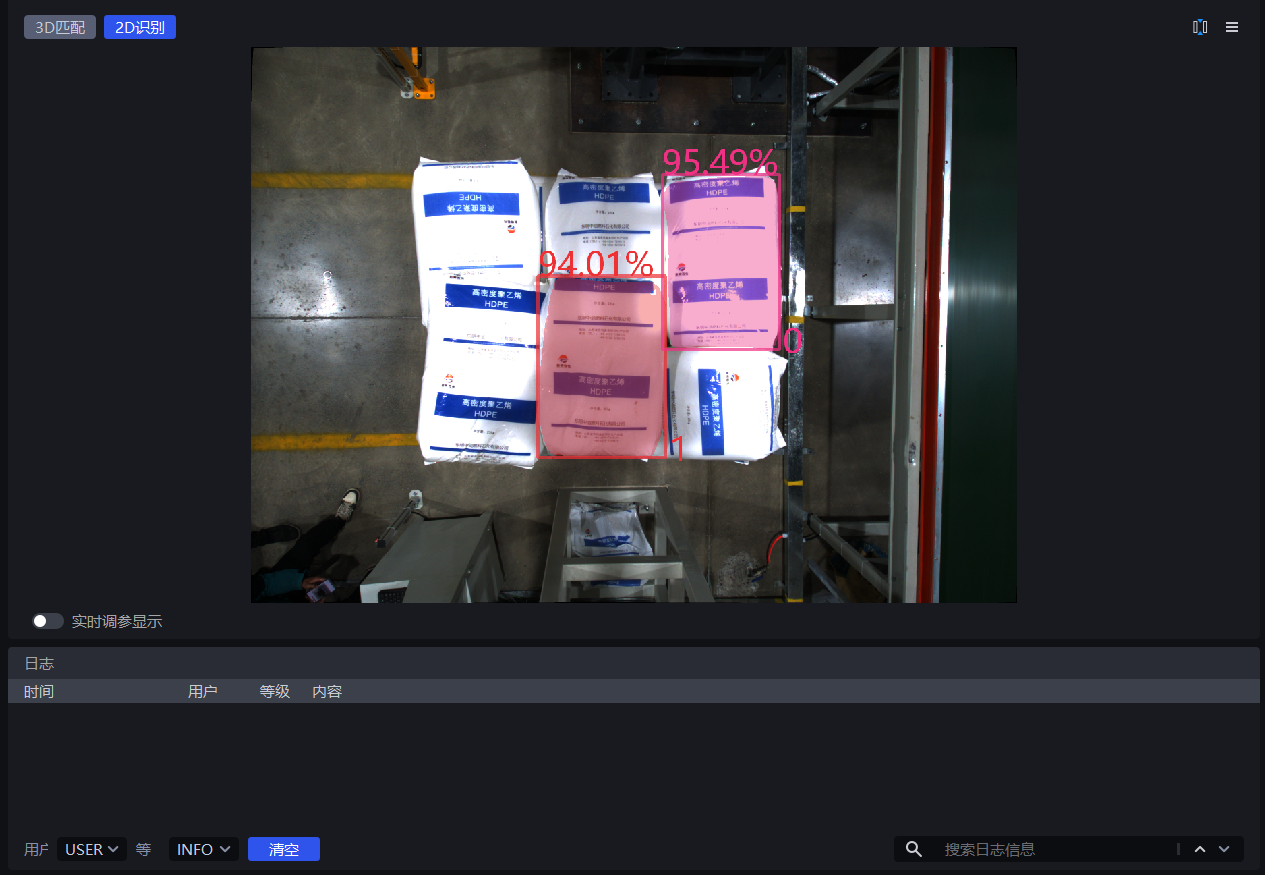
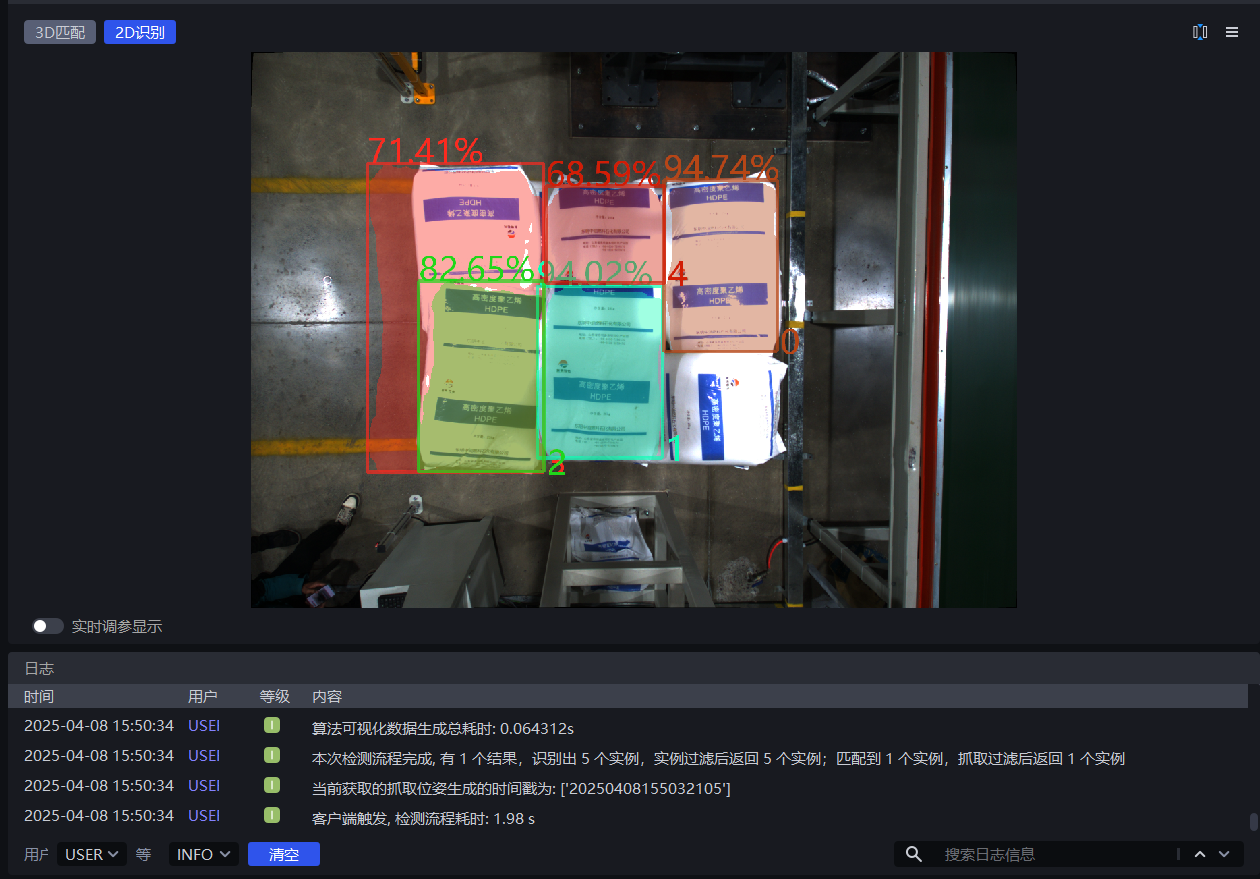
- Run with the default value and view the detection results in the visualization window. If no instances are detected, instances are missed, a bounding box covers multiple instances, or a bounding box does not fully cover an instance, this function should be adjusted.
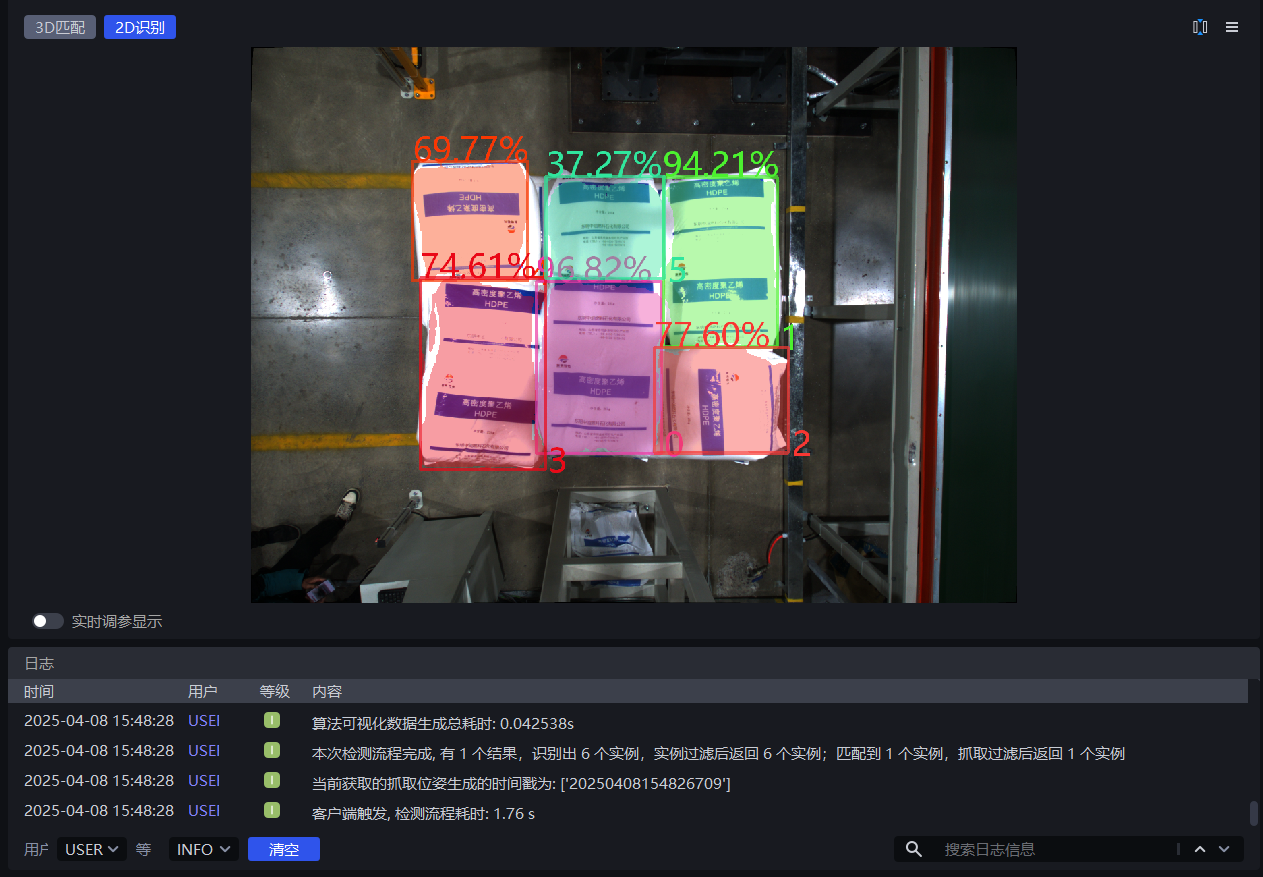
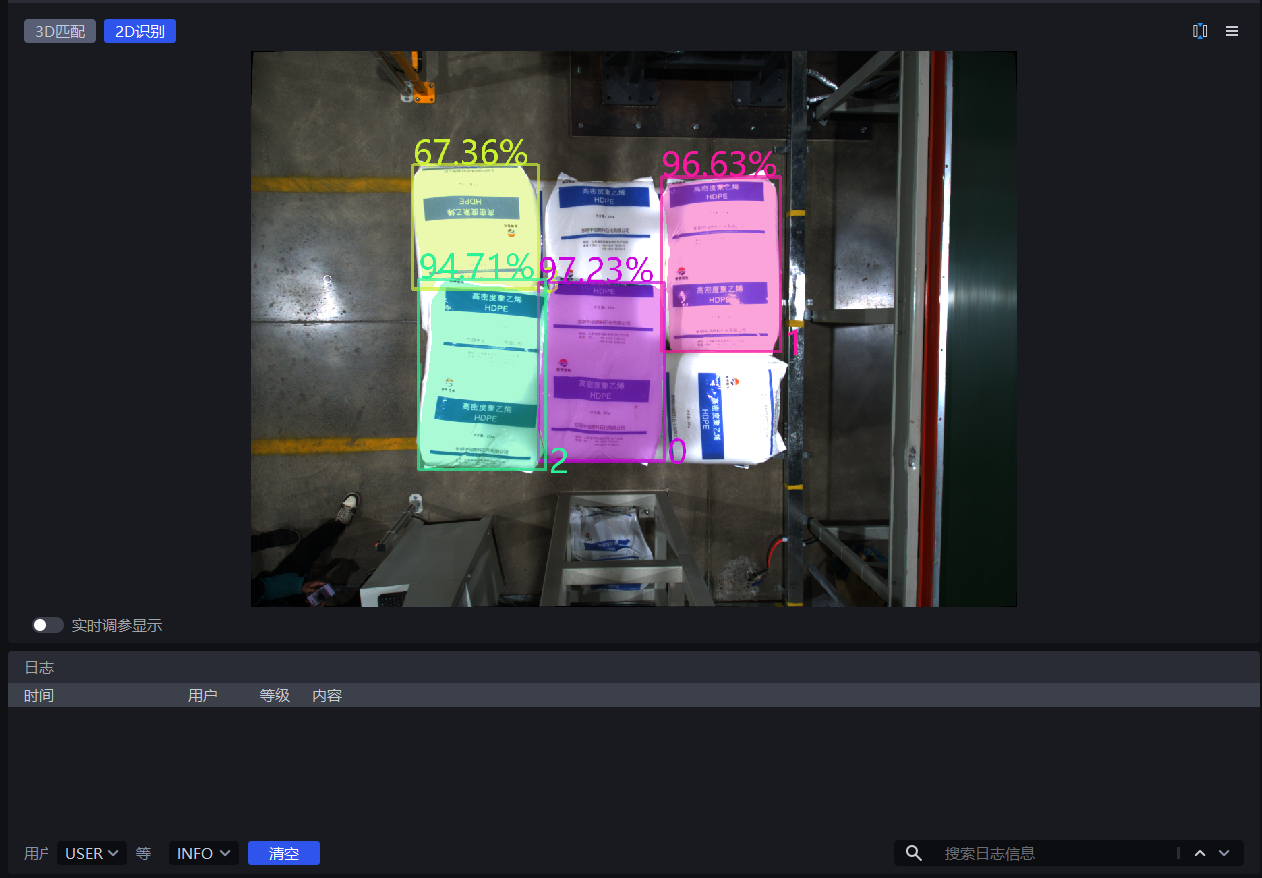
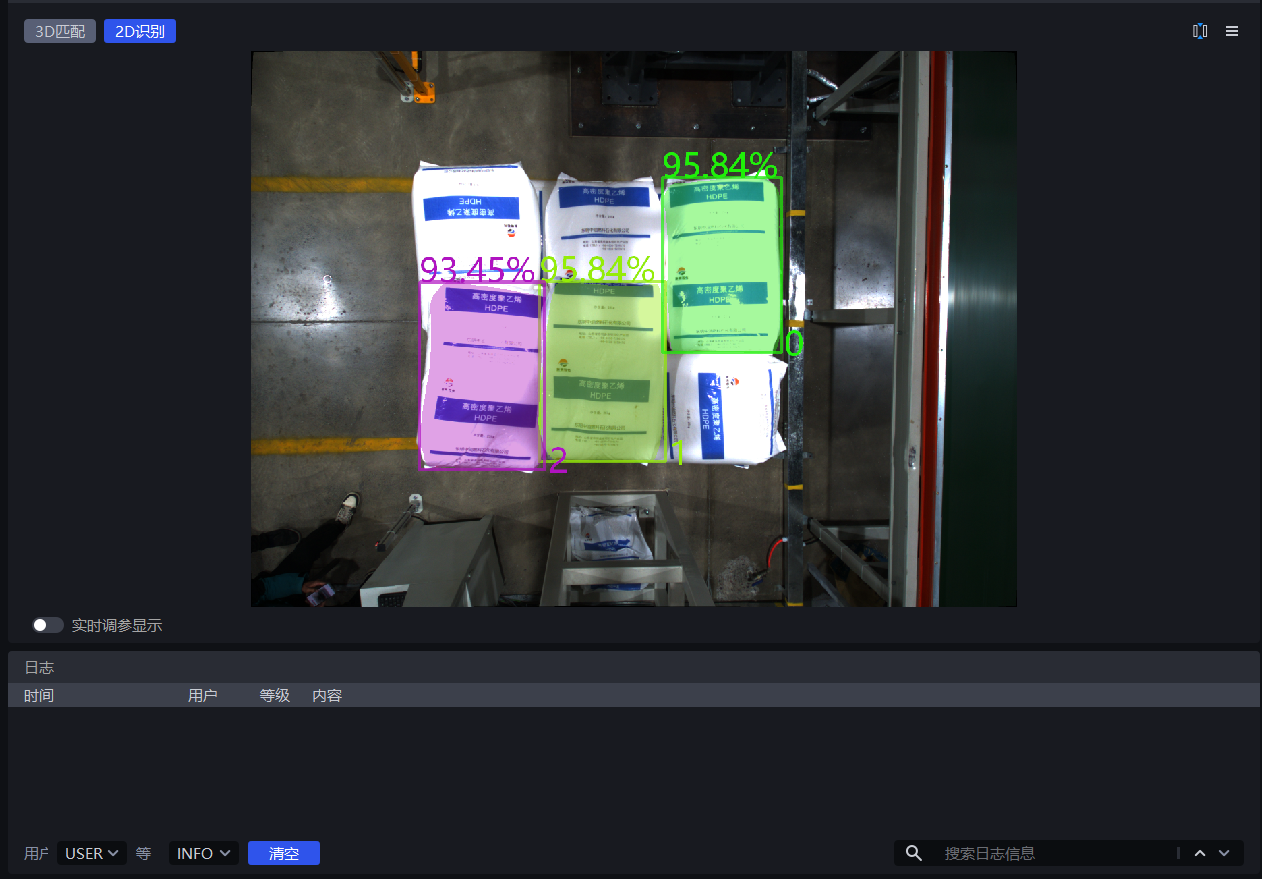
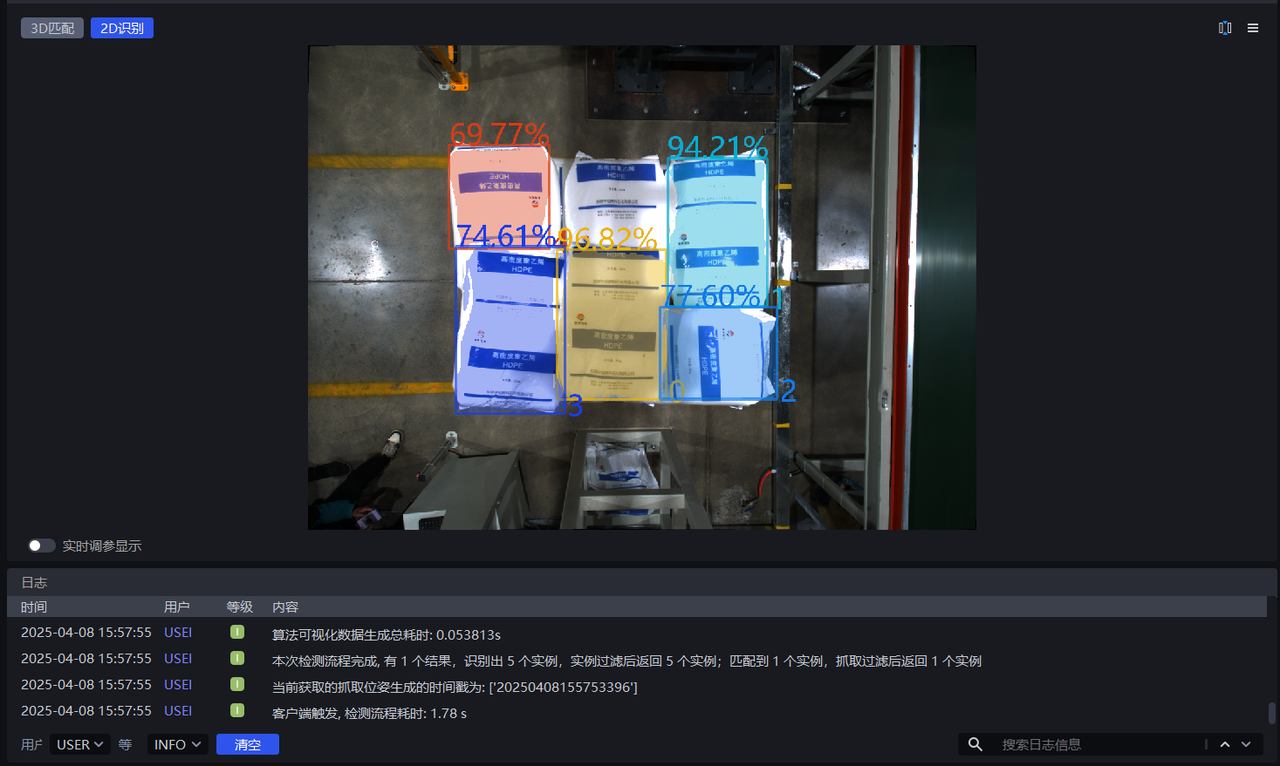
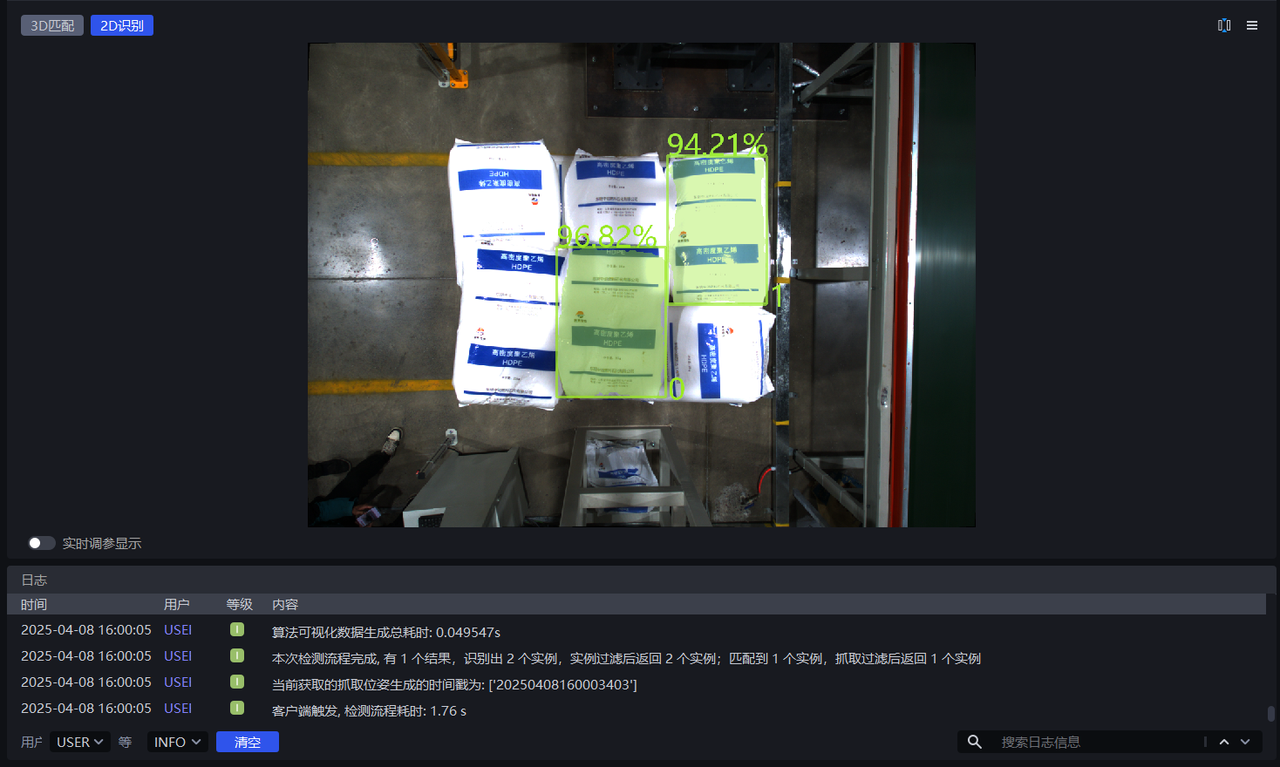
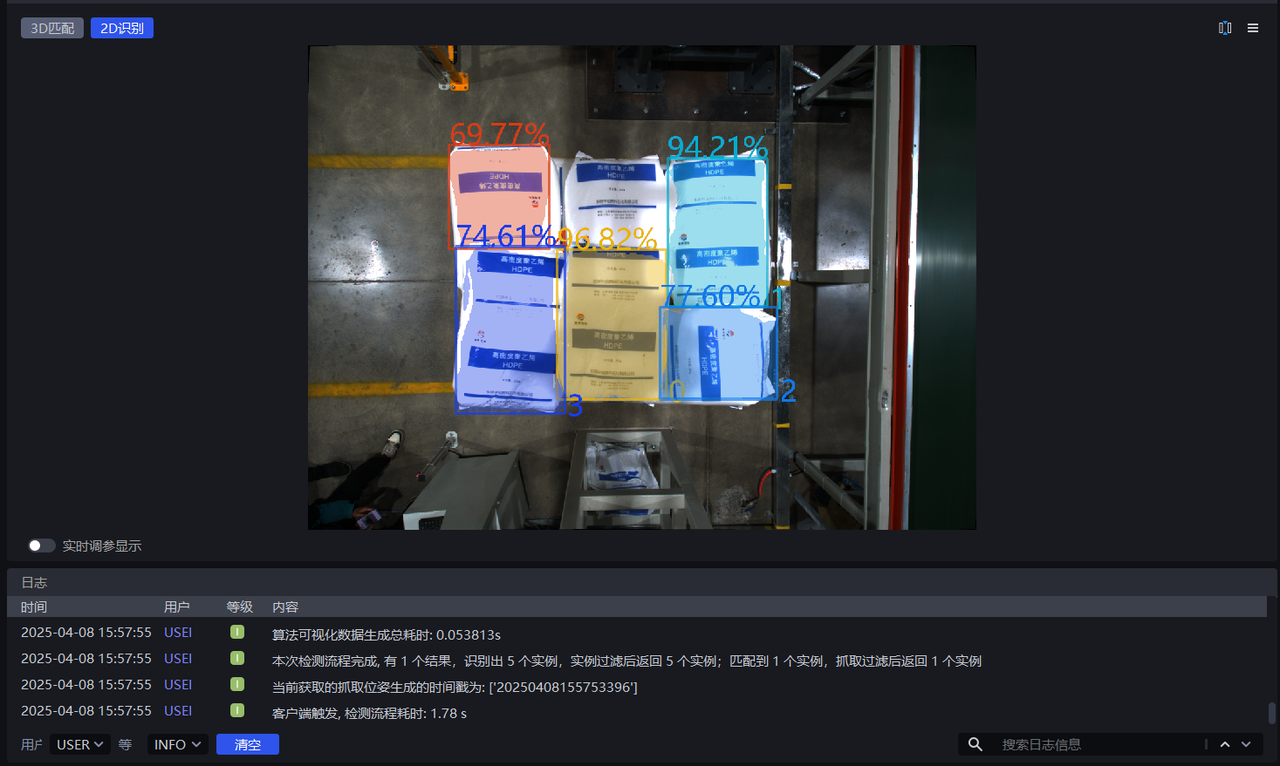
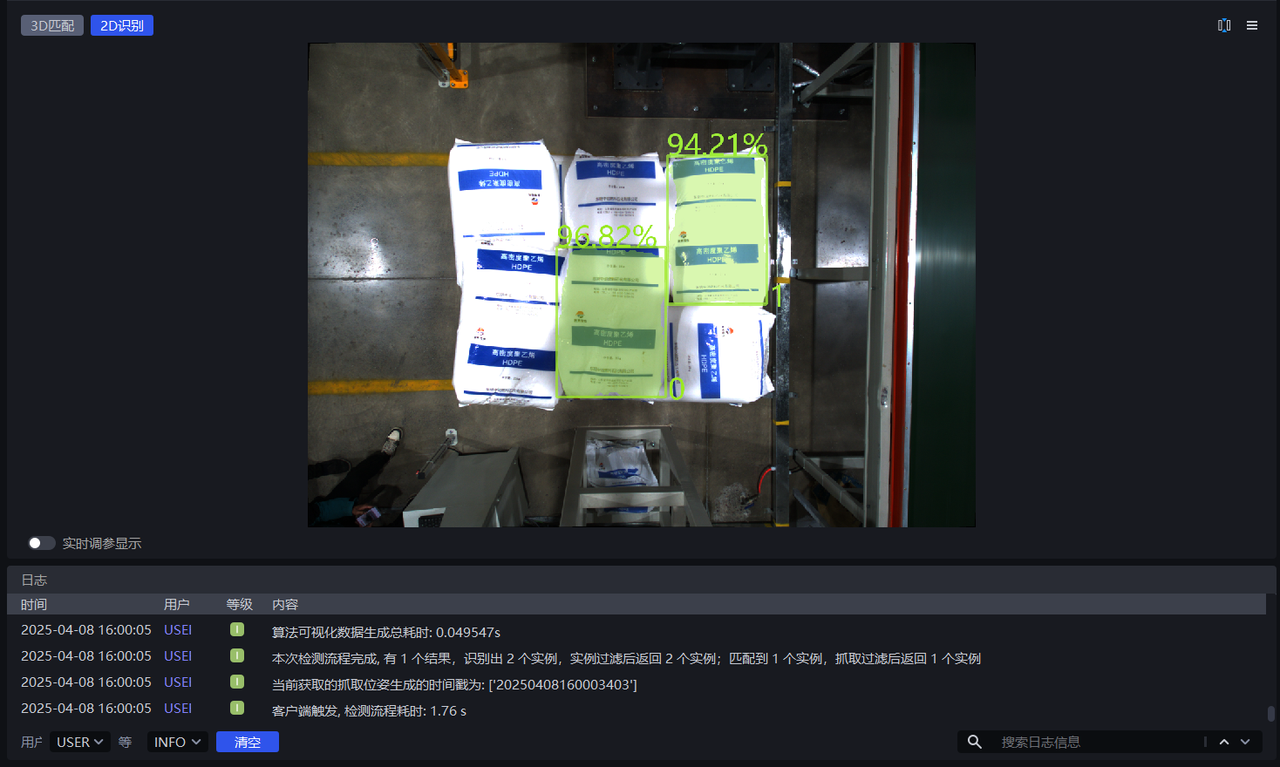
In 2D recognition, the percentage shown on an instance is the Confidence score, and the number is the Instance ID (the recognition order of the instance).
In 2D recognition, the colored shadow on an instance is the mask, and the rectangular box surrounding the instance is the bounding box.
If good detection results still cannot be obtained after trying all scaling ratios, you can adjust the ROI area.
As shown below, when the scaling ratio is 0.7, the detection result improves significantly. Therefore, 0.7 can be determined as the lower bound of the scaling ratio range.
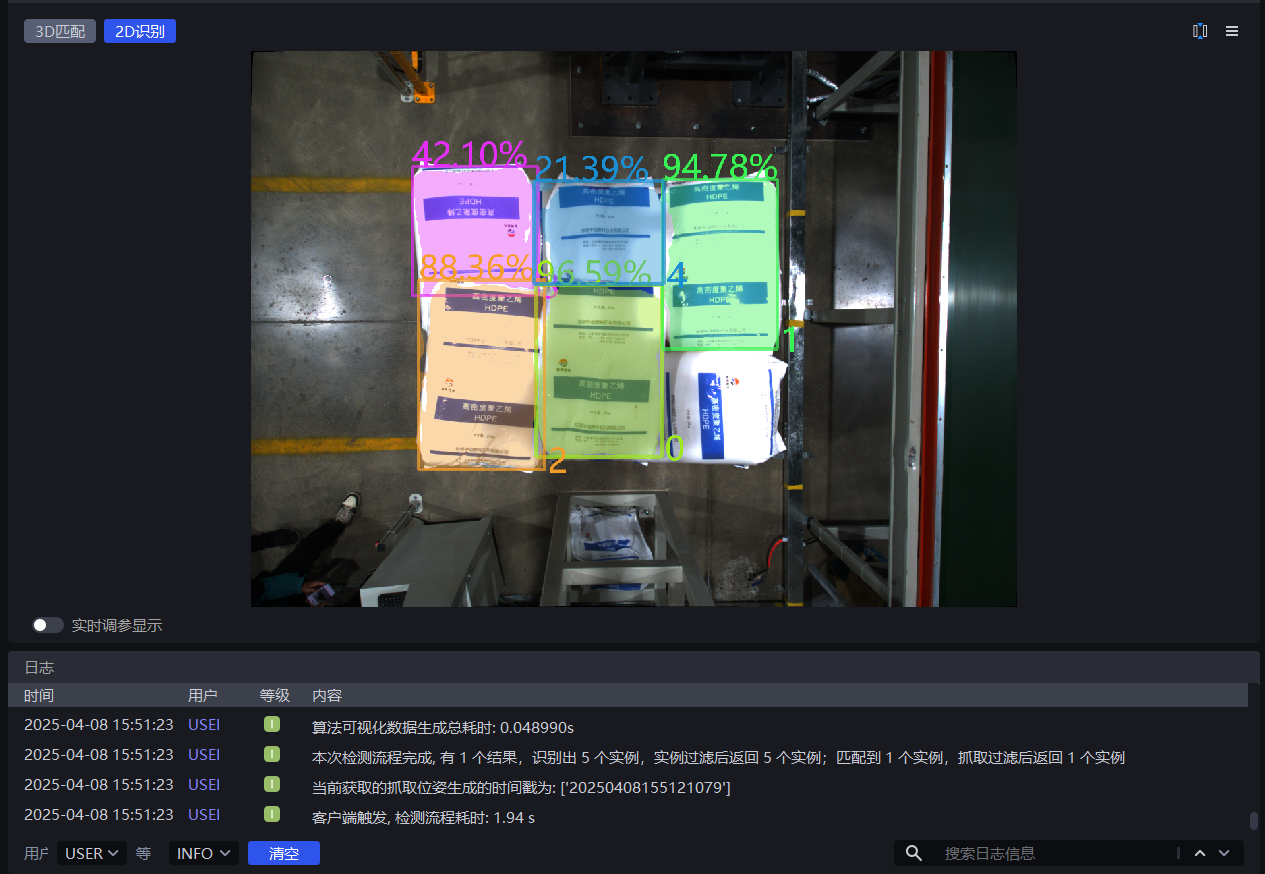
When the scaling ratio is 1.8, the detection result becomes significantly worse. Therefore, 1.8 can be determined as the upper bound of the scaling ratio range.
1.2.2 Confidence Lower Threshold
- Function
Keep only recognition results whose deep learning model confidence scores are higher than the lower confidence threshold
- Use Case
This function can be adjusted when the instances enclosed by the detection result do not match expectations
- Parameter Description
Default Value: 0.5
Range: [0.01, 1.00]
Parameter Tuning
- If too few instances are detected, reduce this threshold. If the value is too small, the accuracy of image recognition may be affected.
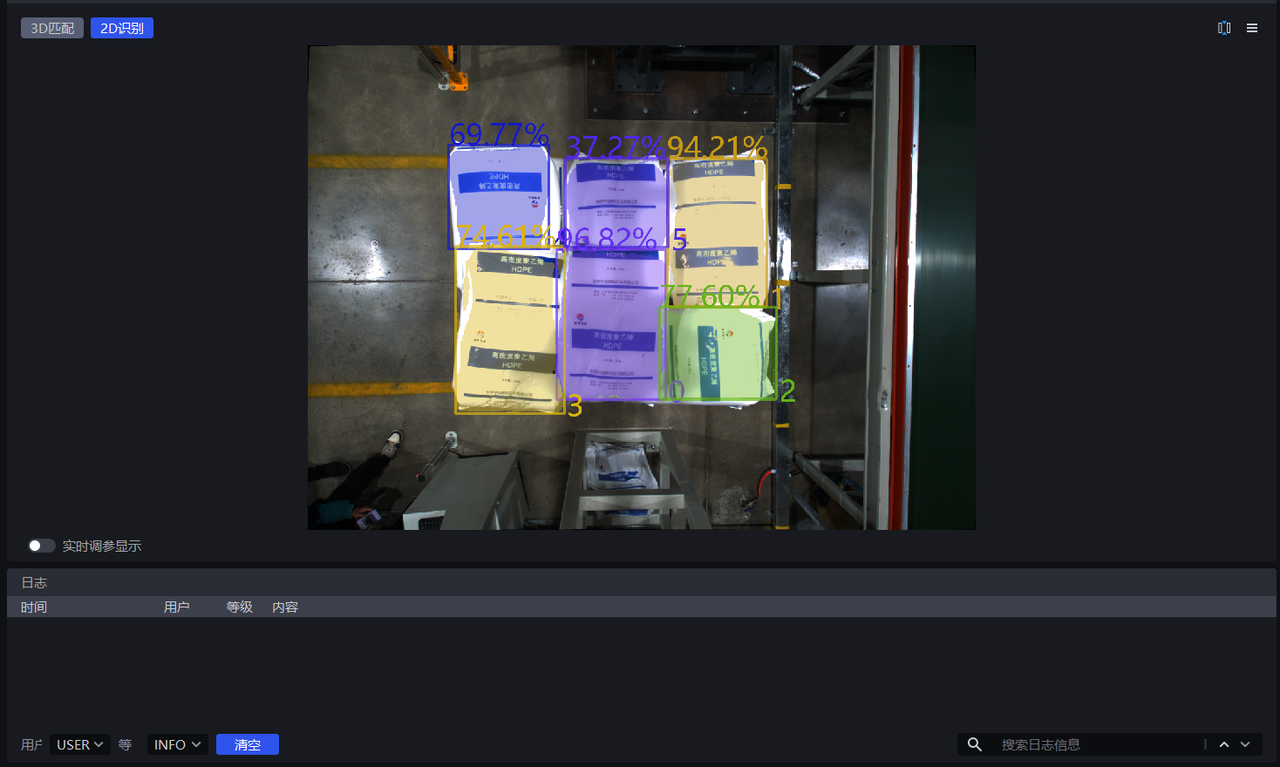
- If an excessively small lower confidence threshold causes incorrect instances to be detected and those incorrect instances need to be removed, increase this threshold. If the value is too large, the retained detection results may become zero, resulting in no output.
Example
When Lower Confidence Threshold is set to 0.5, the retained instance detection results are shown in the left figure below. When Lower Confidence Threshold is set to 0.8, the retained instance detection results are shown in the right figure below. The instances with scores of 77.60%, 74.61%, and 69.77% (lower than 80%) are filtered out.
1.2.3 Auto Augment
- Function
All input values of scaling ratios and rotation angles are combined for inference. All results greater than the set lower confidence threshold after the combinations are returned, which can improve model inference accuracy, but increases processing time.
- Use Case
A single scaling ratio cannot meet the requirements of the actual scene, causing incomplete detection, or the object placement tilt is relatively large.
- Example
If Automatic Enhancement - Scaling Ratio is set to [0.8, 0.9, 1.0] and Automatic Enhancement - Rotation Angle is set to [0, 90.0] , then the values of the scaling ratios and rotation angles are combined pairwise. The model automatically generates 6 images internally for inference, and finally merges these 6 inference results together, outputting the results greater than the lower confidence threshold.
Auto Augment - Scaling Ratio
- Function
Scale the original image multiple times and perform inference multiple times, then output the combined inference result
- Use Case
Incomplete detection because a single scaling ratio cannot satisfy actual scene requirements
- Parameter Description
Default Value: [1.0]
Range: the range of each scaling ratio is [0.1, 3.0]
Multiple scaling ratios can be set, separated by English commas
- Parameter Tuning
Fill in multiple scaling ratios from 1.2.1 Scaling Ratio that produce good detection results
Auto Augment - Rotation Angle
- Function
Rotate the original image multiple times and perform inference multiple times, then output the combined inference result
- Use Case
Used when the object placement deviates significantly from the coordinate axes
- Parameter Description
Default Value: [0.0]
Range: the range of each rotation angle is [0, 360]
Multiple rotation angles can be set, separated by English commas
- Parameter Tuning
Adjust Automatic Enhancement - Rotation Angle according to the object angle in the actual scene. The tilt angle can be judged from the sack pattern and bag opening shape, or from the carton edges and brand logo.
1.3 Point Cloud Generation
In depalletizing scenarios, instance point clouds are generally generated using Mask Form (After Segmentation) or Mask Form (After Filtering).
| Instance Point Cloud Generation Mode | Mask(Segmented) | — | Use the segmented instance mask to generate the point cloud |
| Bounding Box (Segmented) | Bounding Box Scaling Ratio (Segmented) | Use the segmented instance bounding box to generate the point cloud | |
| Whether Color Is Required When Generating the Point Cloud (Segmented) | Whether the generated instance point cloud needs attached color | ||
| Mask(Filtered) | — | Use the filtered instance mask to generate the point cloud | |
| Bounding Box (Filtered) | Bounding Box Scaling Ratio (Filtered) | Use the filtered instance bounding box to generate the point cloud | |
| Whether Color Is Required When Generating the Point Cloud (Filtered) | Whether the generated instance point cloud needs attached color |
If acceleration is not required, there is no need to use the Instance Filtering function. Use Mask (Segmented) to generate the instance point cloud, which can be viewed under the project storage folder \Project Name\data\PickLight\Historical Data Timestamp\Builder\pose\input folder containing the generated instance point cloud.
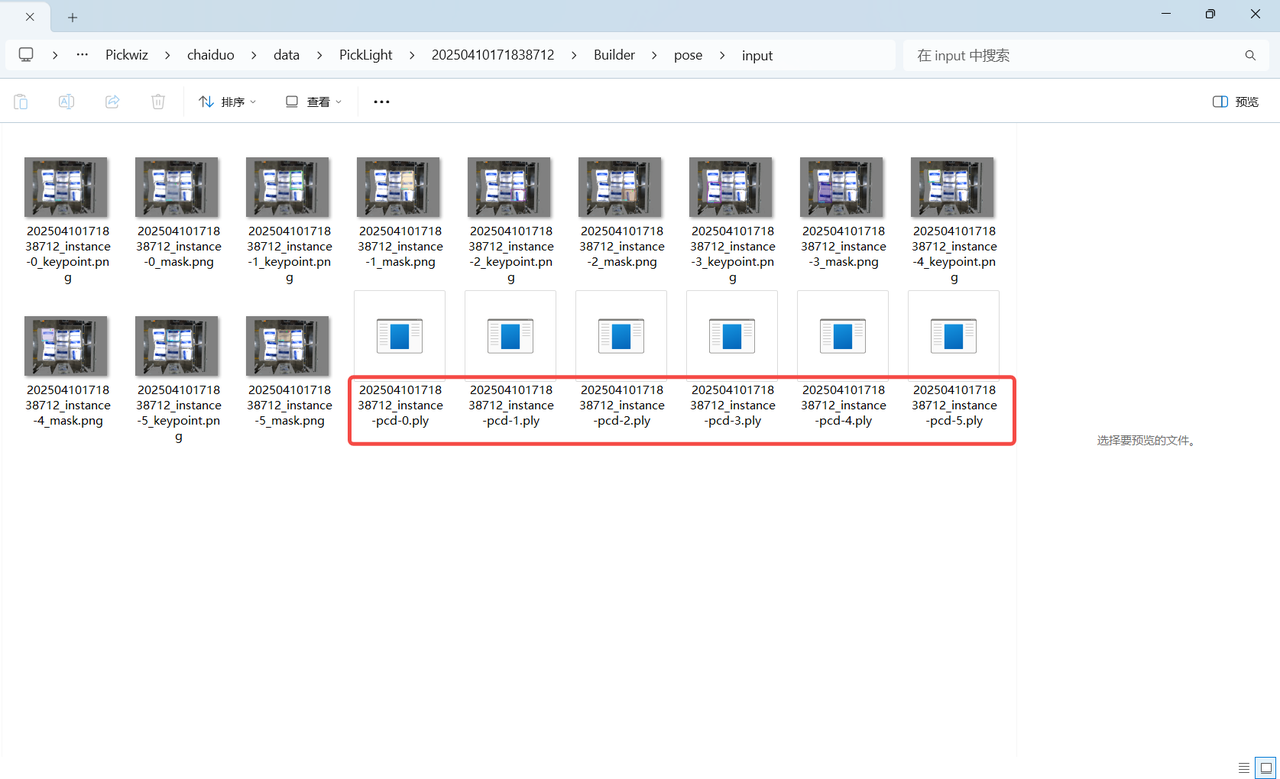
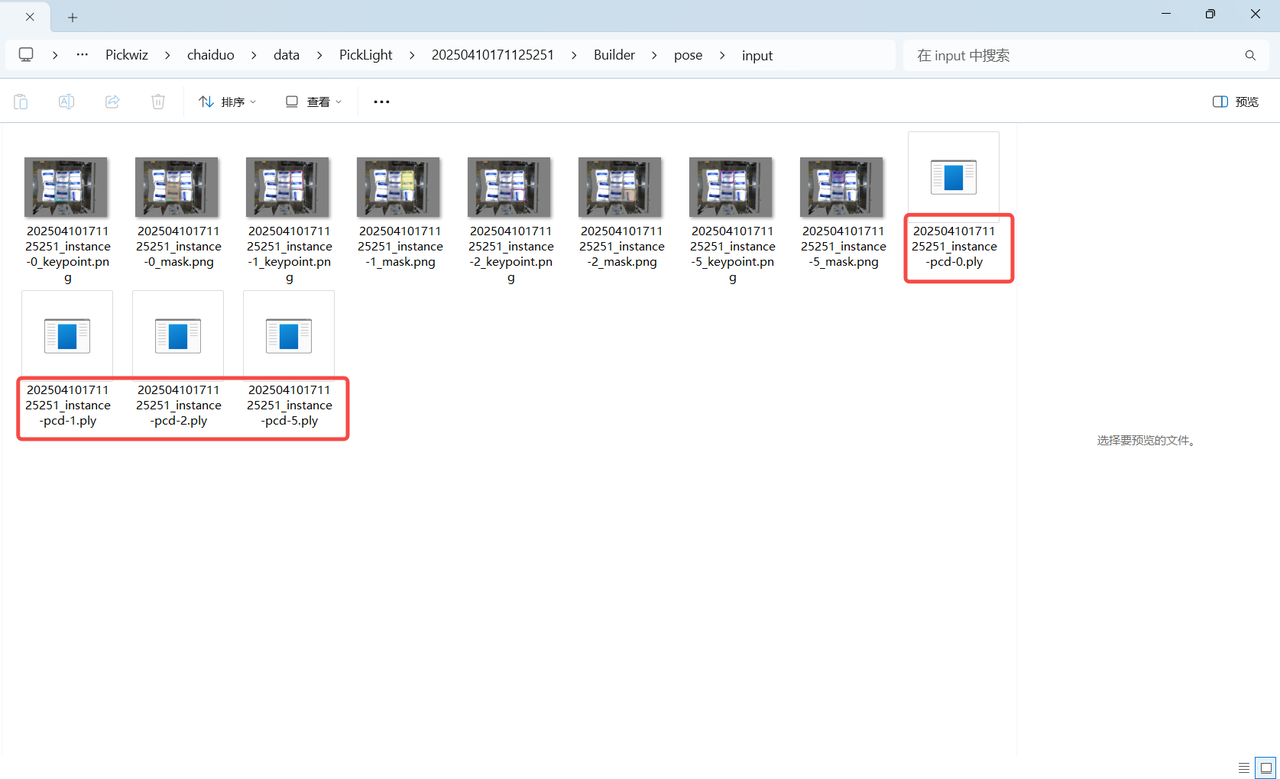
If acceleration is required, you can use the Instance Filtering function to filter instances and use Mask (Filtered) to generate the instance point cloud, which can be viewed in the generated instance point cloud under the project storage folder \Project Name\data\PickLight\Historical Data Timestamp\Builder\pose\input folder containing the generated instance point cloud
1.4 Instance Filtering
1.4.1 Filter by BBox Area
- Function Introduction
Filter according to the pixel area of the bounding box of the detected instance.
- Use Case
Applicable to scenarios where instance bounding box areas differ greatly. By setting upper and lower limits for the bounding box area, image noise can be filtered out to improve image recognition accuracy and avoid extra processing time caused by noise in subsequent processing.
- Parameter Description
| Parameter | Description | Default Value | Range | Unit |
|---|---|---|---|---|
| Minimum Area (Pixels) | This parameter sets the minimum filtering area for the bounding box. Instances whose bounding box area is lower than this value are filtered out. | 1 | [1, 10000000] | pixels |
| Maximum Area (Pixels) | This parameter sets the maximum filtering area for the bounding box. Instances whose bounding box area is higher than this value are filtered out. | 10000000 | [2, 10000000] | pixels |
- Example
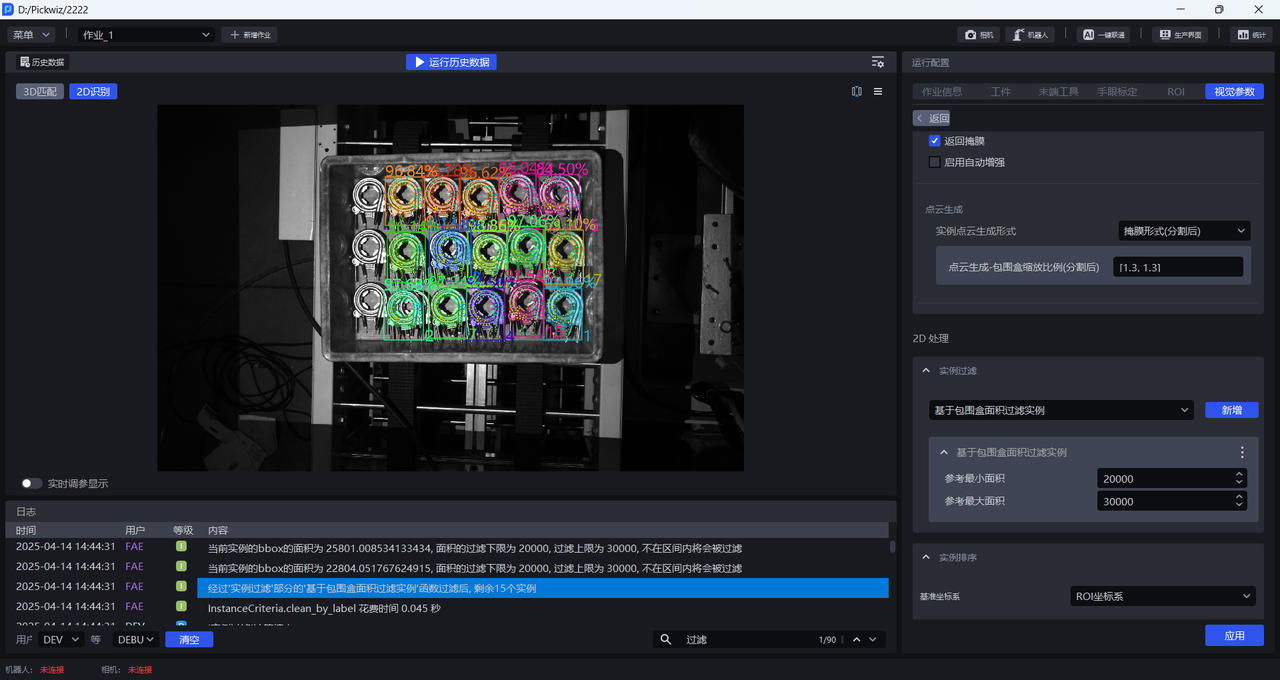
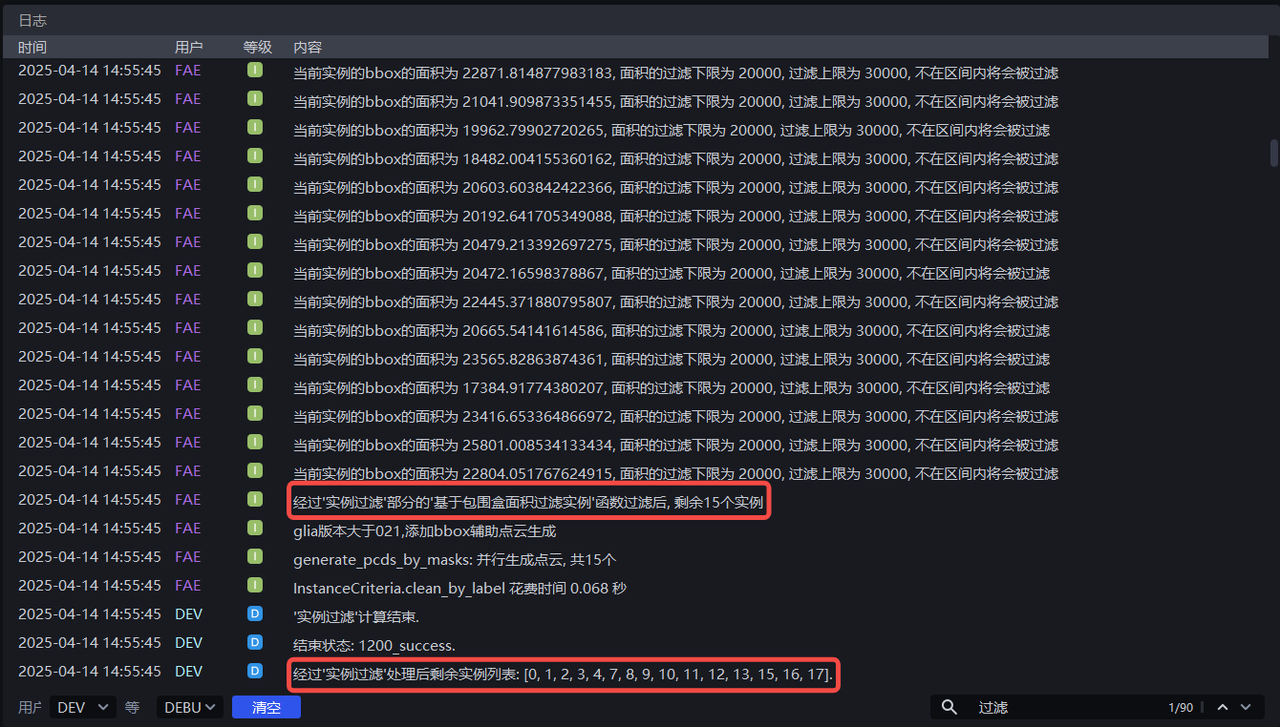
Run with the default values. You can view the bounding box area of each instance in the log, as shown below.
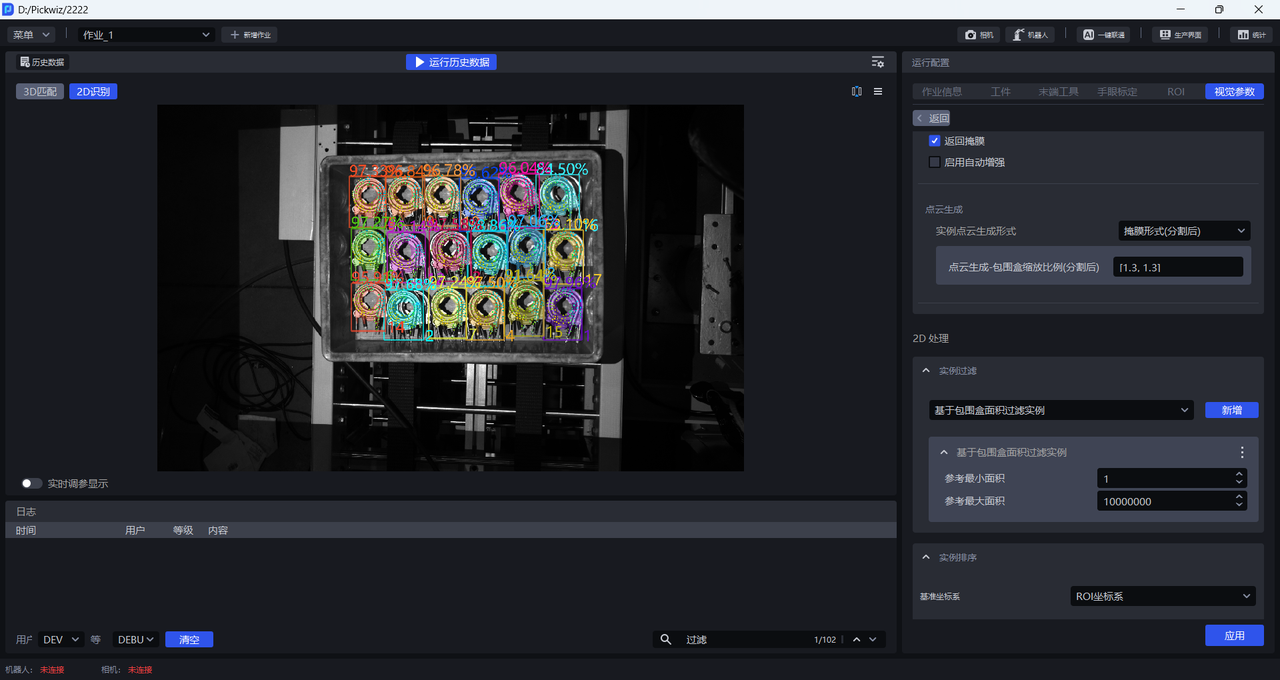
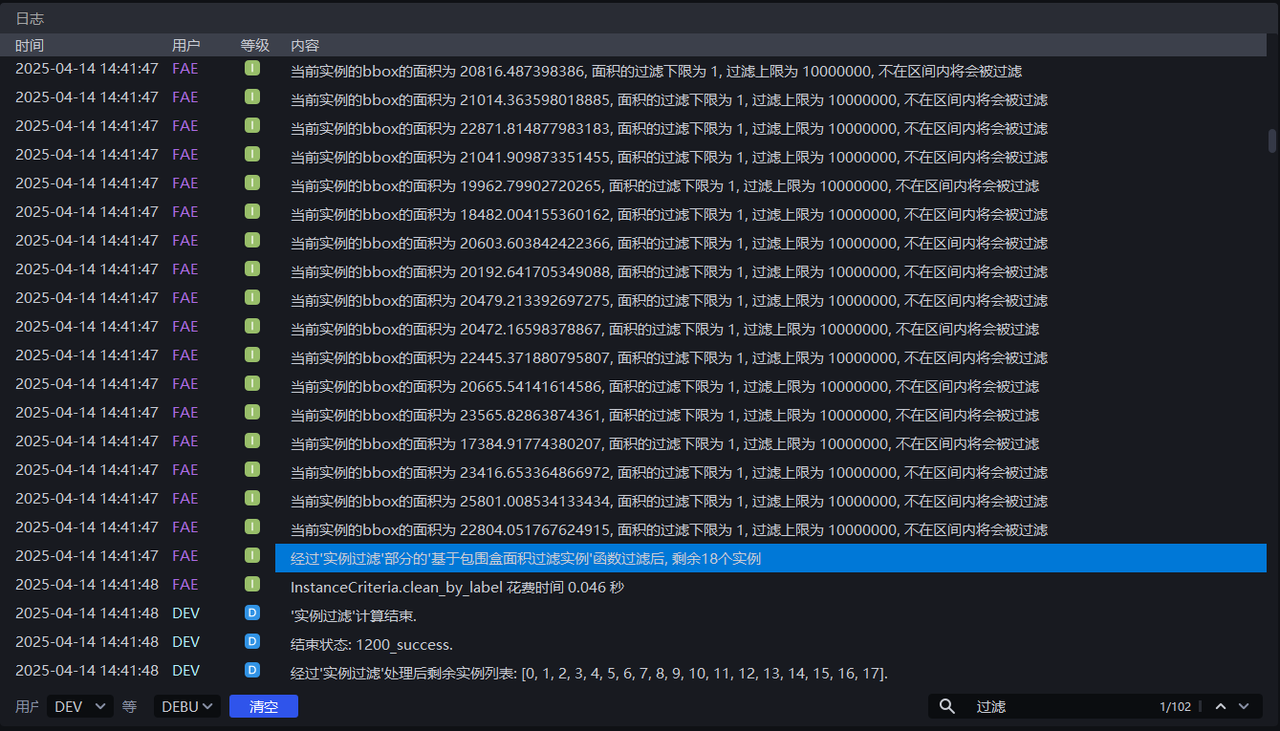
Adjust Minimum Area and Maximum Area according to the bounding box area of each instance. For example, setting Minimum Area to 20000 and Maximum Area to 30000 will filter out instances whose pixel area is less than 20000 or greater than 30000. The instance filtering process can be viewed in the log.
1.4.2 Filter Based on Bounding Box Aspect Ratio
- Function Introduction
Instances whose bounding box aspect ratios are outside the specified range are filtered out
- Use Case
Applicable to scenarios where instance bounding box aspect ratios differ greatly
- Parameter Description
| Parameter | Description | Default Value | Range |
|---|---|---|---|
| Minimum Aspect Ratio | Minimum bounding box aspect ratio. Instances whose bounding box aspect ratio is lower than this value are filtered out. | 0 | [0, 10000000] |
| Maximum Aspect Ratio | Maximum bounding box aspect ratio. Instances whose bounding box aspect ratio is higher than this value are filtered out. | 10000000 | [0, 10000000] |
| Use X/Y Axis Side Length as the Aspect Ratio | By default, this option is cleared, and the ratio of the longer side to the shorter side of the bounding box is used as the aspect ratio, which is suitable when the lengths of the longer and shorter sides differ greatly. After selection, the ratio of the side length on the X-axis to the side length on the Y-axis in the pixel coordinate system is used as the aspect ratio, which is suitable when the ratios of the longer side to the shorter side of most normal instance bounding boxes are similar, but some abnormal recognized instance bounding boxes differ greatly in their X-axis length / Y-axis length ratio. | Cleared | / |
1.4.3 Filter by Category ID
- Function Introduction
Filter according to the instance category
- Use Case
Applicable to scenarios where multiple types of Target Objects are supplied
- Parameter Description
| Parameter | Description | Default Value |
|---|---|---|
| Retained Category IDs | Retain instances whose category IDs are in the list. Instances whose category IDs are not in the list are filtered out. | [0] |
- Example
1.4.4 Filter Instance Edge
- Function Introduction
Filter according to the long side and short side of the instance point cloud
- Use Case
Applicable to scenarios where the distances of the instance point cloud on the X-axis or Y-axis differ greatly. By setting the distance range of the instance point cloud, image noise can be filtered out, image recognition accuracy can be improved, and extra processing time caused by noise in subsequent processing can be avoided.
- Parameter Description
| Parameter | Description | Default Value | Range | Unit |
|---|---|---|---|---|
| Short Side Length Range (mm) | Side length range of the short side of the point cloud | [0, 10000] | [0, 10000] | mm |
| Long Side Length Range (mm) | Side length range of the long side of the point cloud | [0, 10000] | [0, 10000] | mm |
| Lower Edge Denoising Limit (%) | Extract the lower percentage limit of X/Y values (camera coordinate system) in the instance point cloud, and remove point clouds outside the upper and lower limits to avoid noise affecting length calculation | 5 | [0, 100] | / |
| Upper Edge Denoising Limit (%) | Extract the upper percentage limit of X/Y values (camera coordinate system) in the instance point cloud, and remove point clouds outside the upper and lower limits to avoid noise affecting length calculation | 95 | [0, 100] | / |
| Side Length Type | Filter according to the long side and short side of the instance point cloud. Instances whose long side or short side lengths are outside the range are filtered out. | Instance Point Cloud Short Side | Instance Point Cloud Short Side; Instance Point Cloud Long Side; Instance Point Cloud Long Side and Short Side | / |
- Example
1.4.5 Filter Based on Classifier Category ID
- Function Introduction
Filter instances based on the category ID from the classifier. Instances not in the reference categories are filtered out.
- Use Case
In multi-category Target Object scenarios, the vision model may detect multiple types of Target Objects, but the actual task may require only one specific category. In this case, this function can be used to filter out unnecessary Target Objects.
- Parameter Description
The default value is [0], which means that instances with category ID 0 are retained by default. Instances whose category IDs are not in the list are filtered out.
1.4.6 Filter by Color Range
- Function Introduction
Instances can be filtered out by three-channel color thresholds (HSV or RGB).
- Use Case
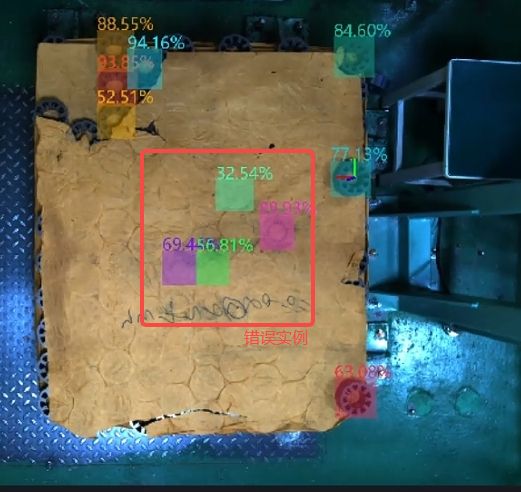
Cases where incorrect instances and correct instances have obvious color differences.
- Parameter Description
| Parameter | Description | Default Value | Range |
|---|---|---|---|
| Maximum Color Range Value | Maximum color value | [180,255,255] | [[0,0,0],[255,255,255]] |
| Minimum Color Range Value | Minimum color value | [0,0,0] | [[0,0,0],[255,255,255]] |
| Filtering Percentage Threshold | Color pass-rate threshold | 0.05 | [0,1] |
| Reverse Filtering | If selected, instances whose proportion outside the color range is lower than the threshold are removed. If cleared, instances whose proportion inside the color range in the instance image is lower than the threshold are removed. | Cleared | / |
| Color Mode | Color space selected for color filtering | HSV Color Space | RGB Color SpaceHSV Color Space |
- Example
1.4.7 Filter by Confidence
- Function Introduction
Filter according to the confidence score of the instance
- Use Case
Applicable to scenarios where confidence scores of instances differ greatly
- Parameter Description
| Parameter | Description | Default Value | Range |
|---|---|---|---|
| Reference Confidence | Retain instances whose confidence is greater than the threshold, and filter out instances whose confidence is less than the threshold. | 0.5 | [0,1] |
| Reverse Filtering Result | After reversal, retain instances whose visibility confidence is less than the threshold, and filter out instances whose confidence is greater than the threshold. | Cleared | / |
- Example
1.4.8 Filter by Instance PCD Quantity
- Function Introduction
Filter according to the number of downsampled instance point clouds
- Use Case
The instance point cloud contains a large amount of noise
- Parameter Description
| Parameter | Description | Default Value | Range |
|---|---|---|---|
| Minimum Point Cloud Quantity | Minimum point cloud quantity | 3500 | [1, 10000000] |
| Maximum Point Cloud Quantity | Maximum point cloud quantity | 8500 | [2, 10000000] |
| Filter Instances Whose Quantity Falls Within the Interval | If selected, instances whose point cloud quantity is between the minimum and maximum values are filtered out. If cleared, instances whose point cloud quantity is not within the interval are filtered out. | Cleared | / |
1.4.9 Filter by Mask Area
- Function Introduction
Filter image masks according to the sum of mask pixels (that is, the pixel area) of the detected instances.
- Use Case
Applicable to scenarios where instance mask areas differ greatly. By setting upper and lower limits for mask area, noise in image masks can be filtered out to improve image recognition accuracy and avoid extra processing time caused by noise in subsequent processing.
- Parameter Setting Description
| Parameter Name | Description | Default Value | Range | Unit |
|---|---|---|---|---|
| Reference Minimum Area | This parameter sets the minimum filtering area for the mask. Instances whose mask area is lower than this value are filtered out. | 1 | [1, 10000000] | pixels |
| Reference Maximum Area | This parameter sets the maximum filtering area for the mask. Instances whose mask area is higher than this value are filtered out. | 10000000 | [2, 10000000] | pixels |
- Example
1.4.10 Filter Based on Visibility
- Function Introduction
Filter according to the visibility score of the instance
- Use Case
Applicable to scenarios where instance visibility differs greatly
- Parameter Description
| Parameter | Description | Default Value | Range |
|---|---|---|---|
| Reference Visibility Threshold | Retain instances whose visibility is greater than the threshold, and filter out instances whose visibility is less than the threshold. Visibility is used to determine how visible an instance is in the image. The more the Target Object is occluded, the lower the visibility. | 0.5 | [0,1] |
| Reverse Filtering Result | After reversal, retain instances whose visibility is less than the threshold, and filter out instances whose visibility is greater than the threshold. | Cleared | / |
1.4.11 Remove Overlapping Instances
- Function Introduction
Filter instances whose bounding boxes intersect and overlap
- Use Case
Applicable to scenarios where instance bounding boxes intersect each other
- Parameter Description
| Parameter | Description | Default Value | Range |
|---|---|---|---|
| Bounding Box Overlap Ratio Threshold | Threshold for the ratio of the intersecting area of bounding boxes to the area of the instance bounding box | 0.05 | [0, 1] |
| Filter the Instance with the Larger Bounding Box Area | If selected, the instance with the larger area among two intersecting bounding boxes is filtered out. If cleared, the instance with the smaller area among two intersecting bounding boxes is filtered out. | Selected | / |
- Example
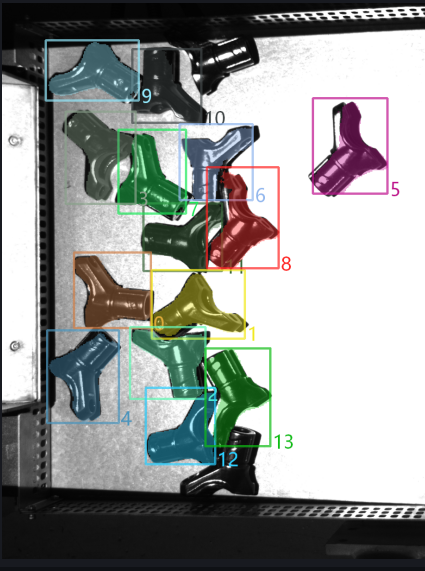
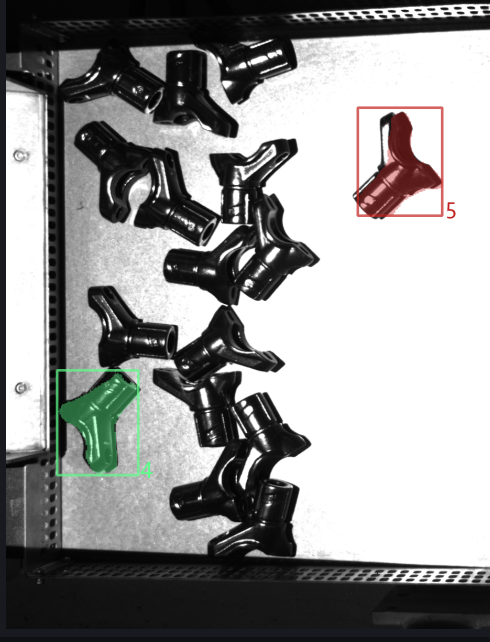
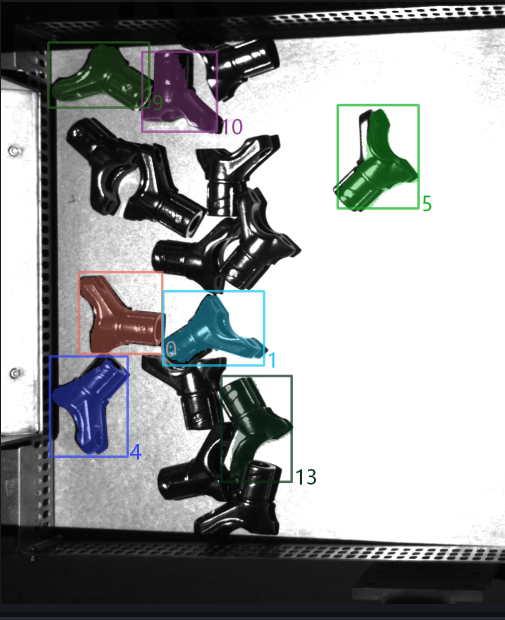
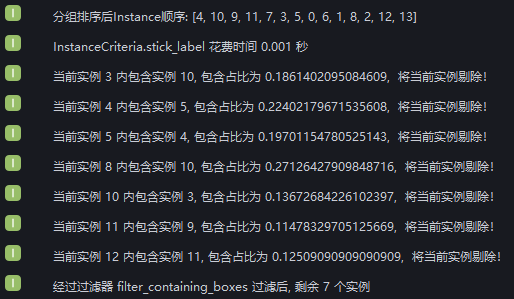
Added Filter enclosed instances. Run with the default values and view bounding box intersections of instances in the log. After instance filtering, 2 instances remain.
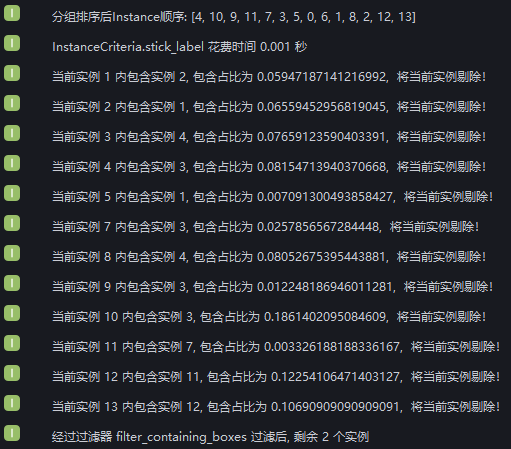
According to the log, 12 instances are filtered out because their bounding boxes intersect, leaving 2 instances whose bounding boxes do not intersect.
Set Bounding Box Overlap Ratio Threshold to 0.1 and select Whether to Filter Larger Instances. View the instance filtering process in the log. Nine instances are filtered out because the ratio of the intersection area of their bounding boxes to the instance bounding box area is greater than 0.1. Three instances are retained because the ratio of the intersection area of their bounding boxes to the instance bounding box area is less than 0.1. Two instances have non-intersecting bounding boxes.
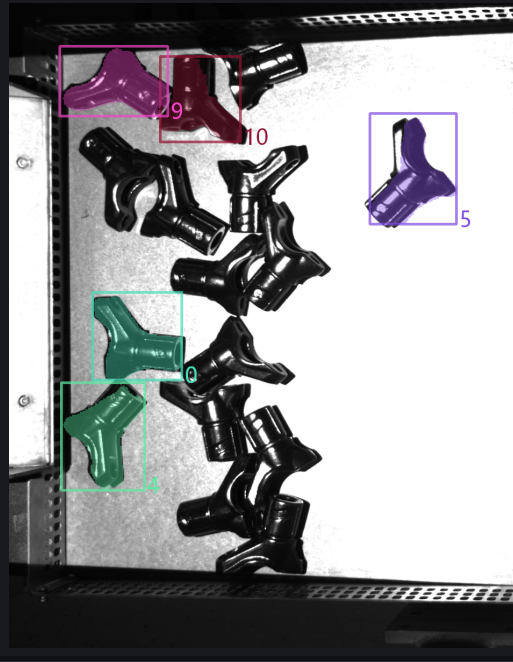
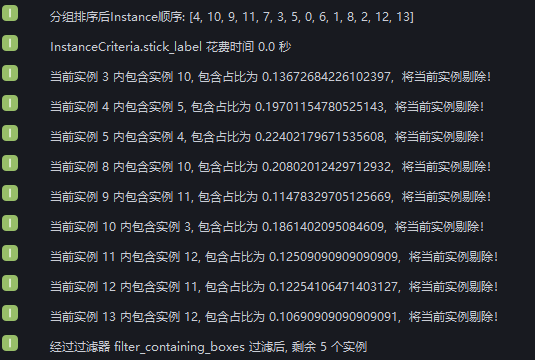
Set Bounding Box Overlap Ratio Threshold to 0.1 and clear Whether to Filter Larger Instances. View the instance filtering process in the log. For 9 instances, the ratio of the intersection area of the bounding box to the instance bounding box area is greater than 0.1, but 2 of them are retained because their bounding box areas are smaller than the intersecting instances. Therefore, 7 instances are filtered out. Three instances are retained because the ratio of the intersection area of their bounding boxes to the instance bounding box area is less than 0.1. Two instances have non-intersecting bounding boxes.
1.4.12 [Master] Filter Instances with Concave/Convex Masks Based on Mask / Mask Bounding Polygon Area Ratio
- Function Introduction
Calculate the area ratio of the mask to the circumscribed polygon of the mask. If it is smaller than the set threshold, the instance is filtered out.
- Use Case
Applicable when the Target Object mask has jagged or concave/convex shapes.
- Parameter Description
| Parameter | Description | Default Value | Range |
|---|---|---|---|
| Area Ratio Threshold | Mask / convex hull area ratio threshold. If it is less than the set threshold, the instance is filtered out. | 0.1 | [0,1] |
1.4.13 [Master] Filter Based on Point Cloud Average Distance
- Function Introduction
Filter based on the average distance from points in the point cloud to the fitted plane, removing uneven instance point clouds
- Use Case
Applicable to scenarios where planar Target Object point clouds are bent
- Parameter Description
| Parameter | Description | Default Value | Range | Unit |
|---|---|---|---|---|
| Plane Segmentation Distance Threshold (mm) | Extract a plane from the bent instance point cloud. Points whose distance to the plane is less than this threshold are regarded as points on the plane. | 10 | [-1000, 1000] | mm |
| Average Distance Threshold (mm) | Average distance from points in the instance point cloud to the extracted plane | 20 | [-1000, 1000] | mm |
| Remove Instances Whose Average Distance Is Smaller Than the Threshold | If selected, instances whose average distance from points to the extracted plane is less than the average distance threshold are filtered out. If cleared, instances whose average distance from points to the extracted plane is greater than the average distance threshold are filtered out. | Cleared | / | / |
1.4.14 [Master] Filter Occluded Instances Based on Mask / Bounding Box Area Ratio
- Function Introduction
Calculate the area ratio of the mask to the bounding box. Instances whose ratios are outside the minimum and maximum range are filtered out.
- Use Case
Used to filter instances of occluded Target Objects
- Parameter Description
| Parameter | Description | Default Value | Range |
|---|---|---|---|
| Minimum Area Ratio | Lower limit of the mask / bounding box area ratio range. The smaller the ratio, the more severely the instance is occluded. | 0.1 | [0,1] |
| Maximum Area Ratio | Upper limit of the mask / bounding box area ratio range. The closer the ratio is to 1, the less the instance is occluded. | 1.0 | [0,1] |
1.4.15 [Master] Determine if Top-Layer Instances are fully detected
- Function Introduction
One of the foolproof mechanisms. It determines whether all instances on the topmost layer have been fully detected. If there are top-layer instances that have not been detected, an error is reported and the workflow ends.
- Use Case
Applicable to scenarios where one image is taken and multiple picks are performed, or where picking must be done in sequence, to prevent missed picks from affecting subsequent operations due to incomplete instance detection
- Parameter Description
| Parameter | Description | Default Value | Range | Unit | Parameter Tuning |
|---|---|---|---|---|---|
| Distance Threshold | Used to determine the topmost Target Object. If the distance between a point and the highest point of the Target Object point cloud is smaller than the distance threshold, the point is regarded as belonging to the topmost point cloud. Otherwise, it is regarded as not belonging to the topmost point cloud. | 5 | [0.1, 1000] | mm | It should be smaller than the height of the Target Object |
1.5 Instance Sequence
- Function Introduction
Group, sort, and extract instances according to the selected strategy
- Use Case
Common to depalletizing, random picking, and ordered loading/unloading scenarios
If sorting is not required, there is no need to configure a specific strategy.
1.5.1 Base Coords
- Function Introduction
Set a unified coordinate system for all instances to group and sort instances
- Use Case
Common to depalletizing, random picking, and ordered loading/unloading scenarios
A reference coordinate system should be set before using coordinate-related strategies
- Parameter Description
| Parameter | Description | Illustration |
|---|---|---|
| Camera Coords | The origin of the coordinate system is above the object, and the positive Z-axis points downward; XYZ values are the values of the object center point in this coordinate system. | 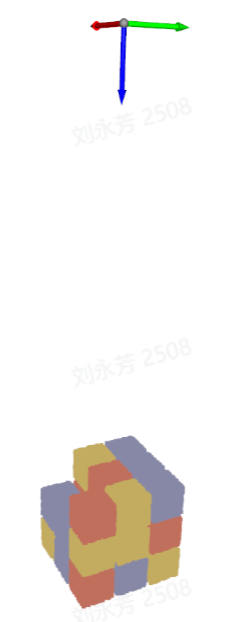 |
| ROI Coords | The origin of the coordinate system is approximately at the center of the stack, and the positive Z-axis points upward; XYZ values are the values of the object center point in this coordinate system. | 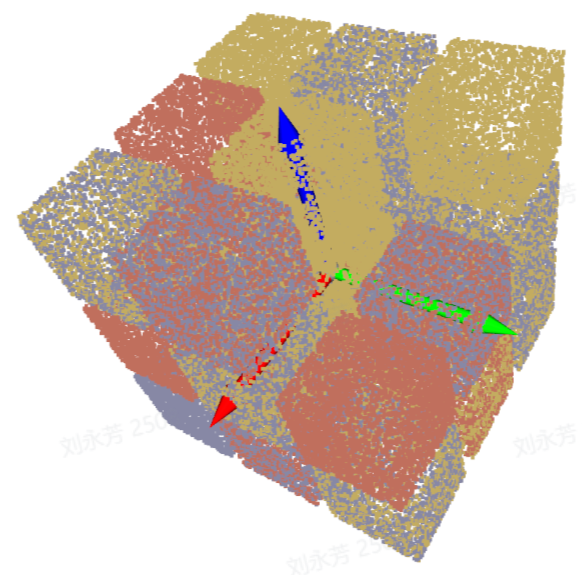 |
| Robot Coords | The origin of the coordinate system is on the Robot itself, and the positive Z-axis generally points upward; XYZ values are the values of the object center point in this coordinate system. | 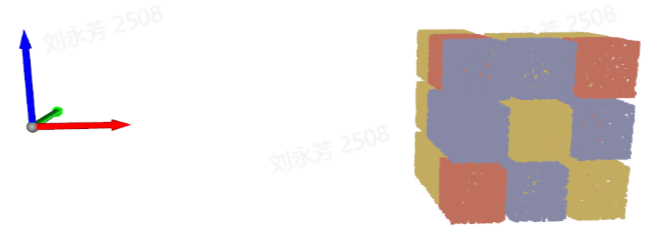 |
| Pixel Coords | The origin of the coordinate system is at the top-left vertex of the RGB image, and it is a 2D plane coordinate system; X and Y are the x value and y value of the bbox detection box, and Z is 0. | 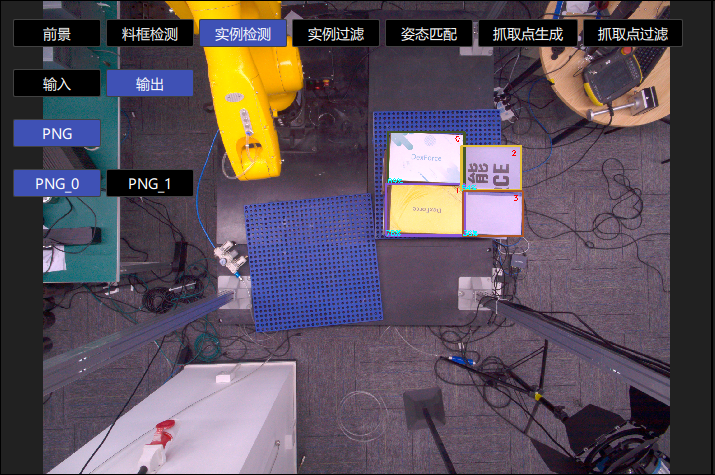 |
1.5.2 Picking Strategy
- Parameter Description
| Parameter | Description | Default Value |
|---|---|---|
| Strategy | Select which value is used for grouping and sorting, and how to sort. Multiple criteria can be stacked, including XYZ coordinates of the instance point cloud center, bounding box aspect ratio, distance between the instance point cloud center and the ROI center, and so on. They are executed in sequence. | Instance Point Cloud Center X Coordinate from Small to Large (mm) |
| Grouping Step Size | According to the selected strategy, instances are divided into several groups based on the step size. The grouping step size is the interval between two groups. For example, if the strategy is "Instance Point Cloud Center Z Coordinate from Large to Small (mm)", then the Z coordinates of all instance point cloud centers are first sorted from large to small and then grouped by the step size. The corresponding instances are also divided into several groups. | / |
| Extract First Several Groups | After grouping and sorting, how many groups of instances need to be retained | 10000 |
| Strategy Name | Description | Grouping Step Size | Extract First Several Groups | |
|---|---|---|---|---|
| Default Value | Range | Default Value | ||
| Instance Point Cloud Center XYZ Coordinate from Large to Small / from Small to Large (mm) | Use the XYZ coordinates of each instance point cloud center for grouping and sorting The reference coordinate system should be set before using this strategy for sorting | 200.000 | (0, 10000000] | 10000 |
| From the Middle to Both Sides of the XY Coordinate Axis of the Instance Point Cloud Center / from Both Sides to the Middle of the XY Coordinate Axis of the Instance Point Cloud Center (mm) | Use the XY coordinate values of each instance point cloud center and perform grouping and sorting in the direction of "from the middle to both sides" or "from both sides to the middle" The reference coordinate system should be set before using this strategy for sorting | 200.000 | (0, 10000000] | 10000 |
| Bounding Box Aspect Ratio from Large to Small / from Small to Large | Use the ratio of the longer side to the shorter side of the bounding box for grouping and sorting | 1 | (0, 10000] | 10000 |
| Mask Area from Large to Small / from Small to Large | Use the mask area of each instance for grouping and sorting | 10000 | [1, 10000000] | 10000 |
| Distance from the Instance Point Cloud Center to the ROI Center from Near to Far / from Far to Near (mm) | Use the distance from each instance point cloud center to the center of the ROI coordinate system for grouping and sorting | 200.000 | (0, 10000] | 10000 |
- Example
1.5.3 Custom Grasping Strategy
(1) Function Description
Switch Grasping Strategy to Custom Grasping Strategy, then click Add to add a custom grasping strategy.
Customize the picking order for each Target Object. If it is difficult to achieve picking with the General Grasping Strategy, or if it is difficult to tune suitable parameters because of point cloud noise and other issues, you can consider using the Custom Grasping Strategy.
The Custom Grasping Strategy is applicable to depalletizing and ordered loading/unloading scenarios, but not to random picking scenarios, because the Target Objects used with the Custom Grasping Strategy must be ordered (that is, the order of the Target Objects is fixed).
The Custom Grasping Strategy can only be combined with a single General Grasping Strategy, and the strategy can only be selected as Z coordinate from small to large.
(2) Parameter Description
| Parameter | Description | Default Value | Range | Parameter Tuning |
|---|---|---|---|---|
| IOU Threshold | Represents the overlap threshold between the annotated bbox and the detected bbox. The overlap is used to determine which image's sorting method should be selected for the current Target Object instance sorting. | 0.7 | [0,1] | The larger the threshold, the stricter the matching and the worse the anti-interference capability. Minor shape or position changes may lead to matching failure, or the wrong custom strategy may be matched, resulting in sorting in the wrong order. |
| Pixel Distance Threshold | Represents the size difference between the matchable bbox and the detected bbox. | 100 | [0,1000] | The smaller the threshold, the stricter the matching and the better the anti-interference capability. If the placement of Target Objects between different layers is relatively similar, the wrong custom strategy may still be matched, resulting in an incorrect sorting order. |
(3) Select the Reference Coordinate System
When using the Custom Grasping Strategy, only the camera coordinate system or the pixel coordinate system can be selected
If there are multiple layers of Target Objects, select the camera coordinate system; if there is only one layer of Target Objects, select the pixel coordinate system
(4) Strategy, Grouping Step Size, Extract First Several Groups
| Parameter | Description | Default Value |
|---|---|---|
| Strategy | Only Instance Point Cloud Center Z Coordinate from Large to Small / from Small to Large (mm) can be selected | / |
| Grouping Step Size | According to the strategy of sorting Z coordinates from small to large, the Z coordinates of instances are sorted from small to large, and the instances are divided into several groups according to the step size | 10000 |
| Extract First Several Groups | After grouping and sorting, how many groups of instances need to be retained | 10000 |
(5) Take Photo / Add Local Image
Click Take Photo to acquire an image from the currently connected camera, or click Add Local Image to import an image locally. For each layer or each different placement form of Target Objects, you need to take a photo or add a local image to obtain one corresponding image. If every layer is the same, only one image is needed. Right-click the image to delete it.
On the acquired image, click and hold the left mouse button while dragging to annotate a bbox. The DELETE key can be used to delete annotated bboxes one by one.
2. 3D Computation
This section mainly explains the functions related to Pick Point generation and provides Parameter tuning recommendations.
2.1 Preprocessing
2.1.1 Cluster Filter
- Function
Remove noise by point cloud clustering
- Use Case
There is a large amount of noise in the instance point cloud
- Parameter Description
| Parameter Name | Description | Default Value | Range | Unit | Tuning Recommendation |
|---|---|---|---|---|---|
| Distance Threshold for Point Cloud Clustering (mm) | Determines whether point clouds in space belong to the same category. If the distance between point clouds is lower than this threshold, they are regarded as the same category. | 5 | [0.1, 1000] | mm | Generally does not need to be changed. It should be greater than the point spacing of the Target Object point cloud and smaller than the minimum distance between the Target Object point cloud and noise point clouds. |
| Minimum Point Count Threshold | Point cloud clusters with fewer points than this threshold are filtered out | 100 | [1,10000000] | / | Generally does not need to be changed. Increase the Minimum Point Count Threshold according to the amount of noise in the instance point cloud. |
| Maximum Point Count Threshold | Point cloud clusters with more points than this threshold are filtered out | 100000 | [1,10000000] | / | Generally does not need to be changed. If the number of points in the Target Object point cloud exceeds 100000, increase the Maximum Point Count Threshold. |
| Select Point Clouds at the Top of the ROI | If selected, the average Z coordinate of point clouds of the same category in the ROI coordinate system is computed and sorted, and the point cloud category with the largest average Z coordinate (top point cloud) is retained. If cleared, all point clouds that meet the conditions are retained. | Cleared | / | / | If the Target Object point cloud is above the noise point cloud, selecting this option retains the Target Object point cloud. If the Target Object point cloud is below the noise point cloud, this option should be selected while also adjusting the Z-axis of the ROI coordinate system to point downward so that the Target Object point cloud can be retained. |
| Visualize Process Data | If selected, the denoised point cloud is saved and can be viewed in C:_data | Cleared | / | / | This can be selected in debugging mode if you need to save visualization data. |
2.1.2 Point Cloud Downsampling
- Function
Sample the point cloud according to the specified point spacing to reduce the number of calculation points and improve model inference speed, though accuracy may decrease
- Use Case
When the number of point clouds in the actual scene is too large, select Point Cloud Downsampling.
- Parameter Description
| Parameter | Description | Default Value | Range | Unit |
|---|---|---|---|---|
| Point Spacing for Downsampling (mm) | Sample the point cloud according to the specified point spacing | 5.0 | [0.1, 1000] | mm |
Parameter Tuning
The larger the value of Point Spacing for Downsampling, the fewer the number of point clouds after downsampling, so Pick Point computation becomes faster, but accuracy may decrease
The smaller the value of Point Spacing for Downsampling, the greater the number of point clouds after downsampling, so Pick Point computation becomes slower, but accuracy improves
2.1.3 Calculate Vertical Pose
- Function
Compute the pose of a tilted sack in the vertical direction
- Use Case
Tilted sack placement in depalletizing scenarios
- Parameter Description
| Parameter | Description | Default Value | Range | Unit |
|---|---|---|---|---|
| Neighborhood Range | Neighborhood range of the center point on the sack surface, that is, the distance from the center point to the edge. This value affects the processing and analysis of the surrounding point cloud of the center point. | 20.00 | [0, 100] | / |
| Point Cloud Accuracy (mm) | Distance between adjacent points in the 3D point cloud image captured by the camera | 10 | [1, 1000] | mm |
| Use OBB for Computation | If selected, the z vector of the point cloud OBB (oriented bounding box) is used as the vertical direction of the sack itself. Otherwise, the point cloud within the neighborhood range of the center point is traversed, and the largest axis in the projection axes among these point clouds is selected as the vertical direction of the sack itself. | Cleared | / | / |
- Example
2.1.4 Filter by HSV
- Function
Filter point clouds according to hue, saturation, and brightness in the point cloud image, and screen out point cloud regions that match the target range
- Parameter Description
| Parameter Name | Description | Default Value | Range |
|---|---|---|---|
| Filter Depth by HSV - Maximum Color Range Value | Maximum color value for point cloud filtering | [0.9,0.9,0.9] | [[0,0,0],[1,1,1]] |
| Filter Depth by HSV - Minimum Color Range Value | Minimum color value for point cloud filtering | [0.0,0.0,0.0] | [[0,0,0],[1,1,1]] |
2.1.5 Filter by RGB
- Function
Filter point clouds by three-channel color and screen out point cloud regions that match the target range
- Parameter Description
| Parameter Name | Description | Default Value | Range |
|---|---|---|---|
| Filter Point Clouds by Three-Channel Color - Maximum Color Value | Maximum color value for point cloud filtering | [0.9,0.9,0.9] | [[0,0,0],[1,1,1]] |
| Filter Depth by Three-Channel Color - Minimum Color Value | Minimum color value for point cloud filtering | [0.0,0.0,0.0] | [[0,0,0],[1,1,1]] |
2.1.6 Extract PCD in ROI
- Function
Select point clouds within the ROI 3D area from the instance point cloud. This default function cannot be deleted.
2.1.7 Enhacne Mask Based on PCD
- Function
Based on the point cloud within ROI 3D, remove point clouds in the mask that are outside ROI 3D, thereby improving mask accuracy
- Use Case
Applicable to depalletizing scenarios where the model recognition result extends outside ROI 3D
2.1.8 Filter Pose by Normal Angle
- Function
Remove points whose angle between the normal vector and the standard normal vector axis is greater than the normal vector angle threshold
- Use Case
Loading and unloading of planar Target Objects (materials are isolated from each other)
- Parameter Description
| Parameter Name | Description | Default Value | Range | Unit |
|---|---|---|---|---|
| Angle Threshold | Point clouds whose angles are greater than this angle threshold are regarded as different instances | 15 | [-360, 360] | |
| Standard Normal Vector Axis Direction | The angle between the point cloud normal vector and the standard normal vector axis direction | Z-axis | X/Y/Z-axis | / |
| Whether to Use the ROI Coordinate System | If selected, the angle between the normal vector and the axes of the ROI coordinate system is computed. If cleared, the angle between the normal vector and the axes of the camera coordinate system is computed. | Cleared | / | / |
2.1.9 PCD Plane Segmentation
- Function
When fitting a plane to the point cloud, points whose distance to the plane is lower than the reference distance are regarded as points on the plane; otherwise, they are regarded as points outside the plane. The fitted plane can be retained or removed.
- Use Case
Applicable to single-carton depalletizing scenarios, but not applicable to single-sack depalletizing scenarios
- Parameter Description
Default Value: 3.000
Range: [0.001, 10000]
Unit: mm
- Parameter Tuning
The larger the reference distance, the thicker the fitted plane; the smaller the reference distance, the thinner the fitted plane
If Remove Plane is selected, the plane with the largest number of point clouds is removed. If it is cleared, the plane with the largest number of point clouds is retained.
- Example
2.1.10 Remove Statistical Outlier
- Function
Identify and remove outlier noise from the neighboring point region (that is, the neighborhood) of each point in the point cloud
- Use Case
The object point cloud contains many outlier noise points
- Parameter Description
| Parameter | Description | Default Value | Range | Tuning Recommendation |
|---|---|---|---|---|
| Reference Neighborhood Point Count | The number of adjacent points to each point in the point cloud, that is, the neighborhood size. For dense point clouds, even a small neighborhood is sufficient to reflect object features, so a smaller value can be used; for sparser point clouds, a larger neighborhood is required to reflect object features, so a larger value should be used. | 30 | [1, 10000000] | |
| Standard Deviation Multiplier | Used to identify outliers. If the deviation between a point's coordinates and the average coordinates of the object point cloud exceeds the standard deviation multiplier, the point is regarded as an outlier. The smaller the value, the more points are regarded as outliers and removed, but this may cause misjudgment and remove important object features. The larger the value, the fewer points are regarded as outliers and removed, but some outliers may be retained and affect image recognition accuracy. | 0.005 | [0.0001, 2] | If the point cloud becomes too sparse after Point Cloud Outlier Removal, you should increase the Standard Deviation Multiplier |
- Example
2.1.11 Remove PCD of Over-limit Distance
- Function
Filter out point clouds along the specified direction, remove noise points, and improve the accuracy of Pick Point computation
- Use Case
Usually used in single-sack depalletizing scenarios
- Parameter Description
| Parameter | Description | Default Value | Range | Unit | Tuning Recommendation |
|---|---|---|---|---|---|
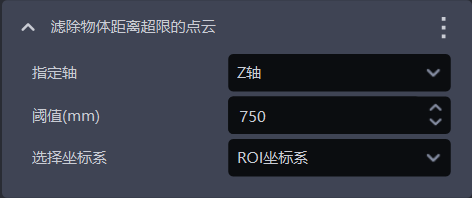
| Specified Axis | Specified axis of the point cloud, used to filter out point clouds in the specified direction | Z-axis | X/Y/Z-axis | / | Specified Axis generally does not need to be changed |
| Threshold (mm) | Along the specified axis direction, if the distance between the lower-layer point cloud and the Target Object point cloud is greater than this threshold, the lower-layer point cloud is filtered out; if the distance between the lower-layer point cloud and the Target Object point cloud is less than this threshold, the lower-layer point cloud is retained. | 750 | [0, 1000] | mm | Adjust the Threshold according to the actual scene. The larger the Threshold, the fewer point clouds are filtered out; the smaller the Threshold, the more point clouds are filtered out. |
| Select Coordinate System | Filter out point clouds in the selected coordinate system | ROI Coordinate System | Camera Coordinate System; ROI Coordinate System; Object Self Coordinate System | / |
- Example
When the point cloud contains lower-layer point clouds, as shown in the left figure below, after Filter Out Point Clouds Whose Object Distance Exceeds the Limit is selected to remove the lower-layer point cloud, the resulting point cloud is shown in the right figure below
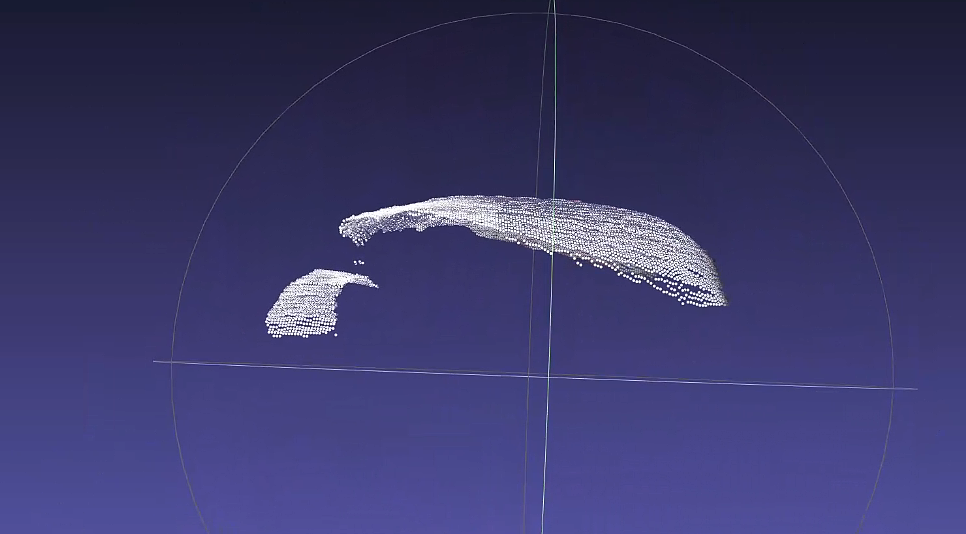
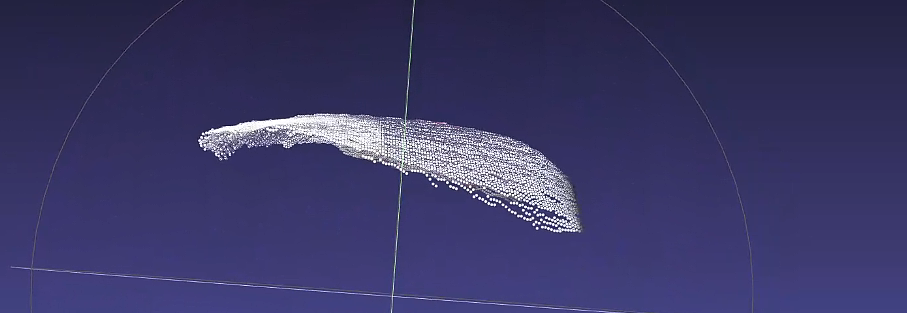
As shown below, comparing the effect when the threshold is 100 with the detection result when the threshold is 400, the larger the threshold, the fewer point clouds are filtered out.
- Function
Filter out Point Clouds in a specified direction to remove noise and improve image recognition accuracy.
- Parameter Description
| Parameter | Description | Default Value | Parameter Range | Unit | Parameter Adjustment Suggestion |
|---|---|---|---|---|---|
| Specified Axis | The specified axis of the Point Cloud, used to filter out Point Clouds in the specified direction | Z-axis | X/Y/Z-axis | / | Specified Axis generally does not need to be changed |
| Threshold (mm) | Along the specified axis direction, if the distance between the lower-layer Point Cloud and the workpiece Point Cloud is greater than this threshold, the lower-layer Point Cloud will be filtered out; if the distance is less than this threshold, the lower-layer Point Cloud will be retained. | 750 | [0, 1000] | mm | Adjust the Threshold according to the actual scenario. The larger the Threshold, the fewer Point Clouds are filtered out; the smaller the Threshold, the more Point Clouds are filtered out. |
| Select Coordinate System | Filter Point Clouds in the selected coordinate system | ROI Coordinate System | Camera Coordinate System; ROI Coordinate System; Object's Own Coordinate System | / |
- Example
2.1.12 Optimize the Mask Based on the Point Cloud

- Function
Based on the Point Cloud within ROI 3D, remove Point Cloud points in the Mask that are not within ROI 3D to improve Mask precision.
2.2 Cylinder Pose Estimation
2.2.1 Fitting Reference Distance (mm)

- Function
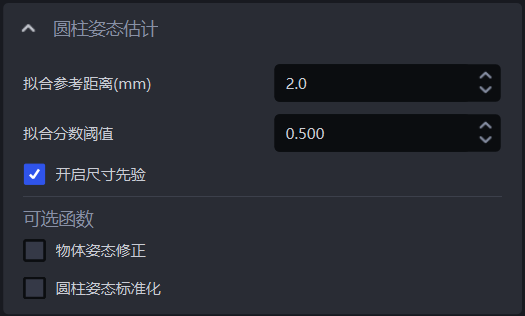
The model calculates an ideal cylinder based on the instance Point Cloud, and Point Cloud points whose distance to the ideal cylinder is less than the fitting reference distance are fitted into a cylinder.
- Usage Scenario
Cylinder-based ordered loading and unloading, and cylinder-based random picking.
- Parameter Description
Default Value: 2
Value Range: [0.1, 1000]
Unit: mm
Parameter Adjustment
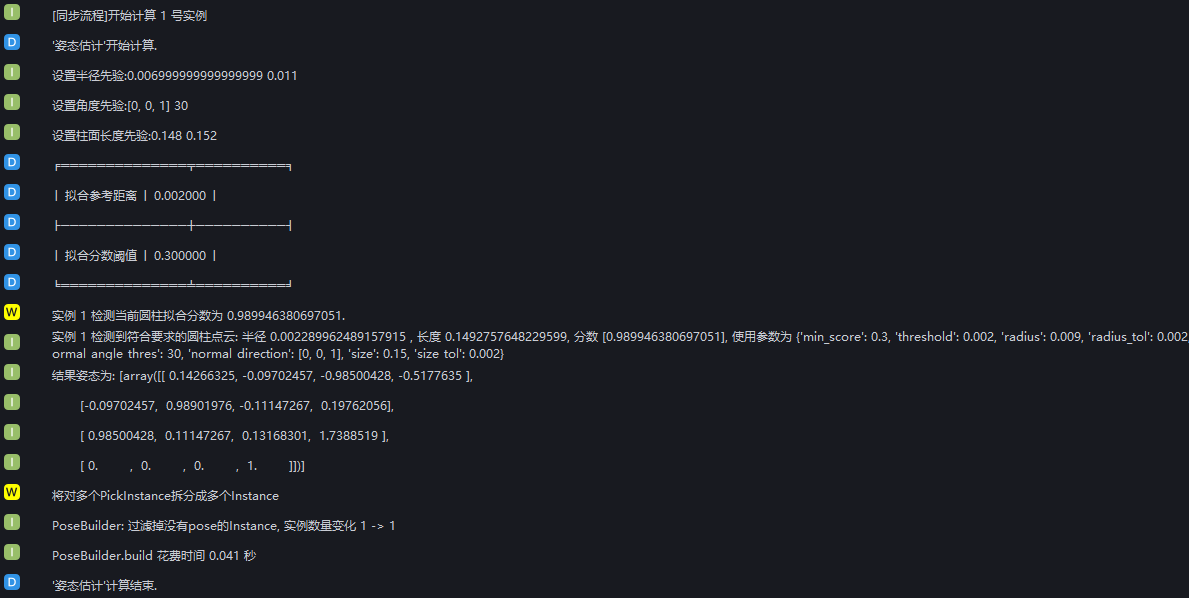
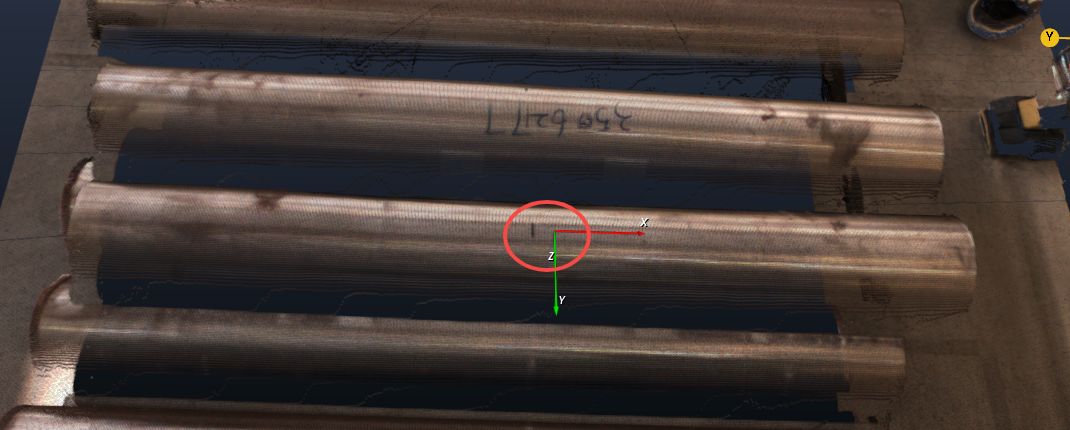
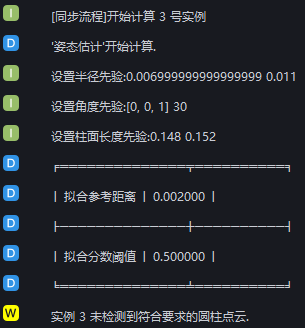
- The log for fitting the cylinder is shown below.
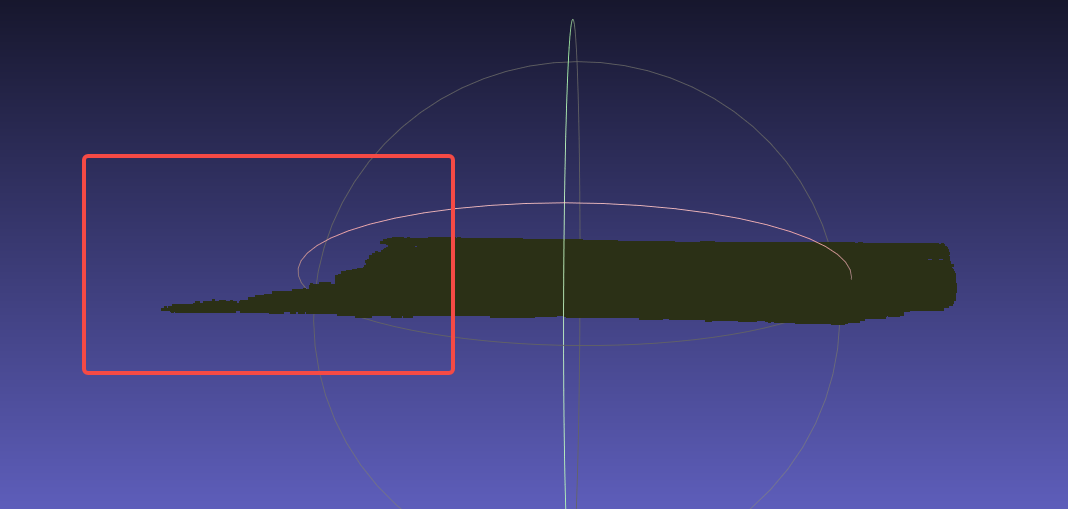
2.1.2 Fitting Score Threshold

- Function
Calculate the ratio between the number of Point Cloud points fitted into a cylinder and the number of points in the instance Point Cloud. Fitted cylinders whose ratios are lower than the fitting score threshold will be filtered out.
- Usage Scenario
Cylinder-based ordered loading and unloading, and cylinder-based random picking.
- Parameter Description
Default Value: 0.5
Value Range: [0,1]
- Parameter Adjustment
If the log reports "No cylinder Point Cloud meeting the requirements was detected", it means the cylinder cannot be fitted, and the fitting score threshold should be reduced.
2.2.3 Enable Dimension Prior

- Function
After being enabled, constrain the dimensions of the fitting result.
- Usage Scenario
Cylinder-based random picking and cylinder-based ordered loading and unloading.
- Parameter Adjustment
Selected by default
2.2.4 Object Pose Correction
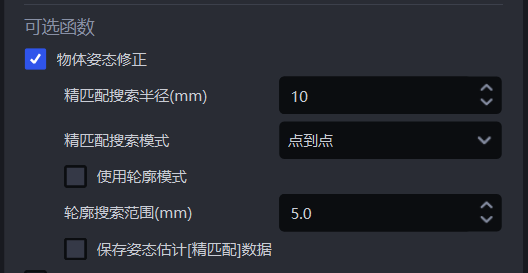
Fine Matching Search Radius (mm)

- Function
During fine matching, the template Point Cloud and the instance Point Cloud are matched, and each point in the template Point Cloud needs to search for the nearest point in the instance Point Cloud. The fine matching search radius represents both the search radius in the instance Point Cloud and the distance threshold between each point in the template Point Cloud and its nearest point in the instance Point Cloud. If the distance between a point and its nearest point is smaller than the fine matching search radius, the two points are considered matchable; otherwise, they are considered unmatchable.
- Usage Scenario
Ordered loading and unloading of planar workpieces, random picking of planar workpieces, and positioning and assembly scenarios of planar workpieces.
- Parameter Description
Default Value: 10
Value Range: [1, 500]
Unit: mm
- Parameter Adjustment
Normally unchanged
Fine Matching Search Mode

- Function
The method used by the template Point Cloud to search for nearest points in the instance Point Cloud during fine matching.
- Usage Scenario
If the fine matching effect between the template Point Cloud and the instance Point Cloud is poor, this function should be adjusted.
- Parameter Description
| Parameter | Description |
|---|---|
| Point-to-Point | Each point in the template Point Cloud searches for the nearest point in the instance Point Cloud (the point with the shortest straight-line distance within the search radius). Applicable to all workpieces. |
| Point-to-Plane | Each point in the template Point Cloud searches for the nearest point in the instance Point Cloud along its normal vector. Applicable to workpieces with obvious geometric features. |
| Combination of Point-to-Point and Point-to-Plane | First use the point-to-point mode to optimize the workpiece pose in the instance Point Cloud, and then use the point-to-plane mode to optimize the workpiece pose in the instance Point Cloud. Applicable to workpieces with obvious geometric features.
|
Use Contour Mode
- Function
Extract contour Point Clouds from the template Point Cloud and the instance Point Cloud for coarse matching.
- Usage Scenario
In ordered loading and unloading, random picking, and positioning and assembly scenarios for planar workpieces, if the coarse matching result using key points is poor, this function should be selected to use the contour Point Cloud for coarse matching again.
- Parameter Adjustment
The coarse matching result affects the fine matching result. If the fine matching result is poor, you can select Use Contour Mode
Contour Search Range (mm)

- Function
The search radius for extracting contour Point Clouds in the template Point Cloud and the instance Point Cloud.
- Usage Scenario
Ordered loading and unloading of general workpieces, random picking of general workpieces, and positioning and assembly scenarios of general workpieces.
- Parameter Description
Default Value: 5
Value Range: [0.1, 500]
Unit: mm
- Parameter Adjustment
A smaller value means a smaller search radius for contour Point Clouds, which is suitable for extracting detailed workpiece contours, but the extracted contours may contain outlier noise;
A larger value means a larger search radius for contour Point Clouds, which is suitable for extracting broader workpiece contours, but the extracted contours may ignore some detailed features.
Save Pose Estimation [Fine Matching] Data
- Function
When selected, save fine matching data.
- Usage Scenario
Ordered loading and unloading of planar workpieces, random picking of planar workpieces, positioning and assembly of planar workpieces, and positioning and assembly of planar workpieces (matching only).
- Example
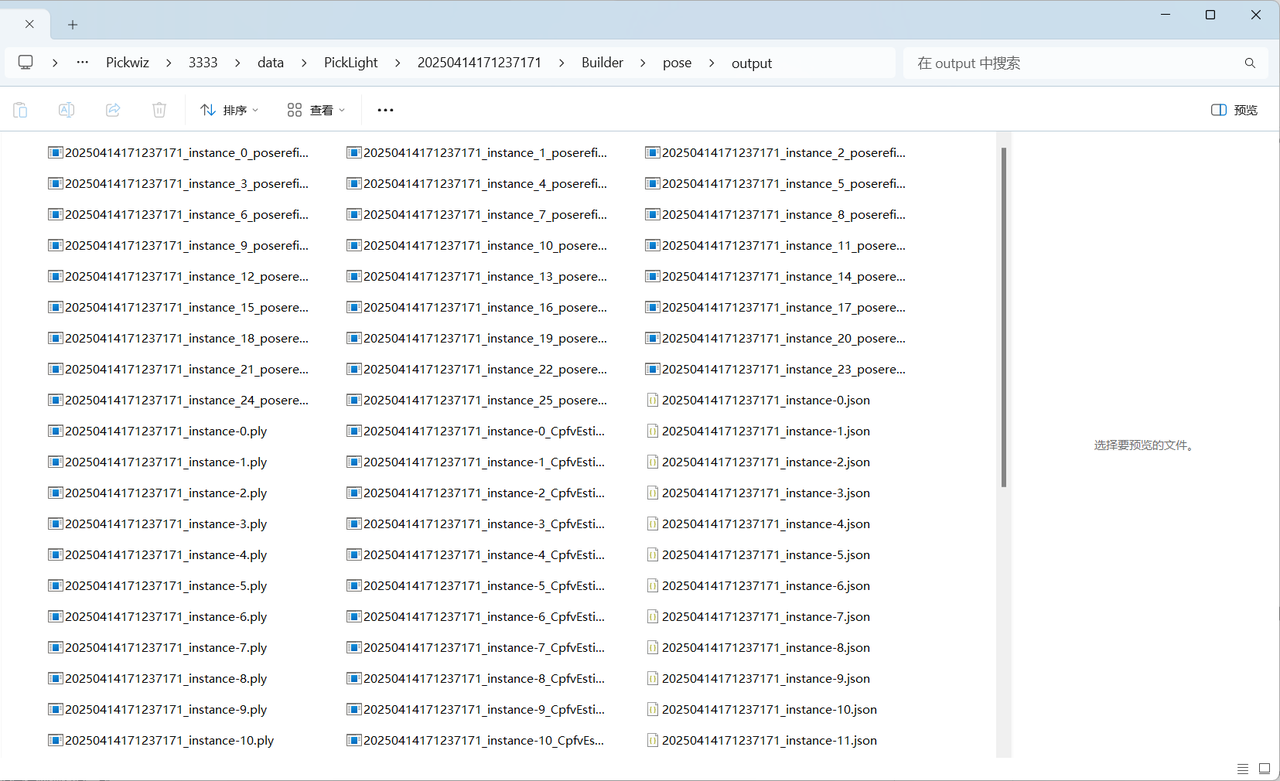
The fine matching data is saved under the project save path at \Project Folder\data\PickLight\Historical Data Timestamp\Builder\pose\output folder.
2.2.5 Cylinder Pose Normalization

- Function
Search for the optimal grasping direction based on the projection of valid inliers in the axial direction, and standardize the direction of the cylinder pose.
- Usage Scenario
Cylinder-based ordered loading and unloading, and cylinder-based random picking.
2.3 Empty ROI Judgment
- Function
Determine whether there are still Target Objects (point clouds) remaining in ROI 3D. If the number of 3D points in ROI 3D is less than this value, it indicates that no Target Object point cloud remains, and no point cloud is returned in this case.
- Parameter Description
Default Value: 1000
Range: [0, 100000]
- Usage Process
Set the minimum point-count judgment threshold for ROI 3D. If the value is lower than this threshold, the Target Object point cloud in ROI 3D is insufficient, so it is determined that no Target Object is present in ROI 3D;
In Robot configuration, add a new vision status code to facilitate subsequent Robot signal processing.
3. Pick Point
This section mainly explains functions related to Pick Point filtering and adjustment, along with Parameter tuning recommendations.
3.1 Pick Point Adjustment
3.1.1 Bound Euler Angle
- Function description
When the Picking Pose is outside the configured angle range, it is rotated counterclockwise by a certain angle around a fixed axis. If it is still outside the configured angle range after rotation, a warning is issued.
- Usage scenario
This function is only applicable to depalletizing scenarios. It can keep the robot's approach direction stable during picking and prevent the end effector from repeatedly rotating during the picking process. In 180° cases, it can prevent exceptions such as cable twisting.
- Parameter description
| Parameter | Description | Default | Range | Unit |
|---|---|---|---|---|
| Fixed axis | An axis of the Picking Pose. The pose is rotated counterclockwise around this fixed axis | Z-axis | X/Y/Z-axis | / |
| Rotation angle | The angle by which the pose is rotated counterclockwise around the fixed axis. Adjust this angle so the Picking Pose satisfies the angle range | 0 | [-360,360] | degree |
| Angle range | The angle range of the Picking Pose. Set the angle range according to factors such as material placement, end effector type, and cycle time | [0,180] | [-180,180] | degree |
| Use current robot Euler Angles | By default, pose calculation uses Euler Angles "XYZ". When selected, the Euler Angles configured for the current robot are used so the pose remains consistent with the robot teach pendant. | Unchecked | / | / |
| Custom coordinate system | The coordinate system of the Picking Pose | Robot arm coordinate system | Default coordinate system; camera coordinate system; ROI coordinate system; robot arm coordinate system | / |
- Example
Without using this function, the generated Pick Points are shown below.
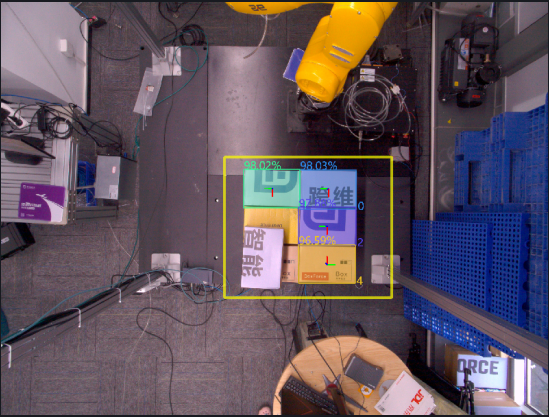
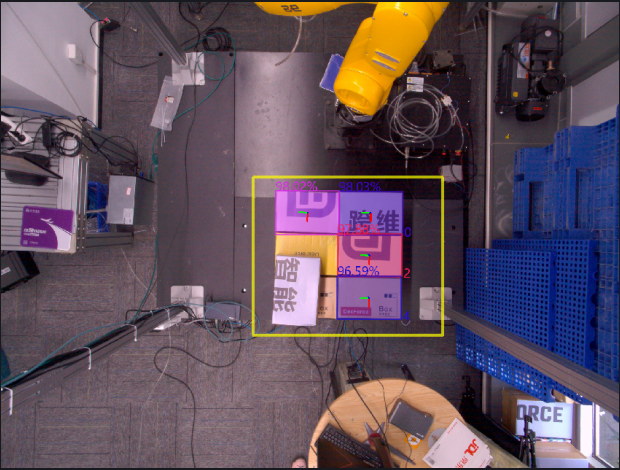
When this function is used with the default values, the RZ angles of the Picking Poses for instances 0, 1, and 2 are all within the angle range [0,180], so no processing is performed. The RZ angle of the Picking Pose for instance 4 is -90°, which is outside the angle range [0,180], so the Picking Pose of instance 4 is rotated by 0° around the fixed Z-axis.
If you want to adjust the RZ angle of the Picking Pose for instance 4 into the angle range, you can change the rotation angle to 180 and rotate the Picking Pose of instance 4 by 180° around the fixed Z-axis.
3.1.2 Rotate the pose to align the rotation axis direction with the target axis direction
- Function description
Rotate the Picking Pose once around the fixed axis so that the direction of the rotation axis (determined by the right-hand rule) matches the positive or negative direction of the target axis in the target coordinate system.
- Usage scenario
Avoid collisions between the robot end effector and the bin.
- Parameter description
| Parameter | Description | Default | Range |
|---|---|---|---|
| Rotation axis | An axis of the Picking Pose. Determined by the right-hand rule, the Picking Pose is rotated counterclockwise once around the fixed axis so that the direction of the rotation axis matches the positive or negative direction of the target axis in the target coordinate system | X-axis | X/Y/Z-axis |
| Fixed axis | The Picking Pose is rotated counterclockwise once around the fixed axis so that the direction of the rotation axis matches the positive or negative direction of the target axis in the target coordinate system | Z-axis | X/Y/Z-axis |
| Target axis | An axis of the target coordinate system. The Picking Pose is rotated counterclockwise once around the fixed axis so that the direction of the rotation axis matches the positive or negative direction of the target axis in the target coordinate system | X-axis | X/Y/Z-axis |
| Negative target axis direction | If selected, the direction of the rotation axis is aligned with the negative direction of the target axis in the target coordinate system; otherwise, it is aligned with the positive direction of the target axis in the target coordinate system | Unchecked | / |
| Custom coordinate system | The coordinate system of the Picking Pose | Default coordinate system | Default coordinate system; camera coordinate system; ROI coordinate system; robot arm coordinate system |
3.1.3 Rotate Pose to Align Axis
- Function description
Rotate the Picking Pose around the fixed axis by 0, 90, 180, and 270 degrees respectively, calculate the angle between the rotated rotation axis and the positive or negative direction of the target axis in the camera coordinate system, and finally output the Picking Pose with the smallest angle after rotation.
- Usage scenario
Avoid collisions between the robot end effector and the bin.
- Parameter description
| Parameter | Description | Default | Range |
|---|---|---|---|
| Fixed axis | An axis of the Picking Pose. Rotate the pose counterclockwise around this fixed axis | Z-axis | X/Y/Z-axis |
| Rotation axis | An axis of the Picking Pose. When rotating the pose, calculate the angle between this rotation axis and the positive or negative direction of the target axis | X-axis | X/Y/Z-axis |
| Target axis | An axis of the camera coordinate system. When rotating the pose, calculate the angle between the rotation axis and the positive or negative direction of this target axis | X-axis | X/Y/Z-axis |
| Negative target axis direction | If selected, calculate the angle between the rotation axis and the negative direction of the target axis; otherwise, calculate the angle between the rotation axis and the positive direction of the target axis | Selected | / |
| Custom coordinate system | The coordinate system of the Picking Pose | Default coordinate system | Default coordinate system; camera coordinate system; ROI coordinate system; robot arm coordinate system |
- Example
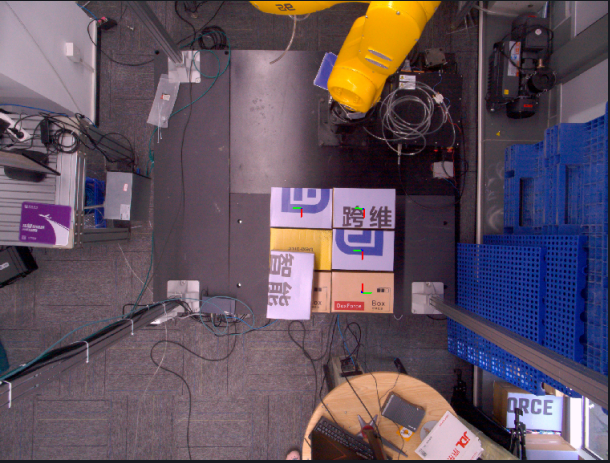
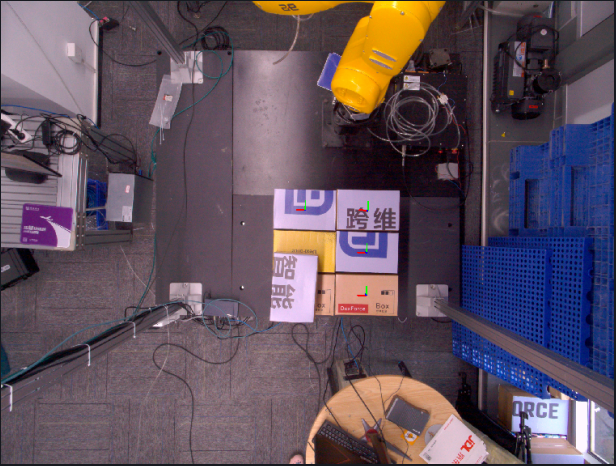
3.1.4 Flip Pose to Align Axis
- Function description
Rotate the Picking Pose once around the fixed axis so that the angle formed between the rotation axis and the positive or negative direction of the target axis in the ROI coordinate system is acute.
- Usage scenario
Avoid collisions between the robot end effector and the bin.
- Parameter description
| Parameter | Description | Default | Range |
|---|---|---|---|
| Fixed axis | An axis of the Picking Pose. Rotate the Picking Pose counterclockwise around this fixed axis | Z-axis | X/Y/Z-axis |
| Rotation axis | An axis of the Picking Pose. Rotate the Picking Pose so that the direction of this rotation axis matches the positive or negative direction of the target axis | X-axis | X/Y/Z-axis |
| Target axis | An axis in the ROI coordinate system. Rotate the Picking Pose so that the direction of the rotation axis matches the positive or negative direction of this target axis | X-axis | X/Y/Z-axis |
| Negative target axis direction | If selected, rotate the Picking Pose so that the direction of the rotation axis matches the negative direction of the target axis; otherwise, rotate the Picking Pose so that the direction of the rotation axis matches the positive direction of the target axis | Selected | / |
| Custom coordinate system | The coordinate system of the Picking Pose | Default coordinate system | Default coordinate system; camera coordinate system; ROI coordinate system; robot arm coordinate system |
- Example
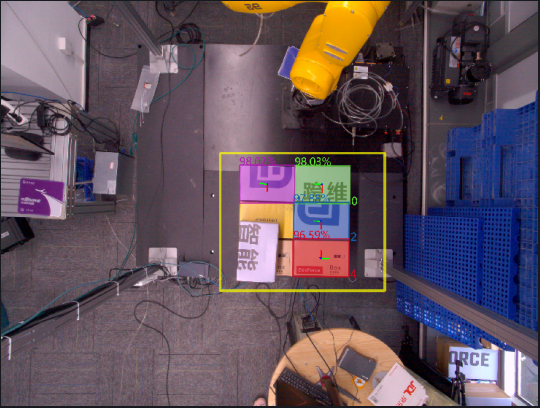
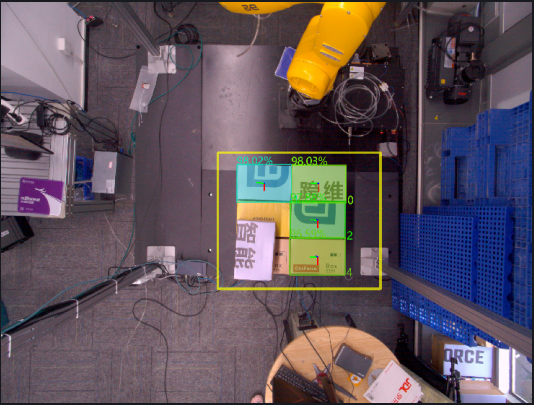
3.1.5 Flip Axis to ROI Center
- Function
Rotate the Picking Pose around a fixed axis so that the pointing axis of the Picking Pose points to the ROI center.
- Usage scenario
Avoid collisions between the robot end effector and the bin.
- Parameter description
| Parameter | Description | Default | Range |
|---|---|---|---|
| Pointing axis | The axis in the Picking Pose that needs to be adjusted | X-axis | X/Y/Z-axis |
| Fixed axis | The axis that remains unchanged during rotation | Z-axis | X/Y/Z-axis |
| Reverse align | If selected, reverse-align the pointing axis to the ROI center; otherwise, align the pointing axis to the ROI center | Selected | / |
| Strict pointing | If selected, force the Picking Pose to rotate so the pointing axis points to the ROI center | Unchecked | / |
| Custom coordinate system | The coordinate system of the Picking Pose | Default coordinate system | Default coordinate system; camera coordinate system; ROI coordinate system; robot arm coordinate system |
- Example
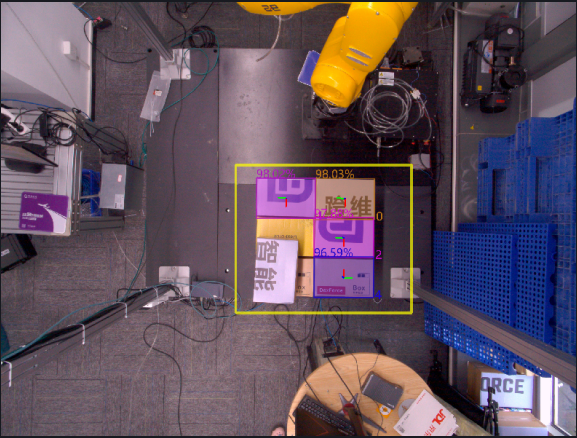
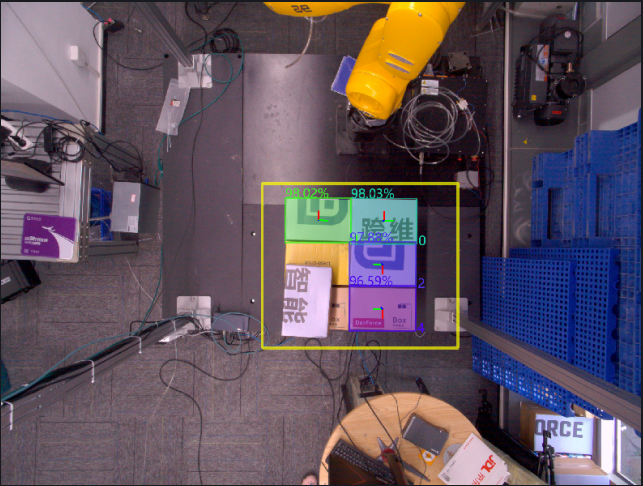
3.1.6 Transform to Target Pose
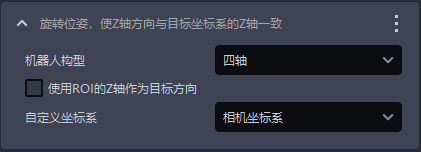
- Function description
Rotate the Picking Pose so that its Z-axis direction matches the Z-axis of the target coordinate system.
- Usage scenario
Usually this is used by default only in depalletizing scenarios and cannot be deleted. It is used to make the Z-axis of the Picking Pose perpendicular to the Z-axis of the ROI coordinate system (4-axis) or consistent with the direction of the Target Object surface (6-axis).
- Parameter description
| Parameter | Description | Default | Range |
|---|---|---|---|
| Robot configuration | Set according to the on-site robot configuration. You can choose 4-axis or 6-axis. If a 6-axis robot is actually used as a 4-axis robot, it should be set to 4-axis | 4-axis | 4-axis/6-axis |
| Use ROI Z-axis as target direction | When the robot configuration is set to 4-axis, if selected, the pose is rotated around the X-axis so that the Z-axis direction of the rotated pose matches the positive direction of the ROI Z-axis ; if not selected, the pose is rotated around the X-axis so that the Z-axis direction of the rotated pose matches the positive direction of the Z-axis of the camera coordinate system . When the robot configuration is set to 6-axis, regardless of whether it is selected, the pose is rotated around the X-axis so that the Z-axis direction of the rotated pose matches the positive direction of the Z-axis of the object's own coordinate system | Unchecked | / |
| Custom coordinate system | The coordinate system of the Picking Pose | Camera coordinate system | Default coordinate system; camera coordinate system; ROI coordinate system; robot arm coordinate system |
- Example
3.1.7 Rotate Pose with Angle
- Function description
Rotate the Picking Pose by a certain angle around a fixed axis.
- Usage scenario
Avoid collisions between the robot end effector and the bin.
- Parameter description
| Parameter | Description | Default | Range | Unit |
|---|---|---|---|---|
| Rotation angle | The angle by which the pose is rotated counterclockwise around the fixed axis | 90 | [-360, 360] | degree° |
| Fixed axis | An axis of the Picking Pose. Rotate the pose counterclockwise around this fixed axis | Z-axis | X/Y/Z-axis | / |
| Custom coordinate system | The coordinate system of the Picking Pose | Default coordinate system | Default coordinate system; camera coordinate system; ROI coordinate system; robot arm coordinate system | / |
- Example
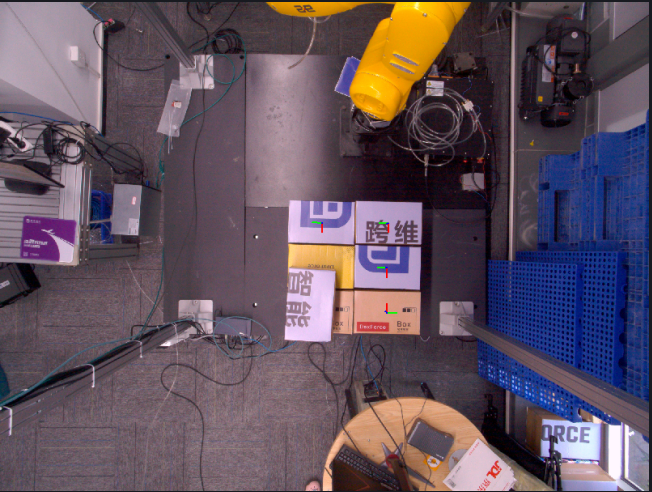
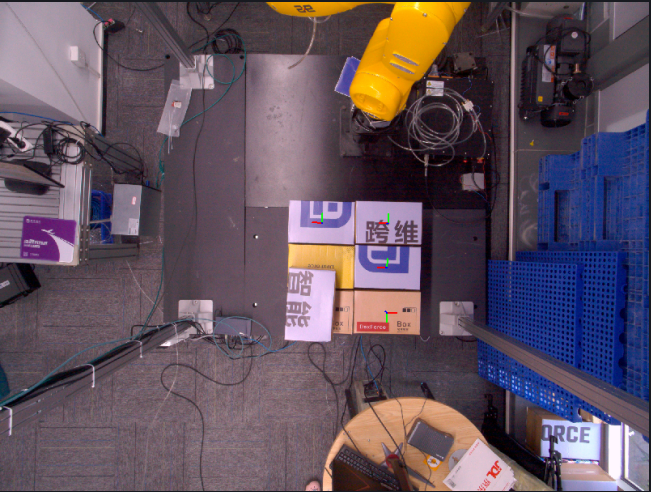
3.1.8 Move Pose With Offset
- Function description
Move the Picking Pose by a certain distance along the translation axis.
- Usage scenario
Avoid collisions between the robot end effector and the bin.
- Parameter description
| Parameter | Description | Default | Range | Unit |
|---|---|---|---|---|
| Translation amount (mm) | The distance the Picking Pose moves along the translation axis. A positive translation amount means translating in the positive direction of the translation axis, and a negative translation amount means translating in the negative direction of the translation axis | 0 | [-1000, 1000] | mm |
| Translation axis | The direction in which the Picking Pose moves | X-axis | X/Y/Z-axis | / |
| Custom coordinate system | The coordinate system of the Picking Pose | Robot arm coordinate system | Default coordinate system; camera coordinate system; ROI coordinate system; robot arm coordinate system | / |
- Example
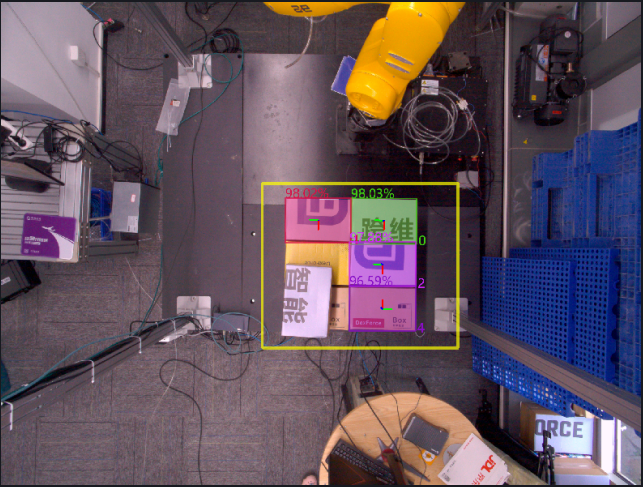
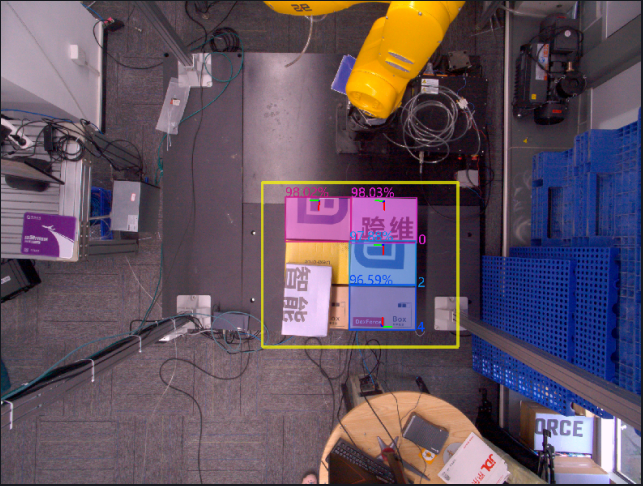
3.1.9 Transform Pose by Difference
- Function description
Record the Pick Point coordinates generated by the software and the Pick Point coordinates taught under the current operating condition, then output the transformed Picking Pose based on the offset between the two.
- Usage scenario
When the Pick Points generated by the vision system have an obvious systematic offset and the robot TCP coordinate accuracy is limited or difficult to calibrate, this method can be used to directly map the same offset pattern to subsequent Pick Points, thereby avoiding robot TCP calibration.
- Parameter description
| Parameter | Description | Default | Range |
|---|---|---|---|
| Vision Pose | Pick coordinates of the detection result | ||
| X(mm) | X coordinate of the Vision Pose | 0.00 | ±10000000, meaning no limit. |
| Y(mm) | Y coordinate of the Vision Pose | 0.00 | ±10000000, meaning no limit. |
| Z(mm) | Z coordinate of the Vision Pose | 0.00 | ±10000000, meaning no limit. |
| RX(°) | X-axis rotation amount of the Vision Pose | 0.00 | ±180 |
| RY(°) | Y-axis rotation amount of the Vision Pose | 0.00 | ±180 |
| RZ(°) | Z-axis rotation amount of the Vision Pose | 0.00 | ±180 |
| Picking Pose | Manually taught Pick Point | ||
| X(mm) | X coordinate of the Picking Pose | 0.00 | ±10000000, meaning no limit. |
| Y(mm) | Y coordinate of the Picking Pose | 0.00 | ±10000000, meaning no limit. |
| Z(mm) | Z coordinate of the Picking Pose | 0.00 | ±10000000, meaning no limit. |
| RX(°) | X-axis rotation amount of the Picking Pose | 0.00 | ±180 |
| RY(°) | Y-axis rotation amount of the Picking Pose | 0.00 | ±180 |
| RZ(°) | Z-axis rotation amount of the Picking Pose | 0.00 | ±180 |
3.1.10 Refine Pose by Plane Normal
- Function description
Correct the Object Pose by fitting the plane Normal so that the Z-axis direction of the Object Pose remains consistent with the direction of the plane Normal of the Target Object.
- Usage scenario
When the Target Object contains a plane and there is a tilt deviation in the plane when the template Point Cloud is matched with the actual Point Cloud, use this function to fine-tune the Target Object plane and improve picking accuracy.
Not applicable to depalletizing scenarios
- Parameter description
| Parameter | Description | Default | Range | Unit |
|---|---|---|---|---|
| Distance Threshold | Distance Threshold for fitting a plane from the Point Cloud | 10 | [-1000, 1000] | mm |
| Save visualization data | If selected, the visualization data will be saved under the historical data timestamp | Selected | / | / |
| Custom coordinate system | The coordinate system of the Picking Pose | Camera coordinate system | Default coordinate system; camera coordinate system; ROI coordinate system; robot arm coordinate system | / |
- Example
3.1.11 Sort Pick Points by Angle with ROI Axis
- Function
Sort Pick Points according to the angle between an axis of the Picking Pose and the target axis of the ROI.
- Parameter description
| Parameter | Description | Default | Range |
|---|---|---|---|
| Axis selection | An axis of the Picking Pose | Z-axis | X/Y/Z-axis |
| Target axis selection | An axis of the ROI coordinate system | Z-axis | X/Y/Z-axis |
| Select reverse direction | If selected, calculate the angle with the negative direction of the target axis; otherwise, calculate the angle with the positive direction of the target axis | Unchecked | / |
| Select descending order | If selected, sort Pick Points from small to large by angle; otherwise, sort Pick Points from large to small by angle | Unchecked | / |
3.1.12 [Advanced] Rotate Pose, Automatically Compensate for Grasp Orientation Angles with Excessive Deviation from the Specified Axis
- Function description
Determine whether the angle formed between the specified axis of the Picking Pose and the target axis is within the specified range. If not, adjust the Picking Pose into the specified range.
- Usage scenario
Avoid collisions between the robot end effector and the bin.
- Parameter description
| Parameter | Description | Default | Range | Unit |
|---|---|---|---|---|
| Angle range | Adjust the Picking Pose into the angle range | 30 | [0, 180] | degree° |
| Specified axis | An axis of the Picking Pose. Adjust this axis so that it falls within the angle range relative to the target axis of the ROI coordinate system | Z-axis | X/Y/Z-axis | / |
| Target axis | An axis of the ROI coordinate system. Compare the angle range with the specified axis of the Picking Pose | Z-axis | X/Y/Z-axis | / |
| Compare with the negative half-axis of the ROI | If not selected, compare the angle range with the positive direction of the target axis of the ROI coordinate system; if selected, compare the angle range with the negative direction of the target axis of the ROI coordinate system | Unchecked | / | / |
| Custom coordinate system | The coordinate system of the Picking Pose | Default coordinate system | Default coordinate system; camera coordinate system; ROI coordinate system; robot arm coordinate system | / |
3.1.13 [Advanced] Symmetry Center Pose Optimization
- Function
Search for the symmetry center of the Target Object based on the instance Mask, then combine it with the plane of the instance or the pose of the ROI 3D center point to calculate the optimal Picking Pose.
Before using this function, first make sure the instance Mask is symmetrical
- Usage scenario
Applicable when the instance Mask of a symmetrical Target Object is also symmetrical, but the Picking Pose is not near the expected center; at the same time, the Target Object has a plane that can be used as a reference, for example, there is a plane on the top of the object, or ROI 3D can be used as a reference for the projected pose.
Applicable project scenarios include brake discs (general circles), refractory bricks (depalletizing), symmetrical irregular parts, fuel fillers, and so on.
- Parameter description
| Parameter | Description | Default | Range | Tuning recommendation |
|---|---|---|---|---|
| Target Object Symmetry type | Target Object Symmetry type of the instance Mask | Rotational symmetry | Rotational symmetry: after the Target Object rotates by a certain angle around the center point, its shape completely overlaps with the original position; mirror symmetry: the Target Object uses a certain axis / plane as the mirror, and the left-right or upper-lower sides are completely symmetrical. | Circles and rectangles are both rotationally symmetrical and mirror-symmetrical, so rotational symmetry is preferred; for trapezoids and other shapes that are symmetrical only along a certain axis or plane, choose mirror symmetry. |
| Gaussian blur level | Tolerance for determining whether the actual Point Cloud overlaps after rotation | 3 | \[1,99\] |
|
| Rotation angle setting | When the symmetry mode is rotational symmetry, it indicates the rotation angle interval, that is, the angle difference between two adjacent rotations. When the symmetry mode is mirror symmetry, it indicates the rotation range, that is, the angle interval within which the Point Cloud can rotate around the symmetry axis. | 180 | \[1,360\] |
|
| Image scaling ratio | Adjusts the size of the Point Cloud image. The larger this ratio, the smaller the Point Cloud image size and the lower the GPU memory usage, but image detail loss increases, resulting in reduced calculation accuracy . | 2 | \[1,10000000\] | |
| Search range | Based on the initially determined center of the Target Object, this defines the range expanded outward to search for Point Cloud features. The actual range is (search range*2*image scaling ratio) | 10 | \[1,10000000\] | For example, for a square Target Object, the initially determined center position of the Target Object is point O. If the search range is set to 10 and the image scaling ratio is 1, then the actual search range is a square region centered at point O with a side length of 10×2×1=20. Point Cloud features are searched within this region to further determine the symmetry center of the Target Object and the optimal Picking Pose. As another example, for a circular Target Object, if the search range is set to 8 and the image scaling ratio is 2, then the actual search range is a circular region centered at the initially determined center of the Target Object with a diameter of 8×2×2=32. Point Cloud features are searched within this region to further determine the Object Pose of the Target Object and the optimal Picking Pose. |
| Use ROI3D as the reference projection plane | If selected, ROI3D is used as the reference projection plane | Unchecked | / | Select this when the Point Cloud has no obvious plane and the projection plane is difficult to determine; leave it unchecked when the Point Cloud has a clear plane. |
| Save symmetry center process data | If selected, the debug data generated during the symmetry center process is saved. You can view it in the `\ProjectName`\data`\PickLight`\HistoricalDataTimestamp`\find`\_symmetry_center folder | Unchecked | / | Select this when you need to inspect the detailed process images |
| Symmetry axis prior type | Effective in ``{=html}mirror symmetry``{=html} mode. Specifies the known Target Object Symmetry type and fixes the asymmetric orientation | Automatic search | Automatic searchSymmetric along the long axisSymmetric along the short axis | If the symmetry axis of the Target Object is the long axis, choose "Symmetric along the long axis". If the symmetry axis of the Target Object is the short axis, choose "Symmetric along the short axis". If uncertain, choose "Automatic search" |
| Pose adjustment type | Whether to inherit pose-related information from the input pose | Default pose | Default poseInherit rotationInherit translation | / |
| Symmetry score Threshold | Symmetry results with a symmetry score lower than this Threshold are abnormal results. When set to 0, no filtering is performed | 0.0 | \[0.0, 1.0\] | / |
- Example
3.2 Pick Point Filtering
3.2.1 Filter by Fine Matching Score
- Function description
Filter Pick Points based on the pose fine matching score.
- Parameter description
| Parameter | Description | Default | Range |
|---|---|---|---|
| Score Threshold | Retain Pick Points whose fine matching score is greater than this Threshold | 0.5 | [0, 1] |
3.2.2 Filter grasp points of occluded artifacts
- Function description
Determine whether there are too many occluding object Point Clouds in the target detection area along the specified ROI axis or the Picking Pose axis at the Pick Point of the grasped Target Object. If so, the Target Object is considered occluded and the Pick Point is filtered out.
- Usage scenario
Applicable to depalletizing and ordered scenarios in which Target Objects are picked layer by layer, but the model recognizes lower-layer Target Objects. When picking a lower-layer Target Object, the gripper may collide with the upper-layer Target Object.
- Parameter description
| Parameter | Description | Default | Range | Unit |
|---|---|---|---|---|
| Cuboid length in X direction | Set the cuboid length in the X direction of the Picking Pose | 1500 | [1, 10000] | mm |
| Cuboid length in Y direction | Set the cuboid length in the Y direction of the Picking Pose | 1500 | [1, 10000] | mm |
| Cuboid length in Z direction | Set the cuboid length in the Z direction of the Picking Pose | 800 | [1, 10000] | mm |
| Distance Threshold between detection area and Pick Point origin | Along the ROI axis, the nearby cuboid surface area farther than this distance Threshold from the Pick Point origin is regarded as the target detection area | 50 | [1, 1000] | mm |
| Point Cloud count Threshold in detection area | If the number of occluding object Point Clouds in the target detection area exceeds this Threshold, the Pick Point is considered occluded | 1000 | [0, 100000] | / |
| Specified axis direction | Based on the pose reference specified axis direction, set the specific location of the target detection area within the cuboid space (for example, near the front/back/left/right/top/bottom surface of the cuboid) | [0,0,-1] | [1,0,0]: positive X-axis[-1,0,0]: negative X-axis[0,1,0]: positive Y-axis[0,-1,0]: negative Y-axis[0,0,1]: positive Z-axis[0,0,-1]: negative Z-axis | / |
| Use ROI 3D pose reference | If selected, adjust the collision detection area according to the ROI 3D pose reference | Unchecked | / | / |
| Save visualization data | If selected, the visualization data is stored according to the saved data path to help observe whether the generated cuboid is reasonable; if not selected, it is not saved | Unchecked | / | / |
3.2.3 Filter Pose by Cone
- Function description
Determine whether the angle of the Picking Pose is within the constrained angle range, and filter out all Pick Points that do not meet the condition.
- Usage scenario
Prevent collisions caused by abnormal robot arm Picking Pose angles.
- Parameter description
| Parameter | Description | Default | Range | Unit |
|---|---|---|---|---|
| Angle filtering Threshold | Calculate the maximum angle between the specified axis of the ROI and the specified axis of the Picking Pose. Pick Points whose angle is greater than the current Threshold will be filtered out | 30 | [-360, 360] | degree° |
| Invert ROI specified axis direction | If selected, use the negative direction of the specified ROI axis for angle calculation; otherwise, use the positive direction of the specified ROI axis for angle calculation | Selected | / | / |
| Specified Picking Pose axis | Specify an axis of the Picking Pose for angle calculation | Z-axis | X/Y/Z-axis | / |
| Specified ROI axis | Specify an axis of the ROI coordinate system for angle calculation | Z-axis | X/Y/Z-axis | / |
3.2.4 Filter Pick Points outside the ROI 3D type area
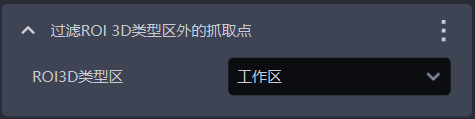
- Function description
Determine whether the Pick Point is within the ROI 3D range, and remove Pick Points that are outside the ROI 3D area.
- Usage scenario
Prevent picking outside the ROI area, which may cause collisions between the robot arm and the target object.
- Parameter description
| Parameter | Description | Default |
|---|---|---|
| ROI3D type region | Usually "workspace"; "pick area" is a smaller ROI region than "workspace", which can restrict Pick Points to an ROI region smaller than the "workspace" to avoid some collision cases. | Workspace |
- Example
As shown in the figure below, when the ROI3D area and ROI2D are area a, the corresponding Pick Point is in the upper-right corner.
When the ROI3D area and ROI2D are changed to area b, the original Pick Point is outside the ROI area, so that Pick Point is removed and a new Pick Point is generated within area b.
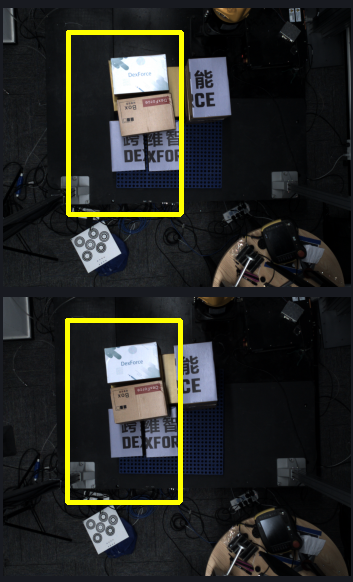
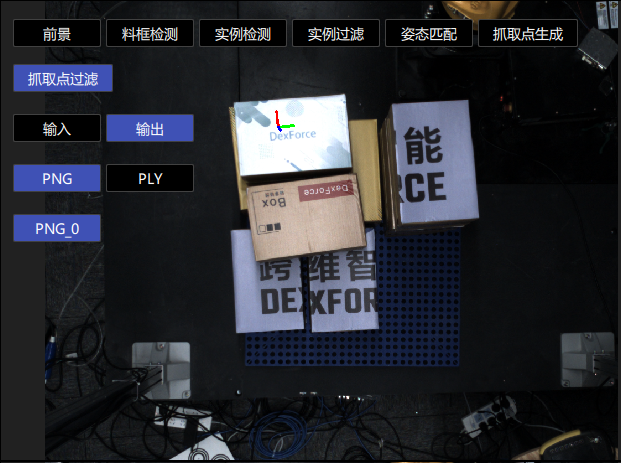
3.2.5 [New] Gripper Collision Detection
[New] Gripper Collision Detection
- Function description
Collision detection between the gripper and the Point Cloud near the Pick Point. If the number of Point Clouds in contact with the gripper exceeds the pick collision Threshold, the Pick Point of the Target Object is considered to have a collision risk.
- Usage scenario
Used when collision detection is required between the gripper and the Point Cloud near the Target Object being picked.
- Parameter description
| Parameter | Description | Default | Range |
|---|---|---|---|
| Collision Threshold | Collision distance Threshold. If the distance between the scene and the gripper surface is smaller than this Threshold, it is considered a collision. The larger the Threshold, the stricter it is. Unit: mm | 7 | 1-1000 |
| Collision Point Cloud sampling | Sampling size for collision Point Clouds. The larger the value, the faster the cycle time; the smaller the value, the slower the cycle time. Effective only in "Target Object scene Point Cloud only" and "bin + Target Object scene Point Cloud" modes. Unit: mm | 5 | 1 - 1000 |
| Save visualization data for gripper collision detection | Save visualization data for collision detection between the gripper and the picked Target Object | Unchecked | Selected/Unchecked |
Gripper Collision Detection
- Function description
Collision detection between the gripper and the Point Cloud near the Pick Point. If the number of Point Clouds in contact with the gripper exceeds the pick collision Threshold, the Pick Point of the Target Object is considered to have a collision risk.
- Usage scenario
Used when collision detection is required between the gripper and the Point Cloud near the Target Object being picked.
- Parameter description
| Parameter | Description | Default | Range |
|---|---|---|---|
| Pick collision Threshold | The maximum number of Point Clouds the gripper may contain near the Pick Point. For example, 20 means that if the number of scene Point Clouds contained by the gripper exceeds 20, it is considered a collision | 20 | 0-10000 |
| Collision Point Cloud sampling (m) | Downsampling size of the Point Cloud in the collision area. The larger the value, the faster the detection speed, but the lower the accuracy. Applicable scenario: scenarios requiring high cycle rates | 0.002 | 0.0001 - 0.5000 |
| Save visualization data for gripper collision detection | Save visualization data for collision detection between the gripper and the picked Target Object | Unchecked | Selected/Unchecked |
| Import gripper model | Select and import the gripper model used for collision detection from a folder | / | / |
**The gripper should be simplified to fewer than 500 faces**
3.2.6 [Master] Retain the one Pick Point with the largest/smallest pose value among instance Pick Points and filter the remaining Pick Points
- Function description
Convert the pose to the specified coordinate system, sort poses according to the value of the specified sorting axis, and retain the pose with the maximum or minimum value. This is suitable for cylindrical Target Objects when keeping the top or bottom Pick Point.
- Parameter description
| Parameter | Description | Default | Range |
|---|---|---|---|
| Specified coordinate system | Select which coordinate system the pose should be converted to for processing | ROI coordinate system | ROI coordinate system/camera coordinate system |
| Specified sorting axis | Select which axis value of the pose to sort by | Z-axis | X/Y/Z-axis |
| Take minimum value | If selected, retain the pose with the minimum value on the sorting axis; otherwise, retain the pose with the maximum value on the sorting axis | Unchecked | / |
3.2.7 [Master] Filter grasp points similar to the previous N grasp points
- Function description
If the variation between the current Pick Point and any Pick Point in the cache is within the Threshold range, the Pick Point will be filtered out.
- Parameter description
| Parameter | Description | Default | Range | Unit |
|---|---|---|---|---|
| Upper limit of Pick Point change (+) | ||||
| X(mm) | Upper limit of X coordinate | 2 | [0, 10000000] | mm |
| Y(mm) | Upper limit of Y coordinate | 2 | [0, 10000000] | mm |
| Z(mm) | Upper limit of Z coordinate | 2 | [0, 10000000] | mm |
| RX(°) | Upper limit of RX rotation amount | 1 | [0, 180] | degree° |
| RY(°) | Lower limit of RY rotation amount | 1 | [0, 180] | degree° |
| RZ(°) | Lower limit of RZ rotation amount | 1 | [0, 180] | degree° |
| Lower limit of Pick Point change (-) | ||||
| X(mm) | Lower limit of X coordinate | 2 | [0, 10000000] | mm |
| Y(mm) | Lower limit of Y coordinate | 2 | [0, 10000000] | mm |
| Z(mm) | Lower limit of Z coordinate | 2 | [0, 10000000] | mm |
| RX(°) | Lower limit of RX rotation amount | 1 | [0, 180] | degree° |
| RY(°) | Lower limit of RY rotation amount | 1 | [0, 180] | degree° |
| RZ(°) | Lower limit of RZ rotation amount | 1 | [0, 180] | degree° |
| Pick Point cache count | Number of Pick Points cached. After the current Pick Point comparison is completed, it will be added to the cache in real time | 5 | [1, 100] | / |
3.2.8 [Master] Filter artifact poses similar to the previous N artifact poses
- Function description
If the variation between the current Object Pose and any Object Pose in the cache is within the Threshold range, the Object Pose will be filtered out. When an Object Pose is determined to be similar, all Pick Points on that Target Object will be filtered out.
- Parameter description
| Parameter | Description | Default | Range | Unit |
|---|---|---|---|---|
| Upper limit of Object Pose change (+) | ||||
| X(mm) | Upper limit of X coordinate | 2 | [0, 10000000] | mm |
| Y(mm) | Upper limit of Y coordinate | 2 | [0, 10000000] | mm |
| Z(mm) | Upper limit of Z coordinate | 2 | [0, 10000000] | mm |
| RX(°) | Upper limit of RX rotation amount | 1 | [0, 180] | degree° |
| RY(°) | Lower limit of RY rotation amount | 1 | [0, 180] | degree° |
| RZ(°) | Lower limit of RZ rotation amount | 1 | [0, 180] | degree° |
| Lower limit of Object Pose change (-) | ||||
| X(mm) | Lower limit of X coordinate | 2 | [0, 10000000] | mm |
| Y(mm) | Lower limit of Y coordinate | 2 | [0, 10000000] | mm |
| Z(mm) | Lower limit of Z coordinate | 2 | [0, 10000000] | mm |
| RX(°) | Lower limit of RX rotation amount | 1 | [0, 180] | degree° |
| RY(°) | Lower limit of RY rotation amount | 1 | [0, 180] | degree° |
| RZ(°) | Lower limit of RZ rotation amount | 1 | [0, 180] | degree° |
| Object Pose cache count | Number of vision Object Poses cached. After the comparison of the current Object Pose is completed, it will be added to the cache in real time | 5 | [1, 100] | / |
3.2.9 [Master] Filter grasp points outside the upper and lower limits of the grasp coordinates
- Function description
Retain other Pick Points within the specified range of a reference Pick Point and filter out abnormal Pick Points.
- Usage scenario
Prevent incorrect robot picking and ensure picking accuracy.
This function is not applicable to depalletizing scenarios
- Parameter description
| Parameter | Description | Default | Unit |
|---|---|---|---|
| Reference Pick coordinates | |||
| X(mm) | X coordinate of the reference Pick Point | 0 | mm |
| Y(mm) | Y coordinate of the reference Pick Point | 0 | mm |
| Z(mm) | Z coordinate of the reference Pick Point | 0 | mm |
| RX(°) | RX rotation amount of the reference Pick Point | 0 | degree |
| RY(°) | RY rotation amount of the reference Pick Point | 0 | degree |
| RZ(°) | RZ rotation amount of the reference Pick Point | 0 | degree |
| Upper limit of Pick coordinates (+) | |||
| X(mm) | Upper limit of the X coordinate. For example, if the X coordinate of the reference Pick Point is 100 and the upper limit is set to 10, the allowed range is: [100-lower limit, 110] | 10000000, meaning no limit. | mm |
| Y(mm) | Upper limit of the Y coordinate. For example, if the Y coordinate of the reference Pick Point is 100 and the upper limit is set to 10, the allowed range is: [100-lower limit, 110] | 10000000 | mm |
| Z(mm) | Upper limit of the Z coordinate. For example, if the Z coordinate of the reference Pick Point is 100 and the upper limit is set to 10, the allowed range is: [100-lower limit, 110] | 10000000 | mm |
| RX(°) | Upper limit of the RX rotation amount. For example, if the RX rotation amount of the reference Pick Point is 180 and the upper limit is set to 10, the allowed range is (default angle wraparound applies): [[-180, -170], [180-lower limit, 180]] | 180, meaning no limit. | degree° |
| RY(°) | Upper limit of the RY rotation amount. For example, if the RY rotation amount of the reference Pick Point is 180 and the upper limit is set to 10, the allowed range is (default angle wraparound applies): [[-180, -170], [180-lower limit, 180]] | 180 | degree° |
| RZ(°) | Upper limit of the RZ rotation amount. For example, if the RZ rotation amount of the reference Pick Point is 180 and the upper limit is set to 10, the allowed range is (default angle wraparound applies): [[-180, -170], [180-lower limit, 180]] | 180 | degree° |
| Lower limit of Pick coordinates (-) | |||
| X(mm) | Lower limit of the X coordinate. For example, if the X coordinate of the reference Pick Point is 100 and the lower limit is set to 10, the allowed range is: [100-lower limit value, 110] | 10000000 | mm |
| Y(mm) | Lower limit of the Y coordinate. For example, if the Y coordinate of the reference Pick Point is 100 and the lower limit is set to 10, the allowed range is: [100-lower limit, 110] | 10000000 | mm |
| Z(mm) | Lower limit of the Z coordinate. For example, if the Z coordinate of the reference Pick Point is 100 and the lower limit is set to 10, the allowed range is: [100-lower limit, 110] | 10000000 | mm |
| RX(°) | Lower limit of the RX rotation amount. For example, if the RX rotation amount of the reference Pick Point is 180 and the lower limit is set to 10, the allowed range is (default angle wraparound applies): [[-180, -180+upper limit], [170, 180]] | 180, meaning no limit. | degree° |
| RY(°) | Lower limit of the RY rotation amount. For example, if the RY rotation amount of the reference Pick Point is 180 and the lower limit is set to 10, the allowed range is (default angle wraparound applies): [[-180, -180+upper limit], [170, 180]] | 180 | degree° |
| RZ(°) | Lower limit of the RZ rotation amount. For example, if the RZ rotation amount of the reference Pick Point is 180 and the lower limit is set to 10, the allowed range is (default angle wraparound applies): [[-180, -180+upper limit], [170, 180]] | 180 | degree° |
3.3 Pick Point Sorting
3.3.1 Base Coords
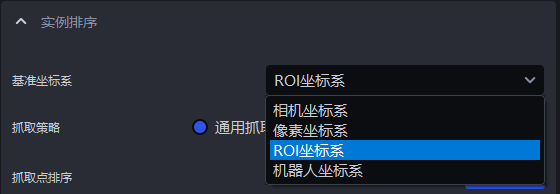
- Function description
Set a unified coordinate system for all instances to group and sort instances.
- Usage scenario
Common to depalletizing scenarios, random picking scenarios, and ordered loading/unloading scenarios
Strategies related to coordinates should first set the reference coordinate system
- Parameter description
| Parameter | Description | Illustration |
|---|---|---|
| Camera coordinate system | The coordinate system origin is above the object, and the positive Z-axis direction points downward; the XYZ values are the values of the center point of the object in this coordinate system | 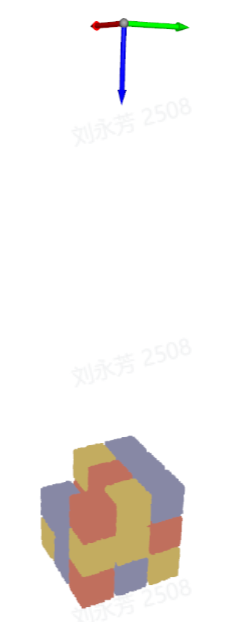 |
| ROI coordinate system | The coordinate system origin is approximately at the center of the pallet stack, and the positive Z-axis direction points upward; the XYZ values are the values of the center point of the object in this coordinate system | 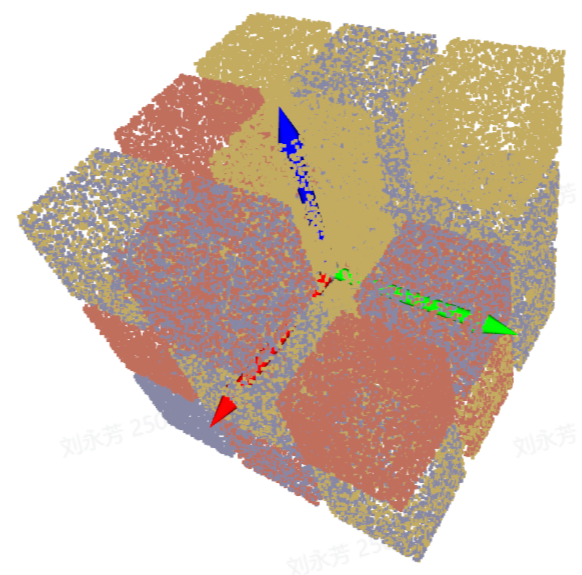 |
| Robot arm coordinate system | The coordinate system origin is on the robot arm itself, and the positive Z-axis direction generally points upward; the XYZ values are the values of the center point of the object in this coordinate system | 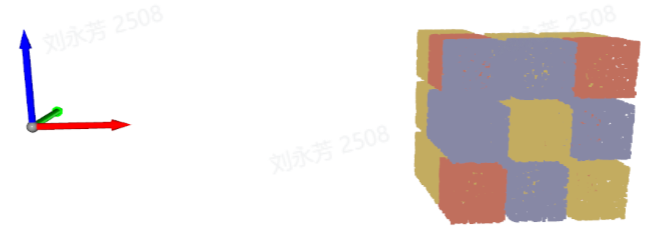 |
| Pixel coordinate system | The coordinate system origin is at the top-left vertex of the RGB image and is a 2D planar coordinate system; the X and Y values are the x value of the bbox detection box and the y value of the bbox detection box, and Z is 0 | 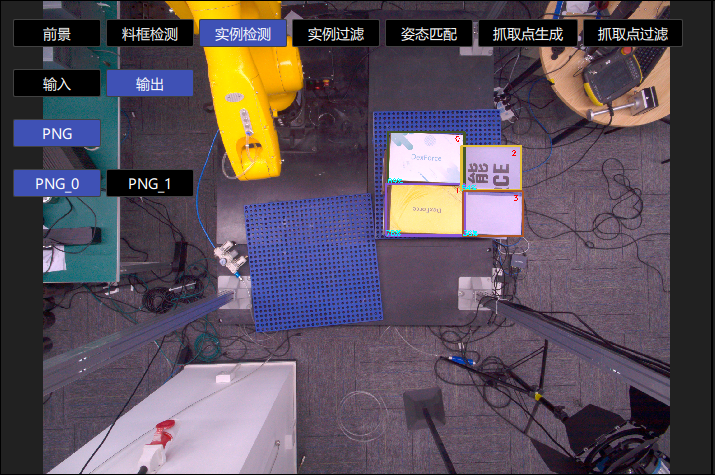 |
3.3.2 Picking strategy
- Parameter description
| Parameter | Description |
|---|---|
| Strategy | Select which value is used for grouping and sorting and how to sort it, including Pick Point center X/Y/Z coordinate values from large to small/from small to large (mm), from the middle to the sides / from the sides to the middle along the Pick Point XY coordinate axis (mm). Multiple items can be superimposed and executed in order. |
| Grouping step size | According to the selected strategy, divide Pick Points into several groups based on the step size. The grouping step size is the interval between two groups of Pick Points |
| Number of leading groups to keep | After grouping and sorting, how many groups of instances need to be retained |
| Strategy name* | Description | Grouping step size | Number of leading groups to keep | |
|---|---|---|---|---|
| Default | Range | Default | ||
| Pick Point center X/Y/Z coordinate values from large to small / from small to large (mm) | Use the X/Y/Z coordinate values of the Pick Point center for grouping and sorting | 200.000 | [0, 10000000] | 10000 |
| From the middle to the sides / from the sides to the middle along the Pick Point XY coordinate axis (mm) | Use the X/Y coordinate values of the Pick Point center and perform grouping and sorting in the direction of "middle to sides" or "sides to middle" | 200.000 | [0, 10000000] | 10000 |
3.3.3 Carton combination strategy
To solve the problems of low efficiency and limited applicable scenarios in traditional single-pick depalletizing, PickWiz adds a carton combination strategy in depalletizing scenarios to support picking multiple Target Objects in a single operation. It supports the core scenarios of "cartons with consistent dimensions" and "rectangular suction cups", covering more real project scenarios.
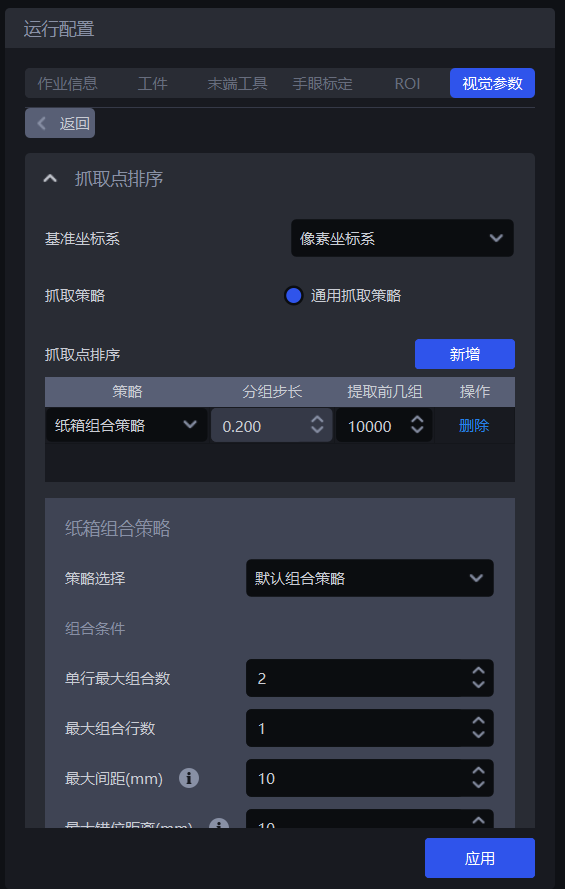
3.3.3.1 Multi-pick runtime configuration
(1)In sack single depalletizing or carton single depalletizing scenarios, enable Vision computation configuration - Vision computation acceleration.
(2)Under the Pick Point sorting module, select the carton combination strategy;
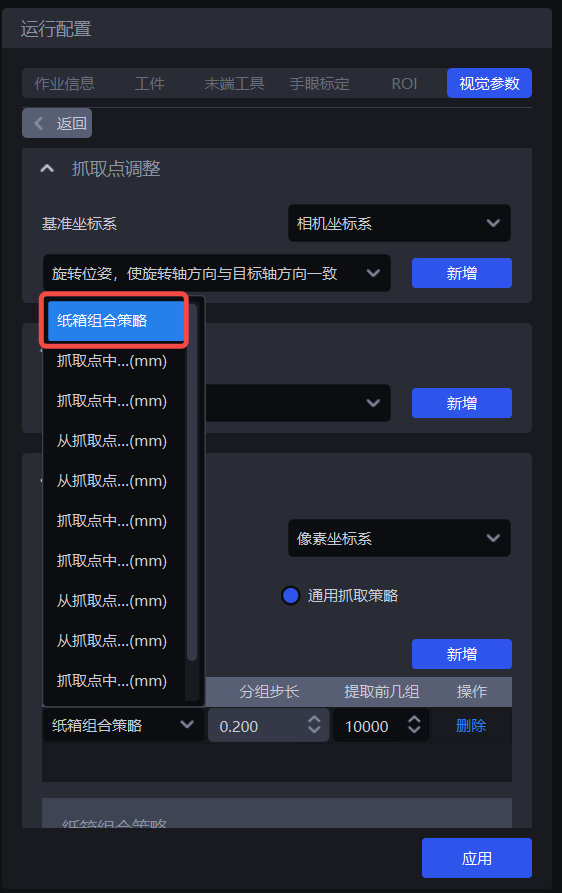
(3)Strategy selection: available options are the default combination strategy or combination along a specified carton pose axis. These are two methods for finding the largest number of cartons that can be combined.
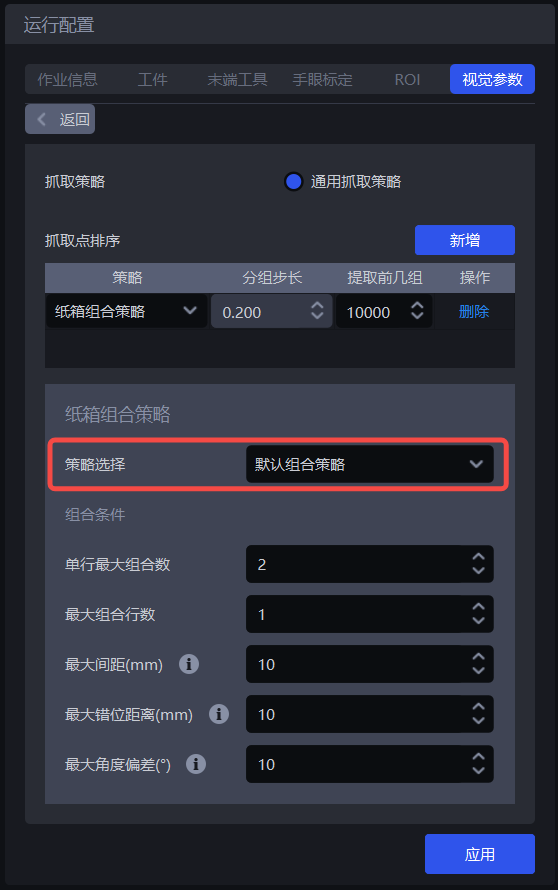
Default combination strategy: Find the largest number of cartons that can be combined along the X-axis and Y-axis directions of a carton Picking Pose.
Combine along a certain carton pose axis: Find the largest number of cartons that can be combined along the X-axis or Y-axis direction of a carton Picking Pose. This is suitable for scenarios where cartons are arranged in a straight line. When using this strategy, you need to choose the carton combination direction, namely the Picking Pose X-axis or the Picking Pose Y-axis.
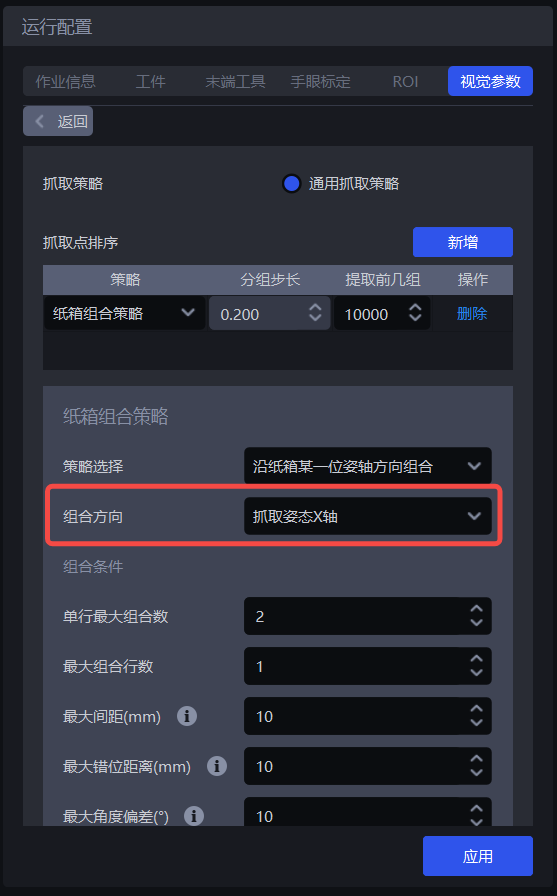
Note:
The combination direction is related to the positive and negative axis directions. Cartons can be combined only when they are on the same axis and in the same direction, and after combination, the orientation of the whole stack of cartons remains consistent with the orientation of a single carton before combination. Therefore, before combining cartons, make sure all cartons to be combined are placed in the same orientation, and unify the coordinates of the cartons to be combined to the same axis direction.
(4)Combination conditions: determine which cartons can be combined and how many can be combined at most.
Maximum cartons per row: the maximum number of cartons that can be combined in one row, default is 2.
Maximum number of combination rows: the maximum number of carton rows that can be combined, default is 1.
Maximum spacing (mm): cartons to be combined cannot be too far apart in the "combination direction", In the combination direction (axis direction), when the spacing between two adjacent cartons or cartons in different rows is less than this value, they can be combined into one group. The default is 10.
- Example: when searching for the maximum number of cartons along the Picking Pose X-axis, if the spacing between two adjacent cartons in the Picking Pose X-axis direction is 8 mm (≤10), they can be combined; if the spacing is 12 mm (>10), they cannot be combined.
Maximum misalignment distance (mm): cartons to be combined cannot be too far apart in the direction "perpendicular to the combination direction" . In the direction perpendicular to the combination direction (axis direction), when the misalignment distance between two adjacent cartons or cartons in different rows is less than this value, they can be combined into one group. The default is 10.
- Example: when searching for the maximum number of cartons along the Picking Pose X-axis, if two adjacent cartons are offset in the Picking Pose Y-axis direction by 8 mm (≤10), they can be combined; if they are offset by 15 mm (>10), they are no longer aligned and cannot be picked together.
Maximum angular deviation (°): cartons to be combined should face almost the same direction. In the combination direction (axis direction), when the rotational deviation angle of the cartons is less than this value, they can be combined into one group. The default is 10.
- Example: if a carton is rotated by 5° relative to the combination direction, as long as it does not exceed 10°, it can be combined; if it is rotated by 15° (>10), the orientation differs too much, the robot will be skewed when picking, and it cannot be combined.
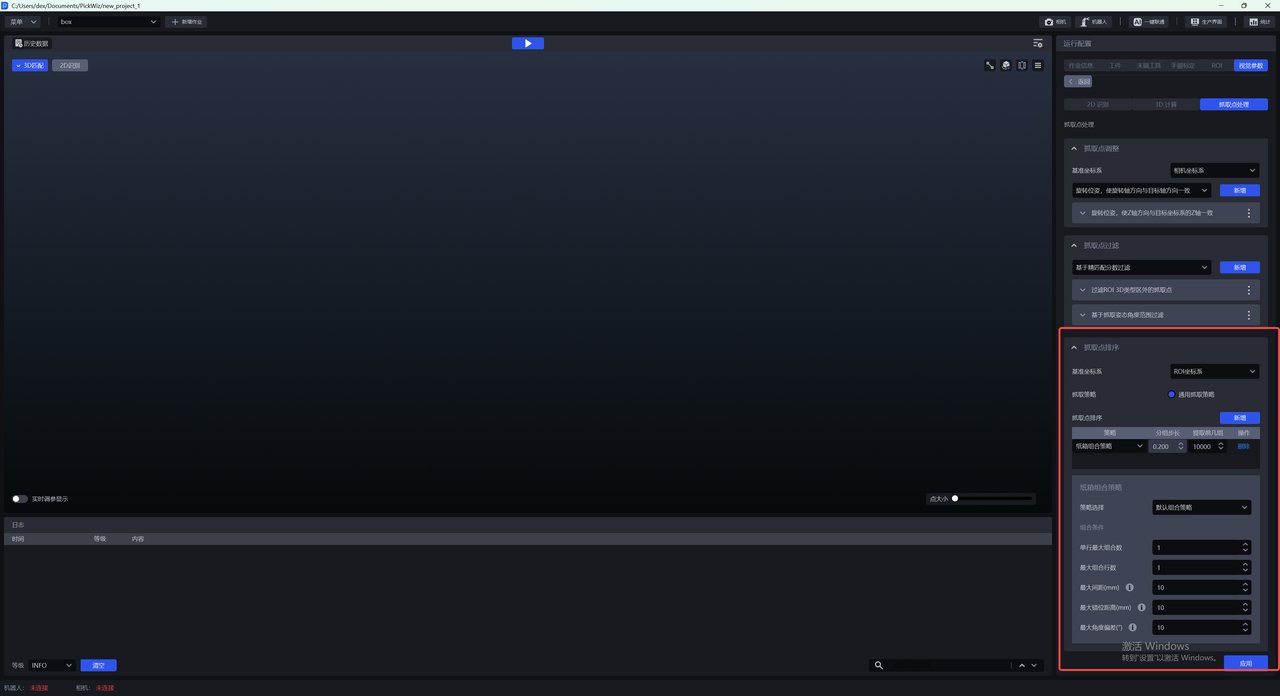
3.3.3.2 Robot configuration
(1)On the robot configuration page, add new placeholders in Vision computation communication message - Robot to PickWiz commands - Vision detection send command: maximum cartons per row and maximum number of combination rows, as shown below;
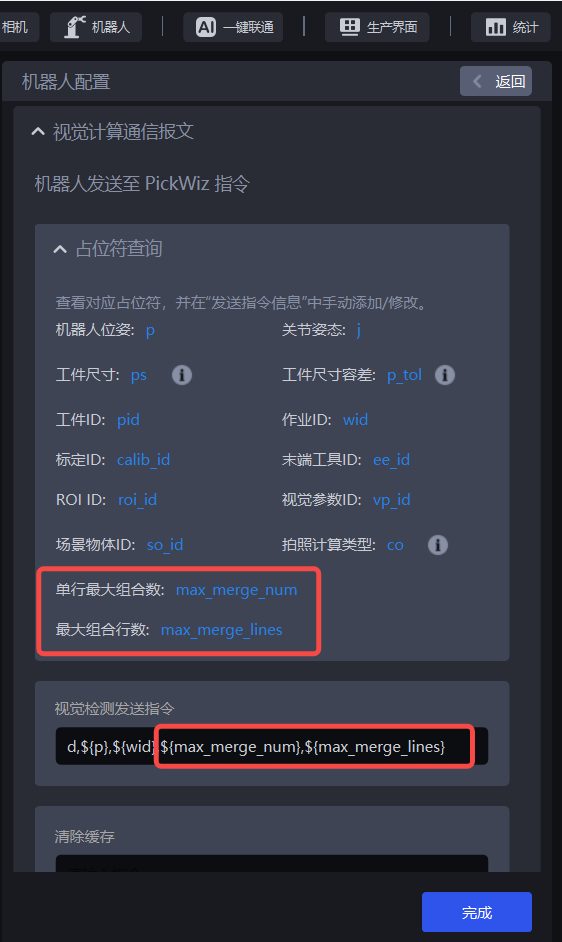
(2)In Vision computation communication message - PickWiz to robot commands - Pick-related information - Returned information when picking Target Objects, add Object Dimensions length, Object Dimensions width, and Target Object orientation.
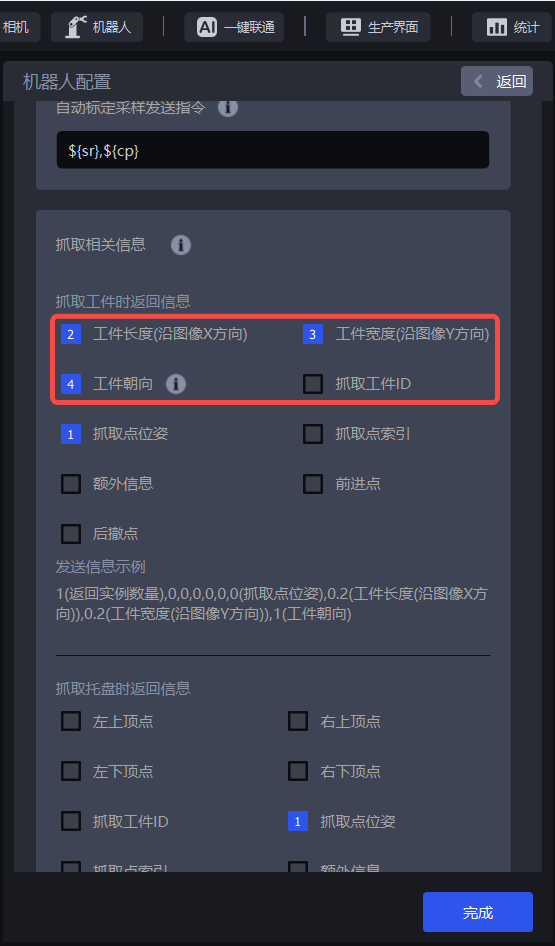
After the robot configuration is completed, click the Run button.
3.3.3.3 View multi-pick runtime results
(1)In the 3D Matching window, hover the mouse over an instance to view the combined picking information of a single instance after carton combination, including 2D recognition results, Picking Pose, and instance combination information.
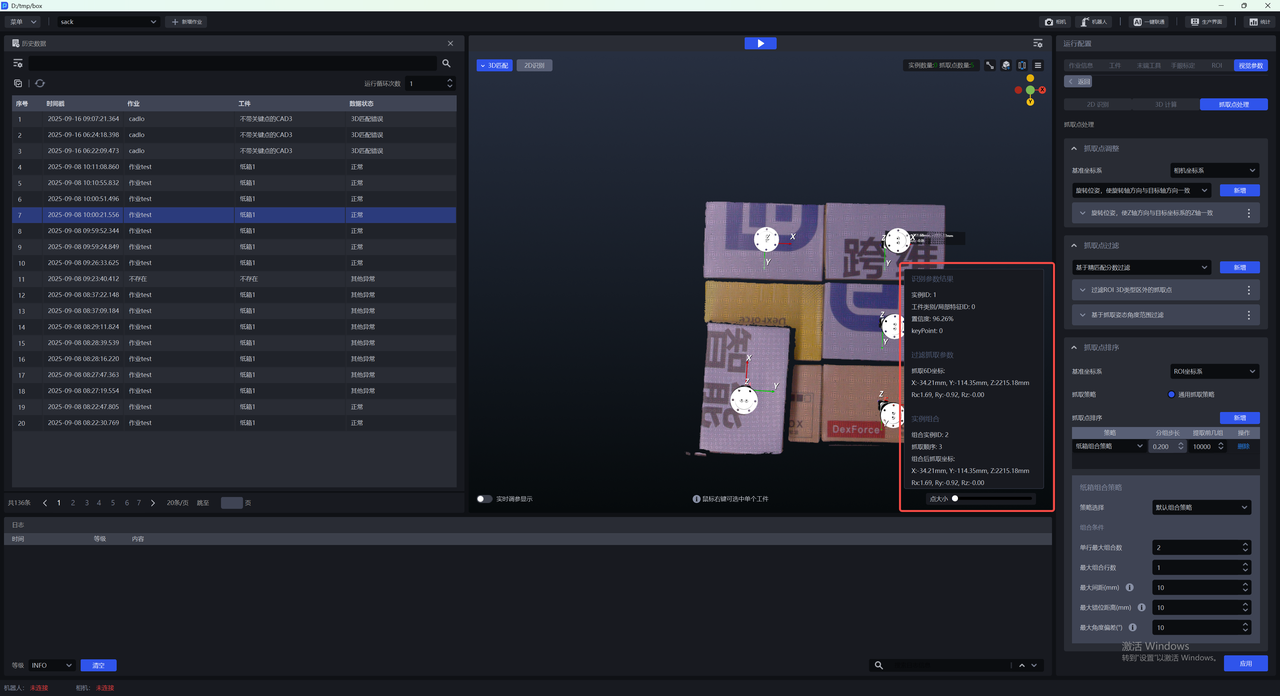
In the visualization window, click the Settings button in the upper right corner to set how the combined instance information is displayed.
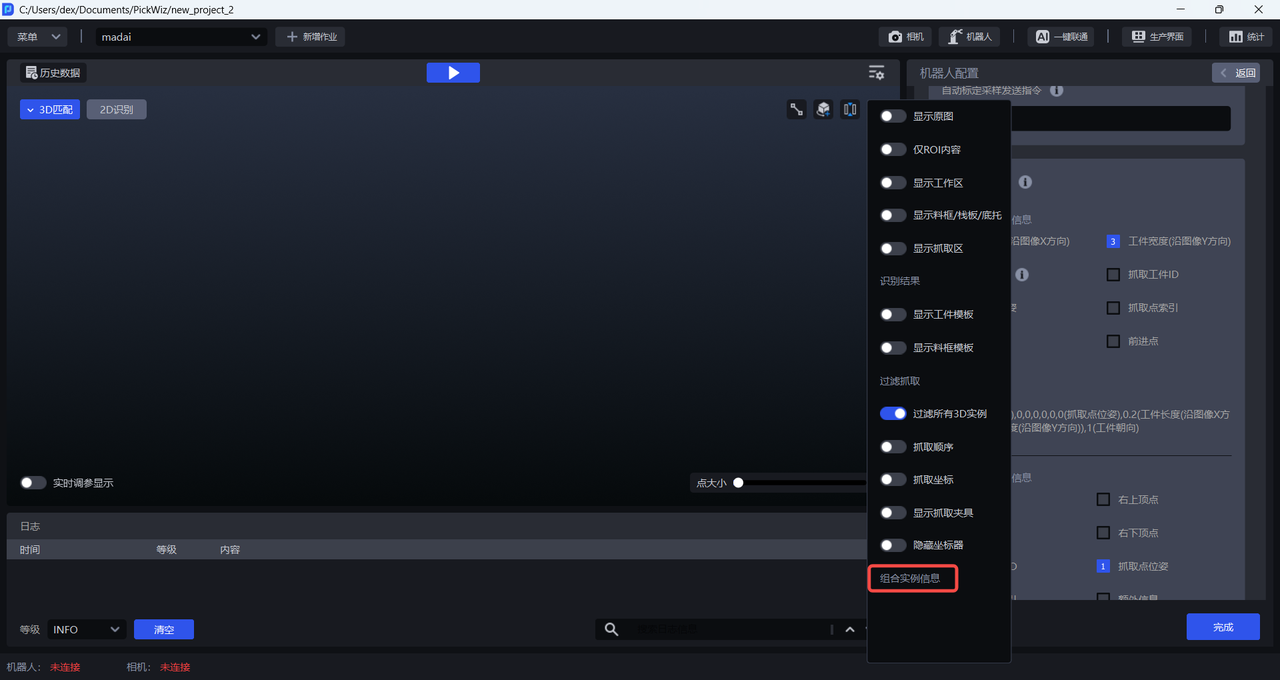
Right-click an instance to view the combined picking information and Target Object information of the single instance.
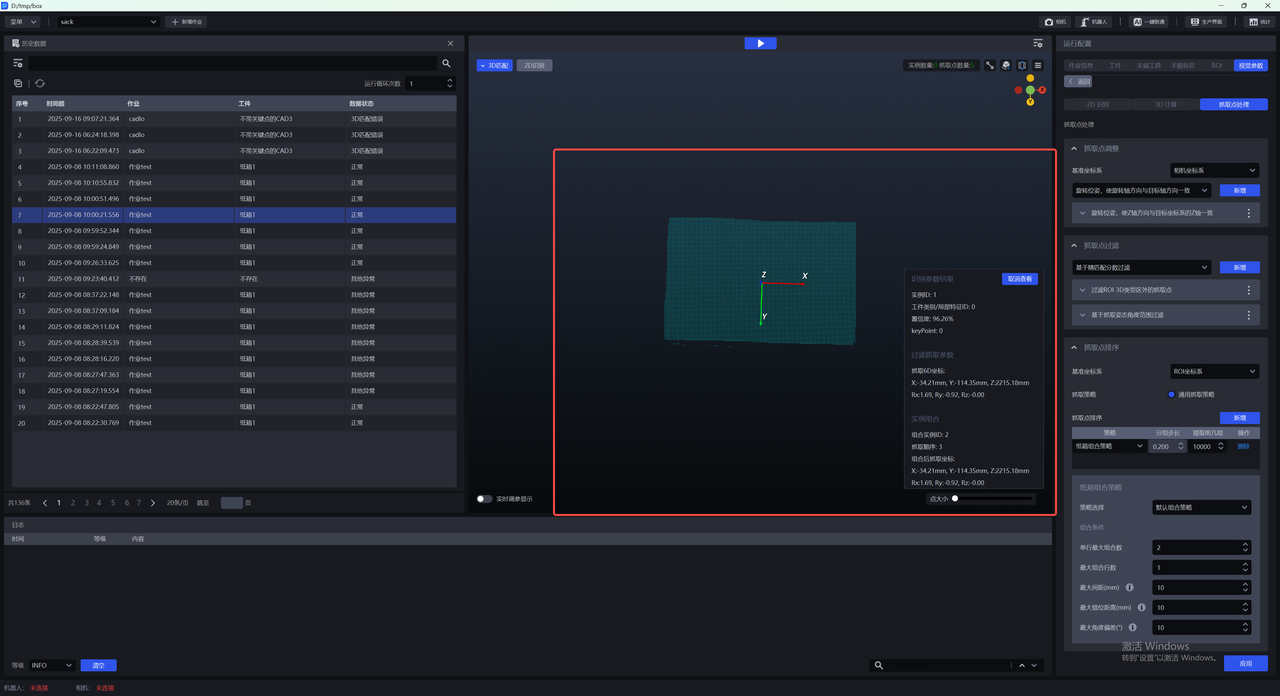
(2)In the 2D recognition window, you can use the relevant combination buttons in the menu bar to view the combined ID, combined Mask, and combined bounding box.